JavaScript Modules: import, export and Dynamic import()
Learn JavaScript ES modules: named and default exports, import and export syntax, project structure, live bindings and dynamic import() with real examples.
What you will learn
So far, most of your JavaScript lived in one file. That is fine for a small page. But a real project can have thousands of lines. If everything sits in one file, it becomes hard to read, hard to fix and easy to break. And if you split it into many <script> tags, the files share one global space, so a variable in one file can quietly overwrite a variable with the same name in another file.
Modules solve this. A module is simply a JavaScript file that keeps its own things private and shares only what it chooses to share. In this lesson you will learn how to export from a file and import into another, the difference between named and default exports, how to organise a project, how modules really behave (live bindings, running only once, strict mode), and how to load code later, on demand, with dynamic import().
The problem: one big shared space
Imagine two script files on one page:
// file: cart.js
var total = 500;
// file: wallet.js
var total = 20; // oops: this REPLACES the total from cart.jsBoth files write to the same global space (window), as you learned in the scope and hoisting lesson. Also, the order of the <script> tags matters, and you cannot tell which file needs which. In a big project this becomes a mess.
Before modules existed, developers hid their code inside a function, using a closure (from the closures lesson):
const cartModule = (function () {
  let total = 0;                 // private

  return {
    add(price) { total += price; },
    get total() { return total; }
  };
})();

cartModule.add(100);
console.log(cartModule.total);   // 100
This is called the module pattern. It works, but it is a trick. JavaScript now has a built-in solution: ES modules (ES = ECMAScript, the official name of the JavaScript standard).
The idea in one line
A module is a file with its own private space. It
exports what others may use, and other filesimportexactly what they need.
Think of a shop’s storeroom. Inside the storeroom there are many things, but customers cannot walk in. The shop only puts selected items on the shelf (exports). A customer picks what they need from the shelf (imports). Everything else stays private.
Turning a file into a module
In the browser, you tell JavaScript that a script is a module with type="module":
<script type="module" src="js/main.js"></script>That is the only change in your HTML. You load one file (the entry file, here main.js), and that file imports everything else it needs. The browser follows the imports and loads the other files by itself.
Important: modules need a web server. If you double-click
index.htmland open it asfile:///..., the browser blocks module files for safety. Use a local server, like the VS Code Live Server extension, or runnpx servein your project folder. (A deployed website is already on a server, so this is only a development matter.)
Named exports and imports
A named export gives a thing a name that others use to import it. Put the word export in front of what you want to share:
// file: math.js
export const PI = 3.14159;

export function add(a, b) {
  return a + b;
}

export function area(radius) {
  return PI * radius * radius;
}

const secret = "not shared";   // no export: stays private to this file
In another file, import by name, using curly braces:
// file: main.js
import { PI, add, area } from "./math.js";

console.log(PI);          // 3.14159
console.log(add(2, 3));   // 5
console.log(area(2));     // 12.56636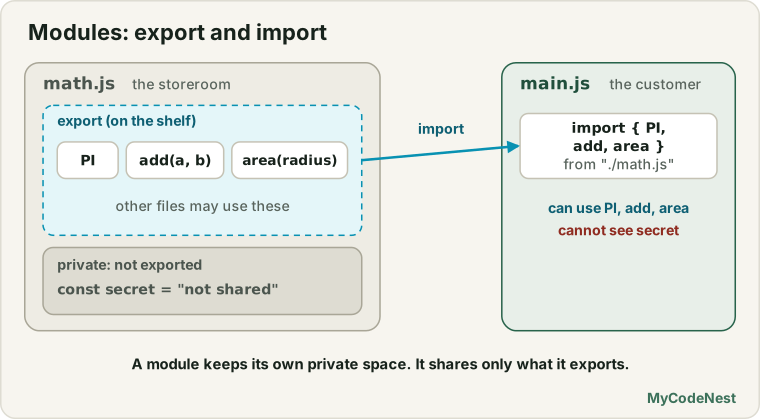
The rules:
- The names inside
{ }must match the exported names exactly. - The path must start with
./(same folder) or../(one folder up), and in the browser you must write the.jsending. secretwas not exported, somain.jscannot see it. Trying to import it gives aSyntaxError.
Export many things at once
You can also write the exports in one list at the bottom of the file. Some people find this tidier, because you see the whole public menu in one place:
// file: math.js
const PI = 3.14159;

function add(a, b) {
  return a + b;
}

function area(radius) {
  return PI * radius * radius;
}

export { PI, add, area };
Both styles give the same result.
Rename with as
You can rename when you import (to avoid a clash), or when you export:
// renaming while importing
import { add as sum, area as circleArea } from "./math.js";

console.log(sum(2, 3));        // 5
console.log(circleArea(2));    // 12.56636
// renaming while exporting
function calculateArea(radius) { /* ... */ }
export { calculateArea as area };This looks like the renaming in destructuring you learned in the destructuring lesson ({ name: userName }). But be careful: import uses the word as, not a colon.
Default exports and imports
A module can also have one main thing, called the default export. A module can have only one default.
// file: User.js
export default class User {
  constructor(name) {
    this.name = name;
  }

  greet() {
    return "Hi, I am " + this.name;
  }
}
When you import a default export, you write no curly braces, and you choose the name:
// file: main.js
import User from "./User.js";
import Person from "./User.js";      // same thing, different name: allowed

console.log(new User("Riya").greet());   // "Hi, I am Riya"
A file can have a default export and named exports:
// file: math.js
export const PI = 3.14159;

export default function multiply(a, b) {
  return a * b;
}
// the default comes first, the named ones go in braces
import multiply, { PI } from "./math.js";Named vs default: which one to use?
| Named export | Default export | |
|---|---|---|
| How many per file | As many as you like | Only one |
| Import syntax | import { add } from "./math.js" |
import add from "./math.js" |
| The name | Must match (or use as) |
You choose it in each file |
| Auto-complete and typo help | Better | Weaker (every file may use a different name) |
| Good for | Utilities, constants, many helpers | A file with one main thing: a class, a component |
A simple habit for beginners: use named exports by default, and use a default export when the file is really about one thing, such as one class.
Import everything: the namespace import
You can import all the named exports as one object, with * as:
import * as math from "./math.js";

console.log(math.PI);          // 3.14159
console.log(math.add(2, 3));   // 5
console.log(Object.keys(math)); // ["PI", "add", "area"]
math is called a namespace object. It keeps names tidy: you write math.add(...), so there is no chance of clashing with your own add. (A default export appears on it as math.default.)
What the module system really does
Modules are not just “files with a different syntax”. They behave differently from normal scripts, and knowing these rules removes most confusion.
1. Every module has its own scope
A module’s top-level variables are private to it. They do not become properties of window:
// file: counter.js
var visits = 10;
let hidden = 20;
// file: main.js
import "./counter.js";
console.log(window.visits); // undefined (in a normal script this would be 10)2. A module runs only once
No matter how many files import a module, JavaScript runs it one time and shares the result. This is like the singleton from the private fields lesson: everybody gets the same one.
// file: settings.js
console.log("settings.js is running");

export const settings = { theme: "light" };
// file: a.js
import { settings } from "./settings.js";
settings.theme = "dark";// file: main.js
import "./a.js";
import { settings } from "./settings.js";
console.log(settings.theme); // "dark": the same object that a.js changed
// "settings.js is running" was printed only ONCEThis is great for shared things like settings or a database connection.
3. Modules are always in strict mode
You do not need to write "use strict". Everything in a module already runs in the strict mode you learned about. And at the top level of a module, this is undefined, not window (the this keyword lesson mentioned this).
4. Imports are hoisted and read-only
importlines are hoisted: JavaScript reads them first, loads all the files, and only then runs your code. So you must write staticimportat the top level of the file, not insideifor a function.- You cannot reassign an imported name:
import { count } from "./counter.js";

count = 10;   // TypeError: Assignment to constant variable.
Only the module that owns the value can change it.
5. Live bindings: an import is a window, not a copy
When you import a value, you do not get a copy. You get a live view of the original. If the owner changes it, you see the new value:
// file: counter.js
export let count = 0;

export function increment() {
  count++;
}
// file: main.js
import { count, increment } from "./counter.js";
console.log(count); // 0
increment();
console.log(count); // 1 (the import sees the change)This is different from copying a number into a new variable (as you learned in the value vs reference lesson, copying a number makes it independent). An import stays connected.
6. Modules are deferred by default
A normal <script> stops the page while it downloads and runs. A type="module" script is deferred: it downloads while the page is being read, and runs after the HTML is ready. So you can put it in the <head> and your code can already use document.getElementById(...). It also runs in order with other module scripts.
7. Top-level await works
Inside a module, you can use await directly at the top level, without an async function (see the async/await lesson):
// file: config.js
const response = await fetch("https://jsonplaceholder.typicode.com/users/1");
export const user = await response.json();
Any file that imports config.js will wait until it has finished loading. Use it carefully: a slow top-level await delays everything that imports it.
Organising a project
A good structure keeps each file small and focused on one job:
my-app/
├── index.html
└── js/
    ├── main.js            ← entry file (the only one in the HTML)
    ├── config.js          ← constants
    ├── api/
    │   └── client.js      ← talks to the server (fetch)
    ├── models/
    │   └── Cart.js        ← a class
    └── utils/
        ├── format.js      ← small helper functions
└── validate.js<script type="module" src="js/main.js"></script>// file: js/main.js
import { money } from "./utils/format.js";
import Cart from "./models/Cart.js";
import { getProducts } from "./api/client.js";
const cart = new Cart();
const products = await getProducts();
cart.add(products[0]);
console.log(money(cart.total));Notice how the paths work: ./ means “start from this file’s folder”, and ../ means “go up one folder”. Inside js/utils/format.js, to reach config.js you would write ../config.js.
Re-exporting and “barrel” files
Sometimes a folder has many modules, and you want to import them from one place. Create an index.js that re-exports them:
// file: js/utils/index.js
export { money, title } from "./format.js";
export { isEmail, isPhone } from "./validate.js";
export * from "./math.js";                       // everything named
export { default as multiply } from "./math.js"; // a default, given a name
Now other files can use a short import:
import { money, isEmail, multiply } from "./utils/index.js";This kind of file is called a barrel. It keeps imports short, but do not overuse it. In a big project, loading the barrel loads every file inside it.
Side-effect imports
You can import a file only to run it, without taking anything from it:
import "./setup-theme.js"; // just run this file onceThis is used for files that set things up, like adding event listeners or preparing a page.
Dynamic import(): load code only when needed
A normal import loads everything before your code starts, even if the user never needs it. import() (written with brackets, like a function) loads a module later, on demand, and gives you a Promise (from the Promises lesson).
const module = await import("./math.js");

console.log(module.add(2, 3));    // 5
console.log(module.default); // the default export, if there is one- It returns a Promise, so use
awaitor.then(...). - The Promise resolves to the namespace object: named exports are properties, and the default export is
module.default. - It works anywhere (inside
if, inside functions, inside event listeners), unlike staticimport. - The path can even be built at run time.
Load a heavy feature only when the user clicks
const chartButton = document.getElementById("showChart");

chartButton.addEventListener("click", async () => {
  chartButton.disabled = true;
  chartButton.textContent = "Loading...";

  try {
    const { drawChart } = await import("./chart.js");   // downloaded only now
    drawChart(document.getElementById("chartBox"));
  } catch (error) {
    console.error("Could not load the chart:", error);
  } finally {
    chartButton.disabled = false;
    chartButton.textContent = "Show chart";
  }
});
The visitor who never clicks the button never downloads chart.js. This makes the first page load faster. This idea is called lazy loading or code splitting.
Pick a module by condition
async function loadLanguage(code) {
  const module = await import("./lang/" + code + ".js");
  return module.default;
}

const text = await loadLanguage("hi");
Use import.meta.url to know where a module is
Inside a module, import.meta.url gives the full address of the current file. It is useful to find files that sit next to it:
console.log(import.meta.url);   // "http://localhost:3000/js/main.js"

const dataUrl = new URL("./data.json", import.meta.url);   // relative to this module
(You met the URL class in the URL lesson.)
Modules in Node.js and bundlers
Everything you learned also applies outside the browser:
- Node.js can run ES modules if the file ends in
.mjs, or ifpackage.jsonhas"type": "module". Older Node code uses a different system withrequire(...)andmodule.exports(called CommonJS). You will see both in the wild. The Node.js course covers them in detail. - Bundlers and build tools (like Vite, webpack, or the Astro tool this site is built with) read your modules, combine them, and ship fewer, smaller files. When you use them, you can often skip the
.jsextension and import from packages too, likeimport confetti from "canvas-confetti". In plain browser code without a build tool, you must write the full path.
Real-life use cases
1. Utility functions in one file
// file: utils/format.js
export function money(amount) {
  return "Rs. " + amount.toLocaleString("en-IN");
}

export function title(text) {
  return text.charAt(0).toUpperCase() + text.slice(1);
}
// file: main.js
import { money, title } from "./utils/format.js";
console.log(money(1234567)); // "Rs. 12,34,567"
console.log(title("hello")); // "Hello"2. A class in its own file
// file: models/Cart.js
export default class Cart {
  #items = [];

  add(name, price) {
    this.#items.push({ name, price });
    return this;
  }

  get total() {
    return this.#items.reduce((sum, item) => sum + item.price, 0);
  }
}
// file: main.js
import Cart from "./models/Cart.js";
const cart = new Cart().add("Pen", 10).add("Bag", 450);
console.log(cart.total); // 460A module is a perfect place for a class: you export the public class, and the class itself uses private # fields inside.
3. A shared config that everyone uses
// file: config.js
export const API_URL = "https://jsonplaceholder.typicode.com";
export const MAX_RETRIES = 3;

export const ROLES = Object.freeze(["student", "teacher", "admin"]);
// file: api/client.js
import { API_URL } from "../config.js";
export async function getJson(path) {
const response = await fetch(API_URL + path);
if (!response.ok) {
throw new Error("Request failed with status " + response.status);
}
return response.json();
}
export const getUsers = () => getJson("/users");Change API_URL in one place, and every file updates.
4. A custom error family you can reuse everywhere
// file: errors.js
export class AppError extends Error {
  constructor(message) {
    super(message);
    this.name = this.constructor.name;
  }
}

export class NotFoundError extends AppError {}
export class ValidationError extends AppError {}
// file: userService.js
import { NotFoundError } from "./errors.js";
export function findUser(users, id) {
const user = users.find((u) => u.id === id);
if (!user) {
throw new NotFoundError("User " + id + " was not found");
}
return user;
}5. A singleton store shared by all files
Because a module runs only once, an exported object is the same object everywhere:
// file: store.js
const listeners = [];

export const store = {
  state: { count: 0 },

  subscribe(callback) {
    listeners.push(callback);
  },

  set(key, value) {
    this.state[key] = value;
    listeners.forEach((callback) => callback(this.state));
  }
};
// file: header.js
import { store } from "./store.js";
store.subscribe((state) => console.log("Header sees:", state));// file: main.js
import "./header.js";
import { store } from "./store.js";
store.set("count", 5); // "Header sees: { count: 5 }"6. Lazy-load a feature on demand
// file: main.js
document.getElementById("exportBtn").addEventListener("click", async () => {
  const { exportToCsv } = await import("./features/exportCsv.js");   // loads only when clicked
  exportToCsv(rows);
});
Circular imports (be careful)
If a.js imports b.js and b.js imports a.js, you have a circular import. JavaScript can handle it, but one file may run before the other is ready, and you can get ReferenceError (a value used before it exists). The fix is to move the shared code into a third file that both import.
Wrong:  a.js ⇄ b.js
Better: a.js → shared.js ← b.js
Common mistakes
- Forgetting
type="module"on the script tag. You getSyntaxError: Cannot use import statement outside a module. - Opening the page with
file://. Modules are blocked by the browser. Use a local server. - Forgetting
./in the path.import { add } from "math.js"is treated as a package name, and fails in the browser. Write"./math.js". - Forgetting the
.jsending in plain browser code. - Using curly braces for a default import (
import { User } from "./User.js"), or no braces for a named import. Match the way it was exported. - Misspelling a named import. The name must match exactly (it is case-sensitive).
- Using two
export defaultin one file. Only one is allowed. - Putting a static
importinside anifor a function. Useimport()for that. - Trying to change an imported value (
count = 10). Ask the owner module to change it, using a function. - Expecting the
onclick="..."attribute in HTML to find your module functions. Module variables are private, not global. UseaddEventListenerin the module. - Creating circular imports. Move shared code to a third module.
- Forgetting that
import()returns a Promise, and using the result withoutawait. - Using the default export for everything, and then having different names for the same thing in different files.
- A slow top-level
awaitthat holds up every file that imports it.
Practice
- Create a folder with
index.htmlandjs/main.js. Load it with<script type="module" src="js/main.js">and run it with a local server. Print a message frommain.js. - Create
js/math.jswith named exportsadd,subtractand a constantPI. Import them inmain.jsand print the results. - Add a private helper in
math.js(noexport). Try to import it, and read the error. Then remove that import. - Rename an import with
as. Then rename an export withas. - Create
js/User.jswith a default export of a class. Import it with two different names, and show that both work. - Add a named export and a default export in one file, and import both in one line.
- Use
import * as math from "./math.js"and printObject.keys(math). - Create
counter.jswithexport let count = 0andexport function increment(). Import both. Callincrement()and printcountagain. What do you see? Trycount = 5and read the error. - Make two files both import a
settings.jsthat prints a message. How many times does the message appear? Change a property in one file and read it in the other. - Add
<script>code withvar visits = 1;in a normal script and in a module. Checkwindow.visitsin both. - Create
utils/index.jsthat re-exportsformat.jsandvalidate.js. Import from it inmain.js. - Add a button. Use
await import("./heavy.js")inside its click listener. Open the Network panel in DevTools and check thatheavy.jsloads only after you click. - Use
import.meta.urlto print the address of your module. - Create a top-level
await fetch(...)in a module and print the result in the file that imports it. - In the Practice Editor, run the lab. Explain, in your own words, how the old module pattern and the real ES module each hide the things that are not exported.
- Challenge: split a small to-do app into four modules:
store.js(the data),render.js(DOM updates),storage.js(localStorage), andmain.js(event listeners). - Challenge: build a circular import between two files and read the error. Then fix it by moving the shared part to a third file.
- Challenge: write
loadFeature(name)that uses a dynamicimport()with atry/catch, and shows a friendly message if the file does not exist.
Recap
- A module is a JavaScript file with its own private scope. It
exports what is shared, and other filesimportonly what they need. This keeps big projects tidy. - In the browser, load the entry file with
<script type="module" src="...">, and use a local server (notfile://). - Named exports (
export const x,export { a, b }) are imported with braces and matching names:import { x } from "./file.js". Rename withas. - A default export (
export default ...) is one per file, imported without braces, with a name of your choice.import * as namegives a namespace object with all the named exports. - Paths must start with
./or../, and need the.jsending in plain browser code. - Modules run only once, are always strict, have
thisasundefined, are deferred, and do not create globals onwindow. - Imports are read-only live bindings: they are a connected view of the original, and cannot be reassigned.
- Re-exports (
export { x } from "./y.js") and barrel files (index.js) offer a short import path. - Top-level
awaitworks in modules, but a slow one holds up every file that imports it. import()loads a module on demand and returns a Promise of the namespace object. It works anywhere and is the base of lazy loading.- Avoid circular imports by moving shared code into a third file.
- Next you will learn property descriptors and
Reflect: how every property of an object has hidden settings (writable, enumerable, configurable), and how to read and change them.
If you want to revisit the basics, read the scope and hoisting lesson, the closures lesson, the Promises lesson and the private fields and static lesson.
Frequently asked questions
What is a JavaScript module?
A module is a JavaScript file that has its own private scope. It shares things with other files using export, and other files use those things with import. Anything not exported stays hidden inside the file.
What is the difference between a named export and a default export?
A file can have many named exports, and you import them with curly braces and their exact names. A file can have only one default export, and you import it without braces and give it any name you like. Use named exports for several helpers, and a default export for one main thing, like a class.
Why do I get "Cannot use import statement outside a module"?
The browser (or Node.js) is treating your file as a normal script. In HTML, add type=“module” to the script tag. In Node.js, use the .mjs extension or set “type”: “module” in package.json.
Why do modules not work when I open the HTML file directly?
Browsers block module loading from file:// addresses for security reasons. Open the page through a local server, such as the Live Server extension in VS Code, or run npx serve in your project folder.
What is dynamic import()?
It is a function-like form of import that loads a module while your code is running, and returns a Promise. You can use it inside conditions, functions and event listeners. It is used to load code only when it is needed, which makes the first page load faster.
Are imported values copies?
No. An import is a live, read-only view of the exported value. If the module that owns the value changes it, your import sees the new value. You cannot assign to an imported name yourself.
See also: Scope and Hoisting, Closures Explained, Classes, JavaScript Cheat Sheet