JavaScript Debounce and Throttle: Optimize Search, Scroll and Resize
Learn debounce and throttle in JavaScript with simple analogies, reusable functions, leading and trailing calls, and real search, scroll and API examples.
What you will learn
Some browser events fire again and again, very fast: every key you type, every pixel you scroll, every move of the mouse, every change in the size of the window. If your code does something heavy each time (calls a server, redraws a chart, measures the page), the page becomes slow, the server gets hundreds of useless requests, and the user’s battery runs down.
Two small, famous tools fix this: debounce and throttle. In the timers lesson you already saw the idea of waiting until the user stops typing, and in the Fetch lesson you used it for a search box. In this lesson you will build reusable debounce and throttle functions (using closures and apply), learn leading and trailing calls, cancel, and clean-up, and apply them to search, scroll, resize and API requests. You will also learn how to avoid sending the same request twice.
The problem: too many events
const input = document.getElementById("search");

input.addEventListener("input", () => {
  console.log("Searching for", input.value);   // imagine this calls a server
});
Type the word javascript quickly, and this handler runs 10 times (once per letter). Nine of the ten searches are thrown away as soon as the next letter arrives. A scroll handler can run 60 times per second.
The cure is not to react to every event. We control how often our code really runs.
The idea in one line
Debounce: wait until the events stop, then run once. Throttle: while events keep coming, run at most once per time slice.
The analogies
- Debounce is an elevator door. When someone steps in, the door waits a few seconds before closing. If another person steps in, the waiting starts again. The door closes only after nobody has come for a while.
- Throttle is a bus timetable. A bus leaves every 10 minutes, no matter how many people arrive at the stop. Many people, many events, but only one bus per slot.
Here is the same stream of events (each x is a key press or scroll event) treated both ways:
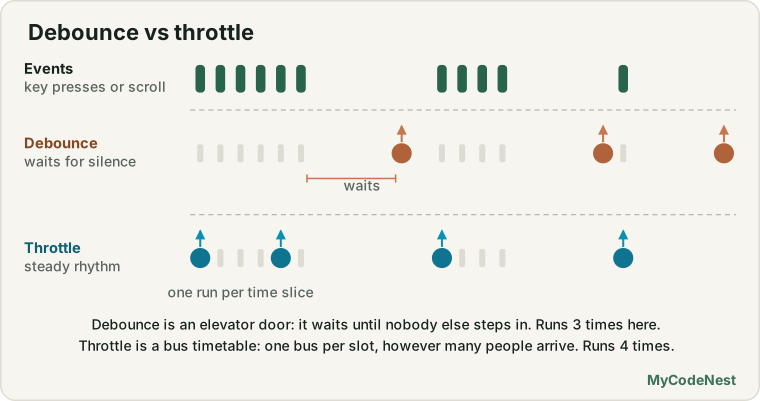
Debounce: wait for silence
You saw a first version in the timers lesson. It kept a timerId variable outside the handler. Let us turn it into a reusable function that works for any function:
function debounce(fn, wait) {
  let timerId;                          // remembered between calls: this is a closure

  return function (...args) {
    clearTimeout(timerId);              // cancel the previous waiting
    timerId = setTimeout(() => {
      fn.apply(this, args);             // run with the right this and arguments
    }, wait);
  };
}
How it works:
debouncereceives your function and a waiting time, and returns a new function.- The new function remembers
timerId(this is a closure from the closures lesson). - Every call cancels the old timer and starts a new one.
- Only when
waitmilliseconds pass without a new call does your function finally run.
Use it:
const search = document.getElementById("search");

function runSearch(text) {
  console.log("Searching for:", text);
}

const debouncedSearch = debounce(runSearch, 400);

search.addEventListener("input", () => {
  debouncedSearch(search.value);
});
Type java quickly and you get one log, "Searching for: java", 400 ms after the last key.
Why fn.apply(this, args)?
Remember the call, apply and bind lesson. The debounced function must pass on the same this and the same arguments that it received. Because we used a normal function for the returned function and an arrow function inside setTimeout (which keeps that this), the original function runs as if it had been called directly:
const counter = {
  name: "likes",
  show: debounce(function (value) {
    console.log(this.name + ": " + value);   // this is counter
  }, 100)
};

counter.show(1);
counter.show(2);
counter.show(3);       // after 100 ms: "likes: 3"
Build it better: cancel, flush, leading and trailing
A real-world version has a few extras:
| Extra | What it does |
|---|---|
trailing (default true) |
Run at the end, after the quiet time |
leading (default false) |
Run at the start, at the first event |
cancel() |
Throw away the waiting call |
flush() |
Run the waiting call right now |
function debounce(fn, wait, { leading = false, trailing = true } = {}) {
  let timerId = null;
  let pendingArgs = null;
  let pendingThis = null;

  function run() {
    const args = pendingArgs;
    const context = pendingThis;
    pendingArgs = pendingThis = null;
    if (args) fn.apply(context, args);
  }

  function debounced(...args) {
    const isFirstCall = timerId === null;
    pendingArgs = args;
    pendingThis = this;
    clearTimeout(timerId);

    if (leading && isFirstCall) run();             // run at the start of a burst

    timerId = setTimeout(() => {
      timerId = null;
      if (trailing) run();                         // run at the end of a burst
      else pendingArgs = pendingThis = null;
    }, wait);
  }

  debounced.cancel = () => {
    clearTimeout(timerId);
    timerId = null;
    pendingArgs = pendingThis = null;
  };

  debounced.flush = () => {
    if (timerId !== null) {
      clearTimeout(timerId);
      timerId = null;
      if (trailing) run();
      else pendingArgs = pendingThis = null;
    }
  };

  return debounced;
}
A function is also an object, so we can hang cancel and flush on it as properties.
Trailing, leading, or both?
Imagine three calls a, b, c in quick succession, then silence:
| Options | Runs with |
|---|---|
{ trailing: true } (default) |
c (once, after the quiet time) |
{ leading: true, trailing: false } |
a (at once; the rest are ignored) |
{ leading: true, trailing: true } |
a at once, and c at the end |
Use trailing for search boxes and autosave. Use leading with no trailing to block double clicks: the first click acts at once, and the extra clicks that follow are ignored.
const save = debounce(() => console.log("Saved!"), 1000, { leading: true, trailing: false });

button.addEventListener("click", save);
// Click 5 times quickly: "Saved!" appears once, immediately.
The most common bug: creating the debounced function inside the handler
// WRONG: a brand new debounced function (and a new timer) on every event
input.addEventListener("input", () => {
  const debounced = debounce(runSearch, 400);
  debounced(input.value);
});
Each event makes a new debounce, with its own timerId. Nothing is ever cancelled, so every event runs after 400 ms. Create the debounced function once, outside the listener:
// RIGHT
const debouncedSearch = debounce(runSearch, 400);

input.addEventListener("input", () => debouncedSearch(input.value));
Throttle: a steady rhythm
Throttle guarantees that your function runs at most once every wait milliseconds, even while events keep coming. Unlike debounce, it does not wait for silence, so the user keeps getting updates.
Version 1: the simplest throttle
Remember the last time the function ran. Ignore any call that comes too soon:
function throttle(fn, wait) {
  let lastTime = 0;

  return function (...args) {
    const now = Date.now();

    if (now - lastTime >= wait) {
      lastTime = now;
      return fn.apply(this, args);
    }
    // otherwise: too soon, ignore this call
  };
}

window.addEventListener("scroll", throttle(() => {
  console.log("scrolled to", window.scrollY);
}, 200));
This runs at most 5 times a second while scrolling. But it has a weakness: if the user stops scrolling inside a waiting window, the very last position is never reported.
Version 2: with a final (trailing) call
We add a timer that runs the function one last time at the end of the window, with the latest arguments:
function throttle(fn, wait) {
  let lastTime = 0;
  let timerId = null;
  let lastArgs;
  let lastThis;

  function run() {
    lastTime = Date.now();
    timerId = null;

    const args = lastArgs;
    const context = lastThis;
    lastArgs = lastThis = undefined;

    fn.apply(context, args);
  }

  function throttled(...args) {
    lastArgs = args;                 // always remember the newest call
    lastThis = this;

    const remaining = wait - (Date.now() - lastTime);

    if (remaining <= 0) {
      clearTimeout(timerId);
      run();                         // enough time passed: run now
    } else if (timerId === null) {
      timerId = setTimeout(run, remaining);   // run once more when the window ends
    }
  }

  throttled.cancel = () => {
    clearTimeout(timerId);
    timerId = null;
    lastArgs = lastThis = undefined;
  };

  return throttled;
}
Step by step:
- The first call runs immediately (the “leading” call), because
lastTimeis0. - Calls that arrive within the window do not run, but the newest arguments are saved, and one timer is set for the end of the window.
- When the timer fires, the function runs with the latest values. A new window starts.
- If nothing more arrives, the throttling stops by itself.
Result: the first event is handled at once, the following ones at a steady pace, and the last one is never lost.
Try it in your head: events every 10 ms for 220 ms, with throttle(fn, 50). Instead of 22 runs, you get about 5 or 6.
Debounce vs throttle
| Debounce | Throttle | |
|---|---|---|
| Idea | Wait until events stop | Run at a steady pace during events |
| Runs while the user is still active? | No (only after the quiet time) | Yes (every wait ms) |
| Number of runs for a long burst | One | Many (one per time slice) |
| Analogy | Elevator door | Bus timetable |
| Good for | Search box, autosave, “resize ended”, form validation | Scroll tracking, mouse move, drag, live resize, progress bar |
A simple question decides it:
Do I need the result only after the user has finished? Use debounce. Do I need regular updates while the user is still acting? Use throttle.
How long should wait be?
| Use | Typical wait |
|---|---|
| Search suggestions | 300 to 500 ms (debounce) |
| Autosave a draft | 1000 to 2000 ms (debounce) |
| Resize ended | 150 to 300 ms (debounce) |
| Live form validation | 300 to 600 ms (debounce) |
| Scroll tracking | 100 to 200 ms (throttle) |
| Mouse move or drag updates | 50 to 100 ms (throttle) |
| Double-click protection | 500 to 1000 ms (leading debounce) |
Shorter waits feel more responsive but save less work. Test with real users and real devices.
Optimizing a search box
A good search box does five things. Debounce is only the first one:
- Debounce the typing, so you do not search for every letter.
- Skip very short or empty text.
- Cache answers you already have.
- Cancel the old request when a new search starts (with
AbortController, from the AbortController lesson). - Ignore errors caused by cancelling.
const input = document.getElementById("search");
const results = document.getElementById("results");

const cache = new Map();
let controller = null;

async function search(query) {
  query = query.trim();

  if (query.length < 2) {                      // 2. skip short text
    results.textContent = "";
    return;
  }

  if (cache.has(query)) {                      // 3. use the cache
    render(cache.get(query));
    return;
  }

  controller?.abort();                         // 4. cancel the previous request
  controller = new AbortController();

  results.textContent = "Searching...";

  try {
    const response = await fetch("/api/search?q=" + encodeURIComponent(query), {
      signal: controller.signal
    });

    if (!response.ok) {
      throw new Error("Request failed with status " + response.status);
    }

    const data = await response.json();
    cache.set(query, data);
    render(data);
  } catch (error) {
    if (error.name === "AbortError") return;   // 5. a cancelled request is not an error
    results.textContent = "Something went wrong.";
  }
}

function render(items) {
  results.textContent = items.length ? items.join(", ") : "No results";
}

const debouncedSearch = debounce(search, 400); // 1. debounce typing

input.addEventListener("input", () => debouncedSearch(input.value));
(The URL /api/search is an example. Use your own API.) The cancelling step solves the “old answer arrives late” bug that the Fetch lesson described: when you type fast right after slow, the old slow request is aborted and can never replace the newer result.
To see the logic without a server, replace fetch with a fake function that waits a little:
const fakeSearch = (query, signal) =>
  new Promise((resolve, reject) => {
    const id = setTimeout(() => resolve(["result for " + query]), 300);

    signal?.addEventListener("abort", () => {
      clearTimeout(id);
      const error = new Error("Aborted");
      error.name = "AbortError";          // the same name a real aborted fetch uses
      reject(error);
    });
  });
Optimizing scroll and resize
Scroll: throttle (and passive)
Show how far the user has scrolled, 5 times per second at most:
const progress = document.getElementById("progress");

const updateProgress = throttle(() => {
  progress.textContent = "Scrolled " + Math.round(window.scrollY) + " px";
}, 200);

window.addEventListener("scroll", updateProgress, { passive: true });
The { passive: true } option, from the event listeners lesson, tells the browser you will not block scrolling, so scrolling stays smooth. Throttling reduces how many times your code runs. Passive makes each scroll itself smoother. Use both.
A “Back to top” button that only appears after scrolling down:
const backToTop = document.getElementById("backToTop");

window.addEventListener("scroll", throttle(() => {
  backToTop.hidden = window.scrollY < 400;
}, 150), { passive: true });
Resize: debounce (or throttle)
When the window is resized, you often only care about the final size. Debounce it:
const redrawChart = debounce(() => {
  console.log("Redraw for width", window.innerWidth);
}, 250);

window.addEventListener("resize", redrawChart);
If the page must also look right while the user drags the window edge, use a throttle with a short wait instead, or a debounce for the heavy work and a cheap quick update in between.
Mouse move and drag: throttle
const position = document.getElementById("position");

document.addEventListener("mousemove", throttle((event) => {
  position.textContent = event.clientX + ", " + event.clientY;
}, 50));
A look ahead: for smooth drawing and animation, the browser has an even better scheduler,
requestAnimationFrame, which you will meet in the browser performance lesson. And to find out when something enters the screen, the Intersection Observer lesson shows a tool that replaces most scroll listeners.
Optimizing API requests
Debounce reduces requests, but there are more tricks.
1. Do not send the same request twice at the same time (deduplication)
If three parts of the page ask for the same user at once, send one request and share the answer. Keep the pending Promise in a Map:
const inFlight = new Map();

function fetchOnce(url) {
  if (inFlight.has(url)) {
    return inFlight.get(url);                   // join the request that is already running
  }

  const promise = fetch(url)
    .then((response) => response.json())
    .finally(() => inFlight.delete(url));       // forget it once it is done

  inFlight.set(url, promise);
  return promise;
}

const [a, b] = await Promise.all([
  fetchOnce("https://jsonplaceholder.typicode.com/users/1"),
  fetchOnce("https://jsonplaceholder.typicode.com/users/1")   // no second request is sent
]);
2. Remember answers for a while (a cache with a time limit)
const cache = new Map();

async function getCached(url, maxAgeMs = 60000) {
  const entry = cache.get(url);

  if (entry && Date.now() - entry.time < maxAgeMs) {
    return entry.data;                          // still fresh
  }

  const response = await fetch(url);
  const data = await response.json();

  cache.set(url, { data, time: Date.now() });
  return data;
}
(Keep the cache small, as you learned in the memory lesson. An LRU cache is a good choice.)
3. Group many small requests into one (batching)
If 20 components each ask for one user, send one request for all 20 ids. A tiny debounce collects the ids:
function createBatcher(loadMany, wait = 20) {
  let ids = new Set();
  let waiting = [];
  let timerId = null;

  return function load(id) {
    return new Promise((resolve, reject) => {
      ids.add(id);
      waiting.push({ id, resolve, reject });

      clearTimeout(timerId);
      timerId = setTimeout(async () => {
        const batchIds = [...ids];
        const batch = waiting;
        ids = new Set();
        waiting = [];
        timerId = null;

        try {
          const data = await loadMany(batchIds);                    // ONE request for all ids
          batch.forEach(({ id, resolve }) => resolve(data[id]));
        } catch (error) {
          batch.forEach(({ reject }) => reject(error));
        }
      }, wait);
    });
  };
}

const getUser = createBatcher(async (ids) => {
  const response = await fetch("/api/users?ids=" + ids.join(","));
  return response.json();                                           // { "1": {...}, "2": {...} }
});

const users = await Promise.all([getUser(1), getUser(2), getUser(3)]); // one request(/api/users is an example endpoint.)
4. Cancel what the user no longer needs
If the user leaves a page, or starts a new search, cancel the old request with an AbortController.
Using debounce and throttle in classes and components
Keep this correct
If you debounce a method, the debounced version loses this when passed as a listener. Bind it first (see the classes lesson):
class SearchBox {
  constructor(input) {
    this.input = input;
    this.hits = [];

    this.onInput = debounce(this.onInput.bind(this), 300);   // bind first, then debounce
    this.input.addEventListener("input", this.onInput);
  }

  onInput() {
    this.hits.push(this.input.value);
    console.log("Searching for", this.input.value);
  }

  destroy() {
    this.onInput.cancel();                                    // stop a waiting call
    this.input.removeEventListener("input", this.onInput);    // same function reference
  }
}
Clean up
- Cancel the pending call (
cancel()) when the component is removed. Otherwise a timer can fire after the component has gone, and run code on things that no longer exist (a small memory leak too). - To remove the listener, you must pass the same debounced function you added. A new
debounce(...)is a different function, andremoveEventListenerwould not find it. - Even after
removeEventListener, an already waiting call still runs unless youcancel()it.
Real-life use cases
- Search suggestions: debounce 300 to 500 ms, then cache and cancel old requests.
- Autosave a draft: debounce 1500 ms after the last keystroke, and
flush()it when the user leaves the box. - Resize ended: debounce 250 ms before redrawing a chart or recalculating a layout.
- Scroll position display or progress bar: throttle 100 to 200 ms (with a
passivelistener). - “Back to top” button: throttle the scroll check.
- Prevent double submit: a leading debounce (or throttle) on the submit button.
- Drag and mouse move: throttle 50 ms for coordinates or a preview.
- Live form validation: debounce 400 ms, so errors do not flash while the user is still typing.
- Infinite scroll check: throttle the “am I near the bottom?” test (later, you will see the Intersection Observer, which is even better).
- Analytics: throttle “user is active” pings to once a minute.
Autosave with flush when the user leaves the box
const textarea = document.getElementById("draft");

const saveDraft = debounce(() => {
  localStorage.setItem("draft", textarea.value);
  console.log("Draft saved");
}, 1500);

textarea.addEventListener("input", saveDraft);

textarea.addEventListener("blur", () => {
  saveDraft.flush();                  // the user left the box: save right now
});(localStorage is from the browser storage lesson, and flush is the method we wrote above. It runs the waiting call immediately.)
Common mistakes
- Creating the debounced function inside the event handler. A new timer is made on every event, and nothing is debounced. Create it once, outside.
- Using a debounce when you need regular updates (such as a scroll progress bar). Use a throttle.
- Using a throttle when you only need the final value (such as a search). Use a debounce.
- Forgetting
fn.apply(this, args), sothisand the arguments are lost. - Using an arrow function as the returned wrapper and then expecting
thisfrom the caller. Use a normalfunctionfor the returned wrapper. - Debouncing a method without binding it first.
thisbecomes wrong. - Throwing away the last event (a throttle without a trailing call). The final scroll position or size is never reported.
- Removing the listener with a new
debounce(...)call. It is a different function. Keep the reference. - Forgetting
cancel()when a component or page part is removed. - Using a wait that is too long (users feel the page is broken) or too short (no savings).
- Expecting a return value from the debounced function. The real call happens later, so it cannot return a result to the caller. Use callbacks, Promises, or update the page in the function.
- Trusting only debounce for API safety. Also cache, cancel old requests and ignore stale answers.
- Debouncing important one-time events, like the final “Submit order” click, in a way that can lose the click. Use a leading debounce, not a trailing one, for buttons.
- Adding heavy work to scroll or resize listeners without throttling, or forgetting
{ passive: true }on scroll and touch listeners.
Practice
- Add an
inputlistener to a text box that logs every change. Type a word quickly and count the logs. - Write
debounce(fn, wait)from memory. Use it so the search runs once, 400 ms after you stop typing. - Test your debounce with a simulated event stream: call it five times with
setTimeoutcalls 100 ms apart and 700 ms apart, and compare how many times it runs. - Make a debounced method of an object, and prove that
thisis correct inside it, by usingfn.apply(this, args). - Reproduce the bug of creating the debounced function inside the listener. Count how many times the function runs, then fix it.
- Add
cancel()to your debounce. Call the debounced function, cancel it, and show that it never runs. - Add
leadingandtrailingoptions. Test the three combinations with the callsa,b,cin a row. - Use a leading, non-trailing debounce on a “Save” button so that fast double clicks save only once.
- Write the simple throttle (version 1). Log from a
scrolllistener and compare the counts with and without throttle. - Write the throttle with a trailing call (version 2). Prove that the last scroll position is reported after you stop scrolling.
- Count the events and the calls: fire a function every 10 ms for 1 second through
throttle(fn, 100). How many times does it run? - Show “Scrolled N px” on the page with a throttled,
passivescroll listener. - Build a “Back to top” button that appears after 400 px of scroll.
- Redraw some text on
resizewith a debounce of 250 ms. Print the final width. - Build a search box with a fake
search(query, signal)function. Add debounce, a minimum length, a cache, anAbortController, and a “Searching…” message. - Make two searches in a row (
slow, thenfast). Prove that the late answer forslownever replaces the answer forfast. - Write
fetchOnce(url)that shares one Promise between simultaneous calls. Count how many real requests are sent for three simultaneous calls. - Write a cache with a time limit (
getCached(url, maxAgeMs)) and test it with a fake request function. - Write a
SearchBoxclass with a debouncedonInput, and adestroy()that cancels the call and removes the listener. - Challenge: write the
createBatcher(loadMany)helper and prove that three calls in the same moment make one call toloadMany. - Challenge: write
debouncewith aflush()method and apendingcheck, and use it for an autosave that also saves when the text box loses focus. - Challenge: write a
rateLimit(fn, maxCalls, perMs)function that allows at mostmaxCallscalls in each time window, and compare it with throttle. - Challenge: build a page with a search box, a scrolling list, and a resizing chart, each using the right tool (debounce or throttle), and add a small panel that shows how many events happened and how many real calls were made.
Recap
- Events such as
input,scroll,resizeandmousemovefire very often. Running heavy code on every one makes pages slow and wastes server requests. - Debounce waits until events stop for
waitms, then runs once (the elevator door). Use it for search, autosave, validation and “resize ended”. - Throttle runs at most once per
waitms while events continue (the bus timetable). Use it for scroll, mouse move, drag and progress updates. - Both are written with a closure (
timerId,lastTime) and pass onthisand the arguments withfn.apply(this, args). leadingruns at the start of a burst,trailingruns at its end. A leading, non-trailing debounce blocks double clicks. A good throttle also makes a trailing call, so the last event is never lost.cancel()andflush()give you control and make clean-up possible.- Create the debounced or throttled function once, outside the event handler. Keep the same reference to remove the listener, and
cancel()it when the component is destroyed. - For search, combine debounce with a minimum length, a cache,
AbortControllerto cancel old requests, and ignoredAbortErrors. - For API requests, also deduplicate in-flight requests, add a time-limited cache, and batch many small requests into one.
- For scroll listeners add
{ passive: true }. Better tools are coming:requestAnimationFrameand the Intersection Observer. - Next you will learn browser performance: reflow, repaint, layout thrashing and how to batch DOM work.
If you want to revisit the basics, read the timers lesson, the closures lesson, the call, apply and bind lesson and the AbortController lesson.
Frequently asked questions
What is the difference between debounce and throttle?
Debounce waits until the events stop for a set time, then runs your function once. Throttle runs your function at a steady pace, at most once every set time, while the events keep coming. Use debounce when only the final result matters (a search), and throttle when you need regular updates (scroll position).
When should I use debounce?
Use it when you only care about the result after the user has finished: search suggestions, autosaving a draft, live form validation, and recalculating a layout after the window has stopped resizing.
When should I use throttle?
Use it when you need steady updates while the user keeps acting: scroll tracking, a progress bar, mouse move or drag position, and live resizing. It limits how often your code runs without making the page feel frozen.
Why is my debounced function not debouncing?
Most likely the debounced function is created inside the event handler, so each event gets its own timer. Create it once, outside the handler, and call that same function from the listener.
What are leading and trailing calls?
A leading call runs at the start of a burst of events, immediately. A trailing call runs at the end, after the quiet time (debounce) or at the end of the time window (throttle). You can use either or both, depending on whether the first or the last event matters.
Does debounce replace AbortController for searches?
No, they solve different problems. Debounce reduces how many requests you start. AbortController cancels an old request when a new one starts, so a late answer cannot replace a newer one. For a good search box, use both, plus a cache.
Should I use a library like Lodash for debounce and throttle?
Writing your own is a great way to learn, and small versions like those in this lesson are fine for many projects. Libraries such as Lodash offer well-tested versions with extra options. If you already use one, using its debounce and throttle is perfectly fine.
See also: Timers, AbortController, Event Listeners, JavaScript Cheat Sheet