JavaScript Synchronous vs Asynchronous: Blocking Explained
Learn the difference between synchronous and asynchronous JavaScript, what blocking means, and why your code does not always run top to bottom.
What you will learn
Until now, your JavaScript has run in a simple way: one line after another, top to bottom. That is true for most code. But some tasks take time: waiting for a timer, waiting for a user to click, or waiting for data from a server. For these tasks, JavaScript uses a different style called asynchronous code.
In this lesson you will learn:
- what synchronous and asynchronous mean, in simple words
- what blocking is and why it can freeze a page
- why the order of your lines is not always the order of the output
- why the result of an async task is “not ready yet”
This is the first lesson of the Asynchronous JavaScript section. Everything in the next lessons (timers, Promises, async/await, fetch) is built on the idea you learn here.
Start with a story: the washing machine
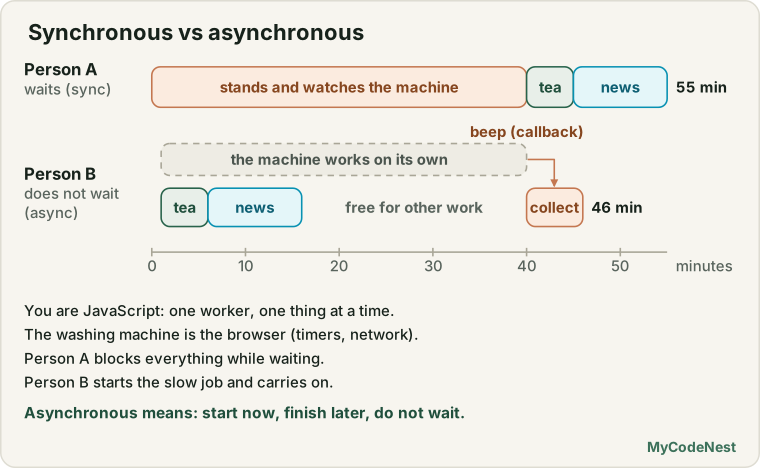
Imagine you are at home with three jobs: wash clothes, make tea, and read the news.
Person A puts the clothes in the washing machine, then stands in front of it for 40 minutes, just watching. Only when the clothes are done does A make tea. Then A reads the news. Every job waits for the one before it.
Person B puts the clothes in the washing machine and walks away. While the machine works, B makes tea and reads the news. When the machine beeps, B comes back and hangs the clothes to dry.
Person B finishes everything much faster, and does not waste time. The only difference is that B did not wait for the slow job.
Now connect the story to JavaScript:
- You (the person) are JavaScript. You can do only one thing at a time.
- The washing machine is the browser. It can do slow work (like counting time or talking to a server) while you do something else.
- The beep is a callback. It tells you “the slow job is finished, come and handle the result”.
Person A is synchronous (and blocking). Person B is asynchronous (and non-blocking). Keep this story in mind. We will come back to it.
Synchronous code: one thing at a time
Synchronous means “in order, one after another”. JavaScript runs the first line, finishes it, then runs the second line, and so on. You saw this in the introduction lesson: the engine reads your code line by line.
console.log("1. Wake up");
console.log("2. Brush teeth");
console.log("3. Have breakfast");
Output:
1. Wake up
2. Brush teeth
3. Have breakfast
Nothing surprising. The order of the lines is the order of the output.
Most of the code you have written is synchronous: variables, maths, if statements, loops, function calls, and DOM changes. Even map, filter and forEach are synchronous. They finish their whole job before the next line runs:
console.log("Before");
[1, 2, 3].forEach((n) => console.log("Item", n));
console.log("After");
Output:
Before
Item 1
Item 2
Item 3
After
Synchronous code is easy to follow, because you can read it from top to bottom and know exactly what happens. The problem starts only when one line is very slow.
Blocking: when one task is slow
Blocking means one slow task stops everything else until it finishes. JavaScript has only one worker, so while it is busy, nobody else can use it.
Here is a function that does nothing except keep JavaScript busy for some time. We will use it only to see blocking. You should never write code like this in a real project.
function blockFor(ms) {
  const start = Date.now();
  while (Date.now() - start < ms) {
    // do nothing, just keep JavaScript busy
  }
}

console.log("Start");
blockFor(3000);
console.log("End (after 3 seconds)");
Output:
Start
End (after 3 seconds)
The second message appears only after 3 full seconds, because the while loop does not let JavaScript move on.
What does a frozen page look like?
In a console, a 3 second wait is not a big deal. On a real web page, it is a disaster. While JavaScript is busy:
- buttons do not respond to clicks
- you cannot type in input fields
- timers and animations driven by JavaScript stop
- the screen does not update
The browser may even show a message like “Page unresponsive”. This is exactly what Person A did: stood in front of the washing machine and did nothing else.
You have already met blocking in the input and output lesson. alert, prompt and confirm are blocking. While the box is open, the whole page is frozen. That is why we avoid them in real projects.
Real use case: a “Loading…” message that never appears
Look at this handler. It tries to show “Loading…” while the work is done:
button.addEventListener("click", function () {
  status.textContent = "Loading...";   // you expect to see this
  blockFor(2000);                      // slow work
  status.textContent = "Done!";
});
Strange but true: the user never sees “Loading…”. The browser cannot repaint the screen while JavaScript is busy. It paints only after the handler has finished, so the user sees nothing for 2 seconds, then “Done!”. The page just looks stuck.
To show “Loading…” properly, the slow part must not block. That is the job of asynchronous code.
Asynchronous code: start now, finish later
Asynchronous means “not at the same time as the main flow”. You start a slow task, JavaScript does not wait for it, and it moves on to the next line. When the task is finished, your code gets a callback to handle the result.
This is Person B from our story:
console.log("1. Put the clothes in the washing machine");

setTimeout(() => {
  console.log("3. Clothes are washed");
}, 2000);

console.log("2. Make tea");
Output:
1. Put the clothes in the washing machine
2. Make tea
3. Clothes are washed
(The last line appears 2 seconds later.)
Look at the numbers. The line with 3. is written in the middle of the code, but it prints last. This is the biggest change in your thinking:
Key idea: In asynchronous code, the order of the lines is not the order of the output.
setTimeout says: “Start a timer. When it finishes, call this function. Meanwhile, I will continue with the next lines.”
Who does the waiting?
JavaScript itself does not count the 2 seconds. It would be a waste of its only worker. The browser does the waiting, like the washing machine:
JavaScript (one worker)              Browser (the helper)
-----------------------              --------------------
setTimeout(fn, 2000)  ------------>  "Okay, I will start a 2 second timer"
runs the next lines                  ...counting...
keeps doing other work               ...counting...
                                     "Time is up! fn is ready"
runs fn when it is free  <---------  fn waits in line
Two things to remember:
- The waiting happens outside your code, in the browser.
- When the wait is over, your callback does not interrupt JavaScript. It waits in line until JavaScript is free. The exact system that manages this line is called the event loop, and it has its own lesson later.
Even a 0 ms timer waits its turn
What if the timer is 0 milliseconds? Does it run immediately?
console.log("A");

setTimeout(() => console.log("B"), 0);

console.log("C");
Output:
A
C
B
No! Even with 0, the callback is an asynchronous callback, so it must wait until the current code has completely finished. A and C are part of the current code, so they run first.
Think of your phone. A WhatsApp message arrives while you are in the middle of writing something. You do not stop halfway. You finish what you are doing, then you read the message. The callback is that message.
The timer is “at least”, not “exactly”
Because the callback waits for JavaScript to be free, a timer can run later than you asked:
const start = Date.now();

setTimeout(() => {
  const waited = Math.round((Date.now() - start) / 1000) * 1000;
  console.log("Timer was set for 1000 ms, but ran after about " + waited + " ms");
}, 1000);

blockFor(3000);   // JavaScript is busy for 3 seconds
console.log("Busy work finished");
Output:
Busy work finished
Timer was set for 1000 ms, but ran after about 3000 ms
The timer finished after 1 second, but JavaScript was busy for 3 seconds, so the callback waited in line. This is why blocking is harmful even for your async code: it makes everything late.
Things you already use
You have used both kinds of code already. Here is how to tell them apart:
| Synchronous (runs now, in order) | Asynchronous (runs later) |
|---|---|
console.log(), maths, if, loops |
setTimeout() and setInterval() callbacks |
| Calling your own functions | Event handlers, like a click handler |
map, filter, forEach callbacks |
Data coming from a server with fetch() (coming soon) |
alert(), prompt(), confirm() (blocking) |
Promises and async/await (coming soon) |
| Reading or changing the DOM | Anything that says “when it is done, do this” |
A small but important detail: button.addEventListener("click", handler) itself runs right now, in order. Only the handler function is asynchronous, because it runs later, when the user clicks. You are not waiting for a click on that line. You are just leaving a note: “when a click happens, call this”.
Tip: If code says “do this when something happens” or “do this after some time”, it is almost always asynchronous.
Two timers: who finishes first?
Async tasks do not wait for each other. They run side by side in the browser, and each one finishes when it finishes.
function download(name, seconds) {
  console.log("Started: " + name);

  setTimeout(() => {
    console.log("Finished: " + name);
  }, seconds * 1000);
}

download("Video", 3);
download("Photo", 1);
console.log("Both downloads started");
Output:
Started: Video
Started: Photo
Both downloads started
Finished: Photo
Finished: Video
The video was started first, but the photo is smaller, so it finished first. When tasks are asynchronous, the order you start them is not the order they finish. This is a very common source of bugs, and later lessons will show you the tools to control it.
The big catch: the result is not ready yet
Here is the most common mistake beginners make with async code:
let user;

setTimeout(() => {
  user = { name: "Riya" };   // the data arrives after 500 ms
}, 500);

console.log(user);   // undefined
Output:
undefinedWhy undefined? Because console.log(user) runs right now, but the data arrives later. The line did not wait. It is like looking inside the washing machine one second after you started it and being surprised that the clothes are still dirty.
The fix is simple: use the data inside the callback, where you know it is ready:
setTimeout(() => {
  const user = { name: "Riya" };
  console.log(user.name);   // "Riya"
}, 500);
This is exactly the pattern you saw in the callbacks lesson with loadUser(1, callback). The callback is the place where the data is ready, so everything that needs the data goes there.
Remember the 4, 4, 4 puzzle?
In the closures lesson, a loop with var and setTimeout printed 4, 4, 4. Now you can see the real reason:
for (var i = 1; i <= 3; i++) {
  setTimeout(() => console.log("var:", i), 100);
}

console.log("Loop finished");
Output:
Loop finished
var: 4
var: 4
var: 4
The loop is synchronous, so it finishes first, and i becomes 4. The three callbacks are asynchronous, so they run later, after the loop is done. By then they all see i as 4.
With let, every round of the loop gets its own i, so each callback remembers its own number:
for (let i = 1; i <= 3; i++) {
  setTimeout(() => console.log("let:", i), 100);
}
Output:
let: 1
let: 2
let: 3
Real use case: a Load button that does not freeze
Now we can write the “Loading…” example the right way. This time the page stays alive while we wait:
<button id="load">Load profile</button>
<p id="status"></p>
const button = document.getElementById("load");
const status = document.getElementById("status");
button.addEventListener("click", function () {
status.textContent = "Loading...";
button.disabled = true; // stop double clicks
setTimeout(function () {
status.textContent = "Welcome back, Riya!";
button.disabled = false;
}, 2000);
});Here is what happens:
- The user clicks. “Loading…” appears immediately, and the button is disabled.
- The handler ends, so the browser can repaint the screen. The user really sees “Loading…”.
- For 2 seconds, the page is free. The user can scroll, type and click other things.
- The timer finishes, the callback runs, and the final message appears.
In a real app, the setTimeout would be replaced by a request to a server. The structure stays the same: show a loading state, start the slow task, handle the result in a callback.
Sync vs async at a glance
| Synchronous | Asynchronous | |
|---|---|---|
| Order of output | Same as the order of lines | Can be different |
| Waiting | Waits for each task to finish | Does not wait, continues |
| Slow task | Blocks the page | Does not block the page |
| Result | Available on the next line | Available later, in a callback |
| Story | Person A at the washing machine | Person B who walks away |
| Examples | loops, maths, alert |
timers, clicks, server requests |
Async does not mean “faster”. The washing machine takes the same 40 minutes. It only means you do not waste that time. It also does not mean JavaScript does two things at once. JavaScript still runs one thing at a time. Only the waiting happens somewhere else.
Three ways to handle “later”
Since async results arrive later, JavaScript needs a way to say “do this when the result is ready”. There are three main ways, and they came one after the other:
- Callbacks: pass a function to be called later. You already know this.
- Promises: an object that stands for a value that will arrive in the future.
async/await: a clean way to write Promise code that looks like normal top to bottom code.
You will learn all three in this section, in that order. Each one was invented to fix problems of the one before it, so learning them in order will make everything feel natural.
One more connection: in the error handling lesson you saw that try...catch cannot catch an error that happens inside a callback that runs later. Now you know why. By the time the callback runs, the try block has already finished, like a shop that closed before the customer arrived.
Test yourself: predict the output
Read this code and write the output on paper before you read the answer:
console.log("1");

setTimeout(() => console.log("2"), 1000);
setTimeout(() => console.log("3"), 0);

console.log("4");
Output:
1
4
3
2
Step by step:
console.log("1")runs now, so1is printed.- The first
setTimeoutis handed to the browser (1 second). JavaScript moves on. - The second
setTimeoutis handed to the browser (0 ms). JavaScript moves on. console.log("4")runs now, so4is printed.- The current code is finished. The 0 ms callback is ready first, so
3is printed. - One second later,
2is printed.
The rule: all synchronous lines run first, then the async callbacks run, shortest wait first.
Common mistakes
- Expecting the result on the next line.
setTimeoutand other async tasks do not pause your code. Use the result inside the callback. - Thinking
setTimeout(fn, 0)runs immediately. It runs after all the current code has finished. - Assuming tasks finish in the order they were started. A short task started later can finish first.
- Using a
whileloop to “wait”. It blocks the whole page. Use a timer instead. - Using
alert,promptorconfirmfor waiting or messages in real pages. They block everything. - Trying to catch errors from a later callback with
try...catchoutside it. Thetryblock is already over. Put thetry...catchinside the callback. - Believing async means “two things at once” in JavaScript. Your code still runs one piece at a time. The waiting happens in the browser.
Practice
- Without running it, predict the output of this code. Then run it and check:
console.log("A"); setTimeout(() => console.log("B"), 0); console.log("C"); setTimeout(() => console.log("D"), 500); console.log("E"); - Write code that prints
Order placedright away,Waiting for other customers...right after that, andOrder readyafter 2 seconds. - This code prints
undefined. Fix it so it printsHelloafter 1 second:let message; setTimeout(() => { message = "Hello"; }, 1000); console.log(message); - In the practice editor, click Block for 3 seconds and watch the clock. Then click Wait 2 seconds (async) and watch it again. Write down what is different and why.
- Build a button that shows
Saving...when clicked, disables itself, and after 1.5 seconds showsSaved!and enables itself again. - Write a loop that uses
varandsetTimeoutto print0, 1, 2after 100 ms, then change one word so it prints correctly. Explain why the first version fails. - Challenge: Make two fake downloads,
Video(2 seconds) andPhoto(1 second). Print when each one finishes, and printAll downloads finishedonly after both are done. Hint: use a counter variable that each callback increases. - Challenge: Explain to a friend, in your own words and with your own story (not the washing machine), the difference between synchronous and asynchronous code.
Recap
- Synchronous code runs one line at a time, in order. Each line waits for the one before it.
- Blocking means one slow task stops everything else. A blocked page cannot respond to clicks or update the screen.
- Asynchronous code starts a task and moves on. The result arrives later, in a callback.
- In async code, the order of the lines is not the order of the output.
- The browser does the waiting. Your callback runs only when JavaScript is free, so even
setTimeout(fn, 0)runs after the current code, and a busy JavaScript makes timers late. - Async tasks finish in their own time, so the order of starting is not the order of finishing.
- The result of an async task is not ready on the next line. Use it inside the callback.
- Async does not make things faster. It stops you from wasting time while you wait.
Next, you will take a close look at the tools behind all these examples in the Timers lesson: setTimeout, setInterval, and how to cancel them. After that come async callbacks, the event loop, Promises, and async/await.
You may also want to revisit the callbacks lesson and the closures lesson, because this lesson builds directly on both.
Frequently asked questions
What is the difference between synchronous and asynchronous code?
Synchronous code runs line by line, and each line waits for the previous one to finish. Asynchronous code starts a task, such as a timer or a request, and lets the program continue, handling the result later.
Is JavaScript single-threaded?
Yes. JavaScript runs your code on one main thread, one step at a time. It still handles waiting tasks well, because the browser does work like timers and network calls in the background, and then queues the results.
Why should I not block the main thread?
While a long task runs, the page cannot respond to clicks, scrolling or animations, so it feels frozen. Keep tasks short, use asynchronous APIs, or move heavy work to a Web Worker.
Does async mean the code runs in parallel?
Not exactly. Asynchronous code runs later, on the same thread, when the main code is free. The waiting happens in the background, but your JavaScript still runs one piece at a time. True parallel work needs Web Workers.
What are common asynchronous operations?
Timers (setTimeout), network requests (fetch), user events (clicks), reading files, and database access. Each starts something, and calls your code back when it finishes.
See also: Timers, Asynchronous Callbacks, The Event Loop, JavaScript Cheat Sheet