Activity and Fragment Refs: Preserve State and Observe Groups
Master React 19 Activity and Fragment refs: preserve state and DOM elements offscreen without remounting, and attach refs to multiple elements.
What you will learn
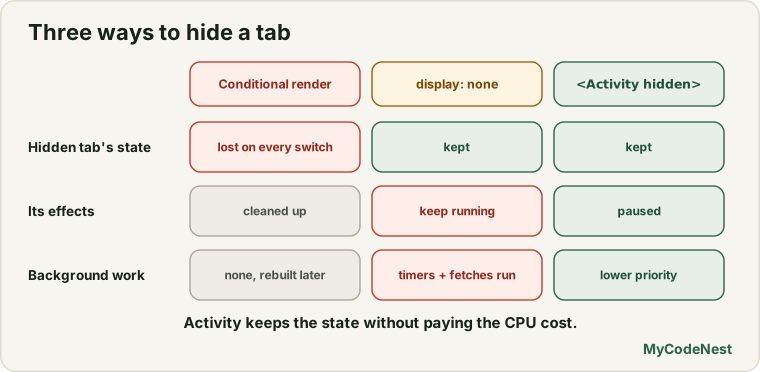
In Component Identity and State Preservation, you learned that when a component leaves the screen, React unmounts it and completely destroys its state. If a user is half-way through filling out a multi-step tab or drafting an email, switching tabs wipes their scroll position, input text, and active selections.
Historically, developers attempted to hide elements with style={{ display: 'none' }} to keep state alive. But hidden elements continue running timers, firing network requests, and taking up main-thread CPU time.
React 19.2 introduced the <Activity> component (formerly known as Offscreen), and React 19.3 officially stabilized Fragment Refs.
In this lesson, you will learn:
- How
<Activity mode="hidden">preserves component state, DOM nodes, and scroll positions offscreen. - How
<Activity>pauses effects and lowers priority of hidden components to save battery and CPU. - How to build persistent multi-tab interfaces where users never lose unsaved form progress.
- How Fragment Refs allow you to attach a
refdirectly to<>...</>to observe or focus groups of sibling elements without adding wrapper<div>tags.
The Tab State Dilemma
Consider a typical tabbed settings page:
function Settings() {
  const [tab, setTab] = useState("profile");

  return (
    <div>
      <Tabs onSelect={setTab} />
      {/* Warning: Unmounts completely on tab switch! */}
      {tab === "profile" && <ProfileForm />}
      {tab === "security" && <SecuritySettings />}
    </div>
  );
}
If the user types a bio in ProfileForm, clicks over to SecuritySettings to check a setting, and clicks back to ProfileForm, all their typed text is gone. The component remounted from scratch.
Why display: none is not the answer
If you render both tabs with display: none:
- Hidden tabs still run
setIntervalandrequestAnimationFrame. - Hidden tabs still fetch data when their props update.
- Hidden tabs keep event listeners active, consuming device memory.
The Solution: <Activity mode="visible" | "hidden">
The <Activity> component in React 19 lets you hide a component while preserving its internal state and DOM nodes:
import { Activity, useState } from 'react';

export function TabbedWorkspace() {
  const [activeTab, setActiveTab] = useState("editor");

  return (
    <div className="workspace">
      <nav className="tab-bar">
        <button onClick={() => setActiveTab("editor")}>Code Editor</button>
        <button onClick={() => setActiveTab("preview")}>Live Preview</button>
      </nav>

      {/* Editor tab: Keeps scroll position and undo history! */}
      <Activity mode={activeTab === "editor" ? "visible" : "hidden"}>
        <CodeEditor />
      </Activity>

      {/* Preview tab */}
      <Activity mode={activeTab === "preview" ? "visible" : "hidden"}>
        <LivePreview />
      </Activity>
    </div>
  );
}
What happens when mode="hidden":
- DOM elements stay in the document: React sets the root DOM elements to
display: none, so they are invisible to the user. - State is preserved: All
useState,useReducer, and input values remain in memory. - Scroll position is preserved: The user returns to the exact pixel where they were reading.
- Effects are paused: React disconnects cleanup functions on layout effects so hidden tabs do not burn CPU cycles.
- Updates are deprioritized: If background state updates occur, React evaluates them at low priority without interrupting the active foreground tab.
When the user switches back to mode="visible", the component reappears instantaneously with all data intact!
Pre-rendering Background Views
<Activity> also enables pre-rendering. If you know a user on a multi-step checkout is likely to click “Next: Shipping”, you can pre-render the Shipping step in the background:
function CheckoutFlow({ currentStep }) {
  return (
    <div className="checkout">
      {/* Active step */}
      <Activity mode={currentStep === 1 ? "visible" : "hidden"}>
        <Step1CustomerInfo />
      </Activity>

      {/* Pre-render Step 2 at low priority so it's instant when clicked */}
      <Activity mode={currentStep === 2 ? "visible" : "hidden"}>
        <Step2ShippingMethod />
      </Activity>
    </div>
  );
}
While hidden, React renders Step2ShippingMethod during browser idle time. When the user clicks “Continue to Shipping”, the next screen appears instantaneously with zero loading delay!
Fragment Refs in React 19.3
In JSX Basics, you learned that a component must return a single root element, so we wrap siblings in a Fragment: <> ... </> or <Fragment> ... </Fragment>.
In previous versions of React, Fragments could never accept a ref:
// Incorrect: Not allowed in React 18:
<Fragment ref={myRef}>
  <td>Cell 1</td>
  <td>Cell 2</td>
</Fragment>
In React 19.3, Fragments now support refs!
Why Fragment Refs are so powerful
A Fragment does not render a real DOM node (like a <div> or <span>). So what does a Fragment ref point to?
A Fragment ref provides access to an object managing the group of top-level DOM nodes contained inside the fragment:
import { Fragment, useRef, useEffect } from 'react';

export function TableRowGroup({ items }) {
  const fragmentRef = useRef(null);

  useEffect(() => {
    // Access the group of child DOM nodes directly!
    if (fragmentRef.current) {
      console.log("Fragment contains nodes:", fragmentRef.current);
    }
  }, []);

  return (
    <table>
      <tbody>
        <tr>
          {/*  Supported in React 19.3! */}
          <Fragment ref={fragmentRef}>
            <td>Alpha</td>
            <td>Beta</td>
            <td>Gamma</td>
          </Fragment>
        </tr>
      </tbody>
    </table>
  );
}
Key Use Cases for Fragment Refs:
- Focus Management: Moving keyboard focus to the first interactive element in a group without adding redundant wrapper
<div>tags that break CSS Grid or Flexbox. - Intersection Observers: Observing whether an entire group of table cells or list items is scrolled into view.
- No DOM Pollution: Keeps your HTML markup clean and semantic.
Common mistakes
1. Using <Activity> for thousands of list items
<Activity> keeps DOM elements in memory. Do not wrap 1,000 hidden items in <Activity mode="hidden">, as having 20,000 hidden DOM nodes will bloat browser memory. For long lists, use list virtualization or pagination instead.
2. Expecting <Activity> to hide content from screen readers without mode=“hidden”
When mode="hidden", React handles accessibility by marking elements as hidden from assistive technology. If you need custom accessibility announcements, pair it with aria-live or dialog landmarks.
3. Forgetting that effects pause in hidden mode
If your component depends on a useEffect running continuous polling every second, that polling will pause while mode="hidden". Design background polling at the top-level parent if it must continue running regardless of visibility.
Practice
- Build a two-tab interface (“Compose Message” and “Inbox”). Use
<Activity>to ensure typed draft text survives switching between tabs. - Verify in browser DevTools Elements inspector that the hidden tab retains
display: nonewithout unmounting from the DOM. - Add a timer in a child component. Observe that when
<Activity mode="hidden">is active, the component pauses unnecessary execution. - Create a table row component that uses a Fragment ref to focus the first cell when a user presses a keyboard shortcut.
- Combine
<Activity>with<ViewTransition>to animate the reveal of an offscreen panel. - Compare memory usage between unmounting tabs versus preserving 3 tabs with
<Activity>.
Recap
<Activity>(React 19.2) preserves component state, DOM elements, and scroll positions while hiding them offscreen.- Hidden activities pause layout effects and lower background priority to save battery and CPU.
<Activity>is ideal for multi-tab interfaces, step-by-step forms, and pre-rendering upcoming screens.- Fragment Refs (React 19.3) allow attaching a
refdirectly to<Fragment>to inspect and manage groups of sibling DOM nodes without adding wrapper<div>elements. - In the next lesson, you will learn how to handle unexpected runtime crashes gracefully using Error Boundaries!
Frequently asked questions
What was the previous name of the Activity component?
During early development and experimental releases, it was referred to as Offscreen. In React 19, it was officially named <Activity>.
Does Activity work with React 18?
No. <Activity> is a native feature introduced in React 19.2 and requires React 19.2 or newer to run.
How does Activity affect form autofill?
Because inputs inside <Activity mode="hidden"> remain in the DOM, browser password managers and autofill tools can populate them smoothly without timing bugs.
Can I nest multiple Activity components?
Yes. An <Activity> can contain nested child activities. If a parent activity is hidden, all child activities are treated as hidden.
Can Fragment refs be used with short syntax <> ... ?
No. The short syntax <> ... </> does not support props or refs. To attach a ref, use the explicit <Fragment ref={myRef}> syntax imported from 'react'.
See also: Component Identity and State Preservation, ViewTransition in React, useRef and DOM Access