React Project Structure: Understand Every File Vite Creates
Explore the files and folders of a Vite React project, learn what main.jsx, App.jsx, index.html and package.json do, and which files you should edit.
What you will learn
When Vite creates a React project, it gives you a dozen files and folders. At first they look confusing. Which ones matter? Which ones can you ignore? How does the browser end up showing your component?
In this lesson you will walk through the project from the setup lesson, file by file. You will learn what each one does, follow the path from index.html to your first component, and learn which files you will edit every day and which ones you should leave alone.
Your project may look slightly different. Vite updates its templates from time to time, so a tutorial written two years ago may show other files. This lesson describes the template created by
npm create vite@latest my-react-app -- --template reactwith Vite 8. Where a file is optional or depends on the template, we say so.
The full picture
After npm install, your project looks like this:
my-react-app/
├── node_modules/        (created by npm install, very large)
├── public/
│   ├── favicon.svg
│   └── icons.svg
├── src/
│   ├── assets/
│   │   ├── hero.png
│   │   ├── react.svg
│   │   └── vite.svg
│   ├── App.css
│   ├── App.jsx
│   ├── index.css
│   └── main.jsx
├── .gitignore
├── .oxlintrc.json
├── index.html
├── package-lock.json    (created by npm install)
├── package.json
├── README.md
└── vite.config.js
Some of these are hidden files, because their names start with a dot (.gitignore, .oxlintrc.json). VS Code shows them. File explorers on your computer may hide them.
Now let us go through them in the order that makes the app easiest to understand.
How your app starts
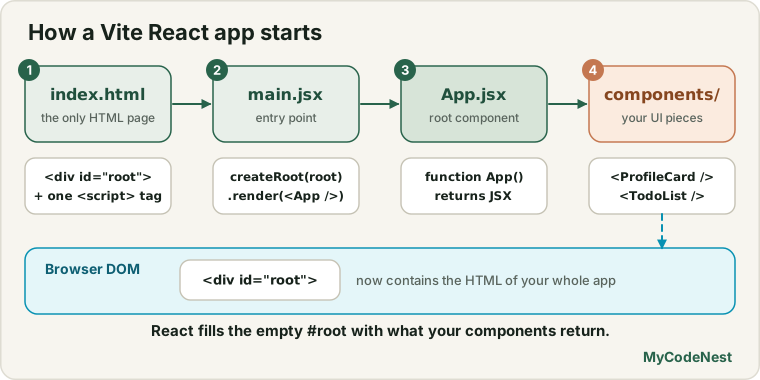
Before the details, here is the whole story in one picture. Read it from top to bottom:
Browser opens http://localhost:5173/
        │
        ▼
index.html           has <div id="root"></div>
        │            and <script type="module" src="/src/main.jsx">
        ▼
src/main.jsx         finds #root and tells React to draw <App /> inside it
        │
        ▼
src/App.jsx          your first component: the root of your whole UI
        │
        ▼
Your other components (you will add these)
Keep this picture in mind. Every file below fits into it.
index.html: the only HTML page
<!doctype html>
<html lang="en">
  <head>
    <meta charset="UTF-8" />
    <link rel="icon" type="image/svg+xml" href="/favicon.svg" />
    <meta name="viewport" content="width=device-width, initial-scale=1.0" />
    <title>my-react-app</title>
  </head>
  <body>
    <div id="root"></div>
    <script type="module" src="/src/main.jsx"></script>
  </body>
</html>
A React app built with Vite is usually a single-page application: the browser loads this one HTML file, and React draws everything else with JavaScript.
Two parts matter most:
<div id="root"></div>is an empty box. React will put your whole UI inside it. If you remove this element, React has nowhere to draw and the page will fail.<script type="module" src="/src/main.jsx"></script>loads your JavaScript entry file. Thetype="module"part lets the file useimportandexport(see the modules lesson).
Unlike older tools, Vite keeps index.html at the top of the project, not hidden inside another folder. You can edit it to change the page <title>, the favicon or the lang attribute. The HTML head and meta lesson explains these tags in detail.
src/main.jsx: the entry point
import { StrictMode } from 'react'
import { createRoot } from 'react-dom/client'
import './index.css'
import App from './App.jsx'

createRoot(document.getElementById('root')).render(
  <StrictMode>
    <App />
  </StrictMode>,
)
This is the file that connects React to the page. Go through it line by line:
import { StrictMode } from 'react'brings in a helper component from the React package.import { createRoot } from 'react-dom/client'brings in the function that connects React to a real browser page.react-domis the package that knows how to work with the browser’s DOM.import './index.css'loads the global stylesheet. Vite handles the CSS import for you.import App from './App.jsx'loads your first component from the file next to it.document.getElementById('root')finds the empty<div id="root">fromindex.html. This is plain DOM code you already know.createRoot(...)creates a React root inside that element..render(...)tells React what to draw. Here it draws<App />.<StrictMode>is a helper that adds extra checks while you develop, to help you find bugs early. It does not change what users see, and it does nothing in the production build. In development it runs some code twice on purpose, so do not be surprised if aconsole.logappears twice later in the course.
You rarely edit this file. Most of the time you leave it alone and work in App.jsx and your own component files.
Note: the generated files do not end lines with semicolons. JavaScript allows both styles. In the code you write in this course, we use semicolons, just like in the JavaScript lessons. Whichever you choose, use the same style everywhere.
src/App.jsx: your first component
This is the component that main.jsx renders. It is the root component: all your other components will live inside it. The starter version is long, because it contains the demo page. Here is the important part:
import { useState } from 'react'
import './App.css'

function App() {
  const [count, setCount] = useState(0)

  return (
    <>
      <section id="center">
        <h1>Get started</h1>
        <button
          type="button"
          className="counter"
          onClick={() => setCount((count) => count + 1)}
        >
          Count is {count}
        </button>
      </section>
    </>
  )
}

export default App
(The real file has more markup and some images. We removed them here so you can focus.) You can already see the shape of a component:
- A function called
Appthat starts with a capital letter. - A
returnwith markup that looks like HTML. This is JSX. export default Appso thatmain.jsxcan import it.
The extension is .jsx, not .js. By default Vite expects JSX syntax only in .jsx (or .tsx) files. You will learn JSX itself in the next lessons, and write your own component right after this one.
src/index.css and src/App.css: styles
The template has two stylesheets:
index.cssis loaded inmain.jsx. It contains global styles: colours, fonts, the style ofbody,h1,h2and the#rootbox. It also adds a dark theme for visitors whose device uses dark mode.App.cssis loaded inApp.jsx. It contains styles for the starter page, such as the hero images and the counter button.
Both are ordinary CSS. You can write all the selectors, properties and media queries from the CSS lessons. In React you import a CSS file into a component file, and Vite adds it to the page.
Be aware that these styles apply to the whole page, even though one is named App.css. Name your own classes carefully so they do not clash. A later lesson covers better ways to style components.
src/assets/: images that your code imports
src/assets/
├── hero.png
├── react.svg
└── vite.svg
This folder holds images and other files that your source code imports:
import reactLogo from './assets/react.svg'When you import a file this way, Vite includes it in the build and gives it a new name that contains a hash, such as hero-CLDdwZDr.png. The hash changes when the file changes, which helps browsers update cached files.
public/: files served exactly as they are
public/
├── favicon.svg
└── icons.svg
Files in public are copied to the final site without changes, and you refer to them with a path that starts with /, as in index.html:
<link rel="icon" type="image/svg+xml" href="/favicon.svg" />Use public/ for files that must keep a fixed name and location, such as the favicon, robots.txt or a file you do not import from code.
src/assets/ |
public/ |
|
|---|---|---|
| How you use it | import logo from './assets/logo.svg' |
/logo.svg in a path |
| Processed by Vite | Yes (hashed name in the build) | No (copied as it is) |
| Best for | Images used by components | Favicon, robots.txt, fixed-name files |
When you are not sure, put images in src/assets/ and import them.
package.json: your project’s ID card
package.json describes the project and its tools. Here is the file that Vite generated (versions may be newer on your computer):
{
  "name": "my-react-app",
  "private": true,
  "version": "0.0.0",
  "type": "module",
  "scripts": {
    "dev": "vite",
    "build": "vite build",
    "lint": "oxlint",
    "preview": "vite preview"
  },
  "dependencies": {
    "react": "^19.2.8",
    "react-dom": "^19.2.8"
  },
  "devDependencies": {
    "@types/react": "^19.2.18",
    "@types/react-dom": "^19.2.7",
    "@vitejs/plugin-react": "^6.1.1",
    "oxlint": "^1.81.0",
    "vite": "^8.3.0"
  }
}
The main parts:
name,version,private: basic details."private": truestops you from publishing the project to npm by accident."type": "module": tells Node.js that the project’s.jsfiles useimportandexport.scripts: the shortcuts behindnpm run dev,npm run buildandnpm run preview. The template also addsnpm run lint, which checks your code with a tool called Oxlint.dependencies: packages your app needs to run. React and React DOM are here.devDependencies: tools you need while building. Vite and its React plugin live here. The@types/...packages give code editors helpful hints; you do not have to think about them.
The ^ in ^19.2.8 means “this version or any newer compatible version”. That is why the actual installed React can be newer than the number written here. In the example project used to write this lesson, npm install installed React 19.3.1.
You edit package.json when you want to add a package, but you normally do it with a command such as npm install some-package, and npm updates the file for you.
package-lock.json: the exact versions
This file appears after you run npm install. It records the exact version of every package that was installed, including the packages your packages need. It makes sure that you and your teammates, or your computer and a hosting server, install the same versions.
- Do not edit it by hand. npm manages it.
- Do keep it and commit it to Git. That is the standard practice.
vite.config.js: Vite’s settings
import react from '@vitejs/plugin-react'
import { defineConfig } from 'vite'

// https://vite.dev/config/
export default defineConfig({
  plugins: [react()],
})
This file configures Vite. The only setting so far is a plugin: @vitejs/plugin-react teaches Vite how to read JSX and to refresh components quickly while you edit them. You do not need to change this file in the beginner lessons. Later, you will use it to enable features such as the React Compiler or to set up a dev server proxy.
node_modules/: downloaded packages
This folder is created by npm install. It contains all the packages your project uses, and the packages they use. It can contain thousands of files and be hundreds of megabytes in bigger projects.
- Never edit it. Anything you change there can be overwritten.
- Never upload it or commit it to Git. It can always be recreated with
npm install. - If something is broken, you can delete the folder and run
npm installagain.
.gitignore
node_modules
dist
dist-ssr
*.local
...
(The real file is a little longer.) If you use Git, this file lists the files and folders that Git must ignore. The important ones are node_modules and dist, because both can be recreated by commands. Vite writes this file for you.
Vite does not run git init for you. When you are ready to use Git, run it yourself.
Other files you may see
| File or folder | What it is |
|---|---|
README.md |
A short description of the template. Edit it to describe your project. |
.oxlintrc.json |
Settings for the Oxlint code checker used by npm run lint. |
dist/ |
Created by npm run build. It holds the production files. You never edit it. |
Default template files versus optional files
It helps to know which files are normal and which depend on your choices.
Present in the default react (JavaScript) template, as created for this lesson: index.html, package.json, vite.config.js, README.md, .gitignore, .oxlintrc.json, public/, and in src/: main.jsx, App.jsx, index.css, App.css and assets/. After npm install you also get node_modules/ and package-lock.json.
Not in this template, but you may see them in other tutorials or templates:
eslint.config.js: older templates used ESLint. The current template uses Oxlint instead.tsconfig.jsonand files ending in.tsx: only in the TypeScript templates (react-ts)..env: an optional file for environment variables. You create it when you need it..vscode/: your editor’s settings. It does not exist unless you or your team add it.- A
components/folder: not created by Vite. You will create it yourself in the next lesson.
If your project differs from this list, check that you used the same command, or see the README.md inside your project.
Which files should I edit?
| Edit these | Usually leave alone (for now) | Never edit |
|---|---|---|
src/App.jsx |
src/main.jsx |
node_modules/ |
New files you create in src/ |
vite.config.js |
package-lock.json (npm changes it) |
src/index.css and your own CSS files |
.gitignore, .oxlintrc.json |
dist/ (created by npm run build) |
index.html (title, favicon, lang) |
public/ files, unless you replace the icon |
|
README.md |
A clean starting point
The starter page is nice, but you will soon want an empty canvas. Let us clean up.
Open src/App.jsx and replace everything in it with this:
function App() {
  return <h1>My First React App</h1>;
}

export default App;
Save the file. The browser changes to show a heading that says My First React App. The counter and logos are gone.
Why did it still work? main.jsx still imports App from ./App.jsx and renders it. We only changed what App returns. The old App.css file and assets images are not used any more, but leaving them does no harm. You can delete them later if you want.
Common mistakes
- Editing the wrong files. Beginners sometimes change
node_modulesordist. Do your work insrc/. - Deleting
<div id="root">. React needs it. Without it you will get an error such as “Target container is not a DOM element”. - Renaming
main.jsxorApp.jsxwithout updating the imports. If you renamemain.jsx, you must also change thesrcof the script tag inindex.html. If you renameApp.jsx, change the import inmain.jsx. - Writing JSX in a
.jsfile. Vite will stop with an error such asUnexpected JSX expression. Name files that contain JSX with the.jsxextension. - Wrong capital letters in file names. On Windows and macOS,
./app.jsxmay work on your machine, but on most hosting servers (which run Linux) it fails, becauseapp.jsxandApp.jsxare different files. Always write the name exactly as it is. - Committing
node_modulesto Git. Keep it in.gitignore. - Fearing the template. You do not need to understand every line of the starter code. Understand the path (
index.html→main.jsx→App.jsx) and the rest will follow.
Practice
- Open
package.json. What are the names of the four scripts? Which command would you type to run the one nameddev? - In
package.json, which packages aredependenciesand which aredevDependencies? Why do you think Vite is indevDependencies? - In
index.html, change the<title>toMy React Practice. Save and look at the browser tab. Do you have to restart the server? - Trace the path: Write down, in order, the files the browser uses to show your component. Use the arrows
index.html → ... → .... - Predict, then check: In
index.html, changeid="root"toid="app"and save. What do you think the page will show? Look at the browser and the console (F12). Then undo the change. - Debug: Your friend renamed
src/App.jsxtosrc/Home.jsxand now sees an error saying the import can’t be resolved. Which file must change, and how? - Replace the code in
App.jsxwith the clean version from this lesson. Then change the heading to your own name and save. - In your own words, explain the difference between
src/assets/andpublic/. Where would you put a company logo that a component displays?
Recap
- The browser opens
index.html, which contains<div id="root">and loadssrc/main.jsx. main.jsxusescreateRootto draw<App />inside that div.App.jsxis the root component. This is where you start building.index.csshas global styles andApp.csshas the starter page styles.src/assets/holds images that you import.public/holds files copied as they are.package.jsonlists scripts and packages.package-lock.jsonrecords exact versions.vite.config.jsconfigures Vite.node_modules/anddist/are generated. Never edit them.- File lists can change between template versions. The default
reacttemplate does not includeeslint.config.js, TypeScript files or acomponents/folder. - Next you will create your first component in its own file.
Frequently asked questions
Why is the file called App.jsx and not App.js?
The .jsx extension tells tools that the file contains JSX, the HTML-like syntax used in React. With the default Vite setup, JSX is expected in .jsx files. If you put JSX in a plain .js file, Vite reports an error.
Can I delete App.css and the files in assets?
Yes, once your code no longer uses them. If you delete App.css, also remove the import './App.css' line from App.jsx, or Vite will report that it cannot find the file. If you replaced App.jsx with the clean version, those imports are already gone.
What is the difference between package.json and package-lock.json?
package.json is the list of packages you want, with flexible version ranges. package-lock.json is the exact record of what was installed, so everyone gets identical versions. You may edit package.json (usually through npm commands), but you should not edit the lock file by hand.
Why does my project not have eslint.config.js?
Older Vite React templates included ESLint. The current template uses Oxlint and has a .oxlintrc.json file instead. The tools differ, but both check your code for common problems. You can add ESLint later if a project needs it.
Do I need to understand StrictMode right now?
No. Just know that it is a development helper that wraps your app and shows warnings early. Leave it in main.jsx. It has no effect on the production build.
Where should I put my own components?
Create a folder such as src/components/ and put one component per file there. Vite does not create it for you, so you will make it yourself in the next lesson.
See also: Set Up React with Vite, Your First React Component, JavaScript Modules, HTML Head and Meta