Set Up React with Vite: Create and Run Your First React App
Install Node.js, create a React project with Vite, start the development server, and fix the most common setup errors step by step.
What you will learn
In the last lesson you learned what React is. Now you will build something real. In this lesson you will check your tools, create a React project with Vite, start the development server and see your first React app running in the browser. You will also learn how to read the terminal messages and how to fix the setup errors beginners meet most often.
You will work on your own computer. React projects run on your computer, not inside a web page. This is also how professional developers work. Type every example in your own project and keep this lesson open beside it.
What is Vite?
A React app is not one simple HTML file. It is made of many small files (components, styles, images) that must be combined, converted and served to the browser. Doing that by hand would be painful, so we use a build tool.
Vite (say “veet”, French for “quick”) is a build tool that does two jobs for us:
- A development server. It runs your app on your computer and updates the browser the moment you save a file.
- A build command. It bundles your code into small, fast files that are ready to put on a real website.
React’s documentation lists Vite as a good build tool for building an app without a framework. We use Vite because it is fast, simple and does not hide how a React app really works. That makes it ideal for learning.
What you need first
You need four things:
- A computer with Windows, macOS or Linux, and an internet connection for the install steps.
- A code editor. We recommend Visual Studio Code (VS Code). It is free.
- A modern browser, such as Chrome, Edge or Firefox.
- Node.js (which includes npm).
Node.js lets JavaScript run on your computer, outside the browser. Vite is a Node.js program, so you need it installed. npm (Node Package Manager) comes with Node.js. It downloads the packages your project uses, including React itself.
Which Node.js version do I need?
Current Vite needs Node.js 20.19 or newer, or Node.js 22.12 or newer. Older versions will not work. The safest choice is to install the current LTS (Long Term Support) version from nodejs.org. It meets this requirement. (Later in this course, React Router 8 asks for Node.js 22.22 or newer. The current LTS version satisfies that too, so installing it now covers the whole course.)
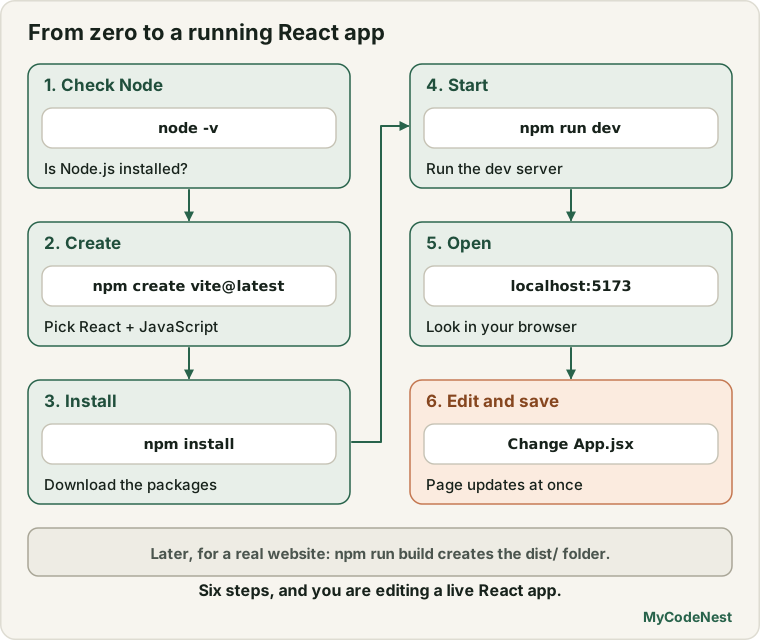
Step 1: Check Node.js and npm
Open a terminal:
- Windows: open PowerShell or Command Prompt. (You can also use the terminal inside VS Code: Terminal → New Terminal.)
- macOS / Linux: open the Terminal app.
Type these two commands, pressing Enter after each:
node -v
npm -v
You should see two version numbers, something like this:
v22.12.0
10.9.0
Your numbers may be different. That is fine. What matters is the Node.js version:
- If it starts with
v20.19or higher, orv22.12or higher (includingv24and above), you are ready. - If it is lower (for example
v18.x), install a newer Node.js from nodejs.org and run the commands again. Close and reopen the terminal after installing. - If you see
'node' is not recognized(Windows) orcommand not found(macOS / Linux), Node.js is not installed yet or the terminal was opened before installing. Install it, then open a new terminal window.
Step 2: Create the project
Open the terminal in the folder where you keep your projects (for example Documents/projects). Then run:
npm create vite@latest my-react-app -- --template reactLet us read this command piece by piece:
npm create vite@latestruns the latest Vite project creator.my-react-appis the name of your project. It also becomes the folder name. Use lowercase letters, numbers and hyphens. Avoid spaces.--is needed with npm so that the options after it are passed to Vite.--template reactchooses the React with JavaScript template.
Vite offers a few React templates:
| Template | What you get |
|---|---|
react |
React with JavaScript. This is the one we use. |
react-ts |
React with TypeScript |
react-compiler |
React with JavaScript and the React Compiler turned on |
react-compiler-ts |
React with TypeScript and the React Compiler |
Use react for now. You will learn about the React Compiler in a later lesson.
Prefer to answer questions? You can also run just
npm create vite@latestand the creator asks for a project name and lets you pick React and then JavaScript. The exact wording of the questions can change between Vite versions, so this lesson uses the command with options, which always does the same thing.
When it finishes, you will see a message like this:
Scaffolding project in .../my-react-app...

Done. Now run:

  cd my-react-app
  npm install
  npm run dev
The creator even tells you the next three commands. We will run them one by one.
Step 3: Install the dependencies
First move into the project folder:
cd my-react-appThen install the packages the project needs:
npm installnpm reads a file called package.json, which lists the packages (called dependencies), and downloads them. After a few seconds you will see something like this:
added 24 packages, and audited 25 packages in 12s

found 0 vulnerabilities
The exact numbers and the time will differ on your computer. Two new things now exist in your project:
- A folder called
node_modules, which holds all the downloaded packages. - A file called
package-lock.json, which records the exact versions that were installed.
You will learn about both in the next lesson. You never edit them by hand.
Step 4: Start the development server
Now start the app:
npm run devThe terminal prints something like this:
> [email protected] dev
> vite

  VITE v8.3.4  ready in 341 ms

  ➜  Local:   http://localhost:5173/
  ➜  Network: use --host to expose
Here is what each part means:
| Message | Meaning |
|---|---|
> [email protected] dev |
npm is running the dev script from package.json |
> vite |
the dev script simply starts Vite |
VITE v8.3.4 ready in 341 ms |
the version of Vite, and how long it took to start. Your numbers will differ. |
Local: http://localhost:5173/ |
the address of your app on your computer |
Network: use --host to expose |
other devices on your network cannot open it unless you add --host |
localhost means “this computer”. 5173 is the port, like a door number. Only you can see this page. It is not on the internet.
Do not close the terminal. The server keeps running there. If you press Ctrl + C, the server stops.
Step 5: Open the app in your browser
Open your browser and go to http://localhost:5173/. (In many terminals you can hold Ctrl and click the link. You can also press o then Enter in the terminal to open it.)
You should see the Vite and React starter page: two logos, a heading that says Get started, a line telling you to edit src/App.jsx, and a button that says Count is 0. Click the button a few times. The number goes up each time. That small counter is a real React component at work.
Step 6: Change something and watch it update
Open the project in VS Code. You can do this from the terminal:
code .(If code is not recognised, open VS Code and use File → Open Folder.)
In the file list, open src/App.jsx. Find this line:
<h1>Get started</h1>Change the text to Hello, React!:
<h1>Hello, React!</h1>Save the file with Ctrl + S (Cmd + S on a Mac) and look at the browser without refreshing. The heading has already changed. This is called Hot Module Replacement (HMR): Vite sends the changed code to the browser instantly. If you click the counter first and then edit the heading, you will often see the counter keep its number, because only the changed part was replaced.
Congratulations. You have a working React development setup.
The other two commands
Your project has two more useful commands. Stop the dev server with Ctrl + C first if you want to try them.
npm run buildThis creates the production build, the small, optimised files you would upload to a real website. They are written to a new folder called dist. The output looks similar to this (sizes will differ):
vite v8.3.4 building client environment for production...
✓ 20 modules transformed.
dist/index.html                   0.46 kB │ gzip:  0.29 kB
dist/assets/index-DykytF2W.css    4.10 kB │ gzip:  1.47 kB
dist/assets/index-CjD90jDe.js   222.45 kB │ gzip: 69.28 kB

✓ built in 167ms
npm run previewThis serves the contents of dist locally so you can check the production version before publishing. Run npm run build first, because preview needs the dist folder.
| Command | When to use it |
|---|---|
npm run dev |
every day, while you write code |
npm run build |
when you want production files |
npm run preview |
to test the production build on your computer |
Common setup errors and how to fix them
'node' is not recognized or command not found: node
Node.js is not installed, or your terminal was open before you installed it. Install Node.js, close all terminal windows, and open a new one. Then run node -v again.
Vite says your Node.js version is too old
Vite needs Node.js 20.19+ or 22.12+. Check with node -v. If your version is older, install the current LTS version from nodejs.org and try again.
npm error code ENOENT and Could not read package.json
You ran an npm command in the wrong folder. npm install and npm run dev must run inside the project folder (the one that contains package.json). Run cd my-react-app first, and check with ls (macOS / Linux) or dir (Windows) that you can see package.json.
npm.ps1 cannot be loaded because running scripts is disabled on this system (Windows)
PowerShell blocks scripts by default. Either use Command Prompt instead, or allow scripts for your user by running this in PowerShell, then reopen the terminal:
Set-ExecutionPolicy -Scope CurrentUser RemoteSignedPort 5173 is already in use
Another dev server is still running, maybe in another terminal. Vite notices this, prints a message like the one below and tries the next port:
Port 5173 is in use, trying another one...

  VITE v8.3.4  ready in 205 ms

  ➜  Local:   http://localhost:5174/
This is not an error. Always open the address printed in your terminal, because it may not be 5173. To free the old port, stop the other server with Ctrl + C.
localhost refused to connect or “This site can’t be reached”
The development server is not running. Go back to your terminal, make sure you are in the project folder and run npm run dev again. Also check that you typed the same address that the terminal shows.
Permission errors such as EACCES
You are running npm somewhere you are not allowed to write, such as a system folder. Create your project in a folder inside your user directory, for example Documents/projects.
npm install fails or hangs with network errors
This is usually an internet, proxy or firewall problem. Check your connection, try again, and if you are on a work or school network ask whether a proxy is required. Do not run npm install with sudo.
The page is blank
Press F12, open the Console tab and read the red message. The most common causes are a typo in a file you edited or a missing import. The error often names the file and line. Fix it, save, and the page updates.
Common mistakes
- Closing the terminal and expecting the page to keep working. The dev server lives in the terminal. No terminal, no
localhostpage. - Opening
index.htmlby double-clicking it. A Vite project must be opened through the dev server (http://localhost:...). The raw file does not work, because the browser cannot understand the source code directly. - Spaces or capital letters in the project name. They can cause confusing problems. Use names like
my-react-app. - Forgetting
npm install. Without it,npm run devfails because the packages are missing. - Running commands in the wrong folder. Always check that your terminal is inside the project folder.
- Editing files inside
node_modules. Never do this. Your changes will be lost, and the folder can be recreated at any time.
Practice
- Run
node -vandnpm -v. Write down both versions, and say whether your Node.js version meets the Vite requirement. - Create a second project named
react-practiceusing the same command with--template react. How is the terminal output different from the first time, if at all? - Inside
react-practice, runnpm installand thennpm run dev. Which address does the terminal show? Open it in your browser. - In
src/App.jsx, change the heading text to your own name and save. Did the browser need a refresh? Click the counter a few times and then change the heading again. What happens to the count? - Predict, then check: Start the dev server for both
my-react-appandreact-practiceat the same time in two terminals. What do you expect for the second server’s address? Check the terminal. Is the message an error? - Debug: You open a new terminal, type
npm run dev, and seeCould not read package.json. What went wrong and what is the fix? - Debug: Your friend double-clicks
index.htmlin the project folder and sees a blank page. Explain why, and tell them how to view the app correctly. - Run
npm run build, then look inside the newdistfolder. List the files you can see. Then runnpm run previewand open the address it prints.
Recap
- Vite is a build tool with a fast development server and a production build command.
- You need Node.js 20.19+ or 22.12+ and npm. Check them with
node -vandnpm -v. - Create a project with
npm create vite@latest my-react-app -- --template react. - Run
cd my-react-app, thennpm installto download packages, thennpm run devto start the server. - Open the
Localaddress from the terminal, usuallyhttp://localhost:5173/. - Saving a file updates the browser instantly (HMR). Keep the terminal open while you work.
npm run buildmakes production files indist, andnpm run previewlets you test them.- Next you will explore the files Vite created and learn which ones you will edit.
Frequently asked questions
Do I need to install React separately?
No. The Vite React template already lists React and React DOM in package.json, and npm install downloads them for you. You do not add a <script> tag for React either, because Vite bundles it into your app.
What is the difference between Node.js and npm?
Node.js is the program that runs JavaScript on your computer outside a browser. npm is a tool that comes with Node.js and downloads and manages packages (reusable code libraries). You use Node.js to run tools like Vite, and npm to install them.
Can I use Yarn, pnpm or Bun instead of npm?
Yes. Vite supports them, and the commands are very similar. This course uses npm because it is installed with Node.js, so there is nothing extra to set up. If you already use another package manager, the lessons still apply.
Should I choose JavaScript or TypeScript?
Start with JavaScript (--template react). It lets you focus on React itself. TypeScript adds type checking on top of JavaScript and is very common in professional projects. It is easy to learn after you are comfortable with React.
Why is the page only available on localhost?
The development server is meant for you, on your own computer. To share the app with the world you build it with npm run build and upload the files in dist to a hosting service. Deployment has its own lesson later in this course.
Is Create React App still the right way to start?
No. Create React App is no longer recommended for new projects. Vite is a popular modern replacement for simple apps, and frameworks such as Next.js are another option for larger ones. This course uses Vite.
See also: What Is React?, JavaScript Debugging and DevTools, JavaScript Modules, HTML Document Structure