Lifting State Up: Share State Between React Components
Learn how to lift state up in React: share state between sibling components through their common parent, pass handlers down, and keep one source of truth.
What you will learn
In the to-do project you already used a powerful idea without naming it: the list of todos lived in App, not in the components that displayed it. That idea is called lifting state up, and it is one of the most important skills in React.
In this lesson you will learn what problem it solves, how to do it in three clear steps, and how to decide where state should live. You will also meet the terms controlled and uncontrolled components and the idea of a single source of truth.
You should be comfortable with props, events as props and useState.
The problem: two components need the same data
Imagine a shop page. There is a cart badge at the top (Cart: 2) and an Add to cart button on each product. Both must agree on how many items are in the cart.
A beginner often gives each component its own state:
import { useState } from 'react';

function CartBadge() {
  const [count] = useState(0);
  return <p>Cart: {count}</p>;
}

function ProductCard({ name }) {
  const [count, setCount] = useState(0);

  return (
    <div>
      <h3>{name}</h3>
      <button onClick={() => setCount(count + 1)}>Add ({count})</button>
    </div>
  );
}

function Shop() {
  return (
    <>
      <CartBadge />
      <ProductCard name="Mouse" />
    </>
  );
}
Click Add on the product and look at the page:
Cart: 0
Mouse    [Add (1)]
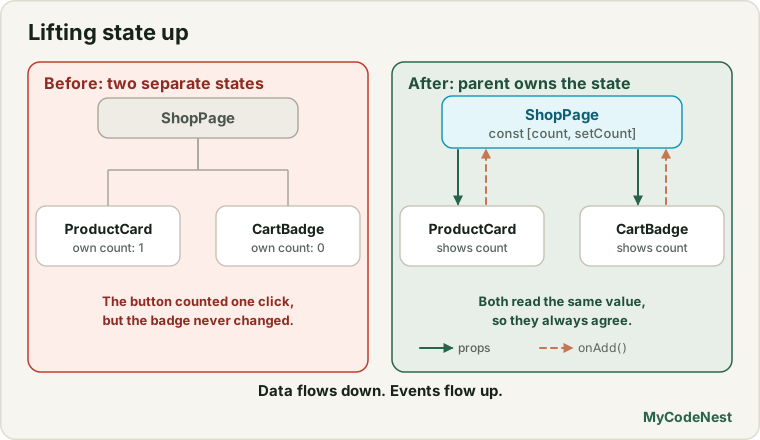
The button counted one click, but the badge still says Cart: 0. The two count variables are completely separate. As you learned, every component has its own state, so there is no way for one component to see the other’s.
The solution: move the state to the common parent
When two components need to share or stay in sync with some data, move the state up to their closest common parent. The parent keeps the state, and passes it down to the children as props. The children report changes back up with function props.
import { useState } from 'react';

function CartBadge({ count }) {
  return <p>Cart: {count}</p>;
}

function ProductCard({ name, onAdd }) {
  return (
    <div>
      <h3>{name}</h3>
      <button onClick={onAdd}>Add to cart</button>
    </div>
  );
}

function Shop() {
  const [cartCount, setCartCount] = useState(0);

  return (
    <>
      <CartBadge count={cartCount} />
      <ProductCard name="Mouse" onAdd={() => setCartCount(cartCount + 1)} />
      <ProductCard name="Keyboard" onAdd={() => setCartCount(cartCount + 1)} />
    </>
  );
}

export default Shop;
Click Add to cart once on each product. The page shows:
Cart: 2
Mouse      [Add to cart]
Keyboard   [Add to cart]
Both buttons now update the same number, and the badge always matches. A bonus: the two ProductCard components no longer need any state of their own.
Lifting state in three steps
Whenever you need to lift state, follow these three steps:
- Remove the state from the child components.
- Add the state to the closest common parent, and pass the value down as a prop.
- Pass a handler (a function) down too, so the child can ask the parent to change the state.
Before:   CartBadge [state]        ProductCard [state]    ← separate, out of sync

After:             Shop [state]
                  ┌────┴────┐
        value ↓   │         │   ↓ value + handler
              CartBadge   ProductCard
Remember the rule from earlier lessons: data flows down, events flow up.
A second example: an accordion
Lifting state also solves “only one at a time” problems. Suppose you have a list of panels, and opening one should close the others. Each panel cannot know about the others, so the parent must remember which panel is open:
import { useState } from 'react';

function Panel({ title, isOpen, onShow, children }) {
  return (
    <section className="panel">
      <h3>{title}</h3>
      {isOpen ? <p>{children}</p> : <button onClick={onShow}>Show</button>}
    </section>
  );
}

function Accordion() {
  const [activeIndex, setActiveIndex] = useState(0);

  return (
    <>
      <Panel title="HTML" isOpen={activeIndex === 0} onShow={() => setActiveIndex(0)}>
        Structure of a page.
      </Panel>
      <Panel title="CSS" isOpen={activeIndex === 1} onShow={() => setActiveIndex(1)}>
        Style of a page.
      </Panel>
      <Panel title="React" isOpen={activeIndex === 2} onShow={() => setActiveIndex(2)}>
        Interactive UI.
      </Panel>
    </>
  );
}

export default Accordion;
At first, the HTML panel is open and the other two show a Show button. Click Show under React: the React panel opens and the HTML panel closes. At any time exactly one panel is open.
Why does this work? Panel has no state. It just displays what the parent tells it: isOpen is true only for the panel whose index matches activeIndex. The parent is the single source of truth: one variable decides everything.
Controlled and uncontrolled components
React uses two words for this idea:
- A component that keeps its own state is called uncontrolled. The first broken
ProductCardis an example. It decides for itself. - A component that is driven by props from its parent is called controlled. The
Panelabove is controlled: the parent decides if it is open.
You already know this idea from forms: a controlled input gets its value from state, while an uncontrolled one keeps its own value in the browser.
Neither is “right”. Uncontrolled components are simpler to use. Controlled components are more flexible, because the parent can coordinate several of them. When you realise that components must stay in sync, it is time to make them controlled.
A single source of truth
For each piece of changing data, one component should own it. Other components get it through props. If the same data is stored in two places, they can disagree, and bugs appear:
Bad:   Parent has  items = [...]   AND   Child has  items = [...]   (copies can drift apart)
Good:  Parent has  items = [...]   Child receives items as a prop
The next lesson shows exactly how duplicated state causes trouble, and how to avoid it.
How high should state go?
Lift state only as far as you need. Ask: “Which components need to read or change this data?” Then find their closest common parent. That is where the state belongs.
- If only one component uses the data, keep it there (like the text in
TodoForm). - If two siblings need it, put it in their parent.
- If it is needed in many places across a big app, passing props through many layers gets tiring. This problem is called prop drilling, and React offers Context as a solution. You will learn it in the Context lesson. Do not reach for it yet.
Putting state too high has a cost too: the parent re-renders more often, and its code becomes crowded. Keep state as low as possible, and lift it only when something forces you to.
Common mistakes
1. Keeping a copy of the state in the child as well. If ProductCard keeps its own count and also receives count as a prop, you have two sources of truth. Pick one, and remove the other.
2. Forgetting to pass the handler. If the child calls onAdd() but the parent never passed onAdd, you get onAdd is not a function.
3. Calling the handler while passing it. onAdd={setCartCount(cartCount + 1)} runs during render and causes Too many re-renders. Pass a function: onAdd={() => setCartCount(cartCount + 1)}.
4. Lifting too high. Do not put every piece of state in App. State used by only one component should stay in that component.
5. Trying to change a prop in the child. Children must never modify props. They ask the parent to change the state.
6. Not lifting far enough. If two components need the data but you put the state in one of them, the other cannot reach it. Use their common parent.
7. Passing a new value but no way to change it. If you pass value down, you almost always need to pass a handler too, or the child can only look and never act.
Practice
-
Build the
Shopfrom this lesson with three products. Check that the badge counts every click on every product. -
Add a Clear cart button next to the badge. It should reset the count to
0. Which component owns the state, and which one gets the new handler? -
Predict, then check: In the broken version (state in both
CartBadgeandProductCard), what do you see after three clicks on Add? Write down your answer first, then test it. -
Build an
Accordionwith three panels. Make sure only one panel is open at a time. Then change it so that all panels can be closed (clicking the open one closes it again). -
Build a temperature converter with two inputs: Celsius and Fahrenheit. Typing in one should update the other. Where must the state live? (Formula:
F = C * 9 / 5 + 32.) -
Debug: The badge always shows
0, even though the button works. What is wrong?function Shop() { const [cartCount, setCartCount] = useState(0); return ( <> <CartBadge count={0} /> <ProductCard name="Mouse" onAdd={() => setCartCount(cartCount + 1)} /> </> ); } -
Debug: The page crashes with
Too many re-rendersas soon as it opens. Find the line and fix it.<ProductCard name="Mouse" onAdd={setCartCount(cartCount + 1)} /> -
Take your to-do app and split the footer’s filter buttons into their own
FilterBarcomponent. Which state does it need fromApp, and which handler?
Recap
- When two components need the same data, lift the state up to their closest common parent.
- The three steps: remove the state from the children, add it to the parent and pass it down as props, pass handlers down so children can request changes.
- Data flows down as props. Events flow up as function calls.
- A component driven by props is controlled. One that keeps its own state is uncontrolled.
- Every piece of data should have one owner: a single source of truth.
- Lift state only as far as needed. If passing props through many layers becomes painful, Context will help.
- Next you will learn how to choose a good structure for your state.
Frequently asked questions
What does "lifting state up" mean?
It means moving state from a child component to a parent component, so that several children can share it. The parent passes the data down as props and passes handler functions down so the children can request changes.
How do I know which component should own the state?
Find every component that needs to read or change the data, then choose their closest common parent. If only one component needs it, keep the state in that component.
Can a child component change the parent's state?
Not directly. The parent passes a function as a prop, and the child calls it. That function runs in the parent and updates the parent’s state. This keeps all changes in one predictable place.
What is the difference between controlled and uncontrolled components?
A controlled component gets its data from props and tells its parent about changes. An uncontrolled component keeps its own state. Controlled components are easier to coordinate, while uncontrolled ones are simpler to use on their own.
What is prop drilling, and is it bad?
Prop drilling means passing props through many layers of components that do not use them, just to reach a deeply nested child. A little of it is perfectly fine. If it becomes painful, you can use Context or reorganise your components. Both are covered later.
Should I put all my state in App?
No. Keep state as close as possible to where it is used. Lift it only when two or more components need it. Too much state in App makes the app harder to read and re-renders more components than necessary.
See also: React Props, Handling Events in React, Build a To-Do List App, Children and Composition