Single-Page Apps and Client-Side Routing: URLs Without Reloads
Understand single-page apps: change the URL without a reload using the History API, build a tiny router with pushState and popstate, and fix refresh 404s.
What you will learn
So far, your React apps have had one page. Real apps have many: a home page, a products page, a profile page, a login page. Each page has its own URL, and users expect the back button, bookmarks and shared links to work.
Before you use a routing library, it helps to understand how routing in a single-page app actually works. In this lesson you will learn the difference between a normal website and a single-page application (SPA), how the browser’s History API changes the address bar without reloading the page, how to build a tiny router yourself in about 30 lines, and why refreshing a page can give a 404 after you deploy.
You should know React state and Effects with cleanup.
A normal website (multi-page)
On a traditional website, every link asks the server for a new page:
Click "About"
   → the browser sends a request to the server for /about
   → the server answers with a NEW HTML page
   → the browser throws away the old page and loads the new one (a full reload)
This is called a multi-page application (MPA). The page flashes white during each navigation, and everything on the old page (typed text, scroll position, JavaScript state) is lost.
A single-page app (SPA)
A React app built with Vite is usually a single-page app. The server sends one HTML file with an empty <div id="root">, and React draws everything. When the user clicks a link, JavaScript swaps the content and updates the URL. The page itself never reloads:
Click "About"
   → JavaScript changes the address bar to /about (no request to the server)
   → React shows the About component instead of the Home component
   → the page is NOT reloaded; state in other components survives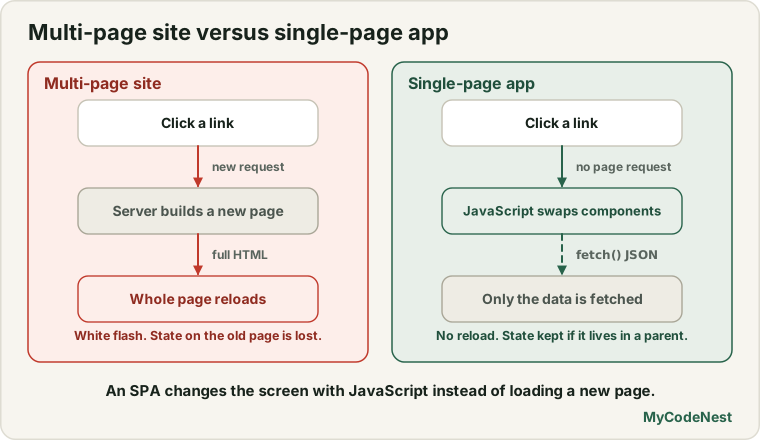
| Multi-page site | Single-page app | |
|---|---|---|
| Navigation | New request, full reload | JavaScript swaps content, no reload |
| Speed after the first load | Slower (new page each time) | Faster (only needed data is loaded) |
| State between pages | Lost | Kept (if you keep it in a parent) |
| First load | Fast, ready-made HTML | Slower: download and run JavaScript first |
| Search engines and link previews | Easy: HTML is ready | Harder: the first HTML is empty (see the end of this lesson) |
Neither is “better”. An SPA feels like a desktop app, and it is the usual choice for dashboards and tools.
Why URLs still matter
Even though there is only one HTML file, users still expect:
- the address bar to show where they are (
/products/42), - the back and forward buttons to work,
- bookmarks and shared links to open the right screen,
- refreshing the page to stay on the same screen.
So an SPA must keep the URL and the screen in sync. The browser gives us a tool to do this: the History API.
The History API
The browser keeps a history stack: the list of pages you visited. The window.history object lets JavaScript work with it. (You met history.back() in the browser objects lesson.) Three tools matter for routing:
| Tool | What it does |
|---|---|
history.pushState(state, "", "/about") |
Changes the URL to /about and adds an entry to the history. No reload, no request. |
history.replaceState(state, "", "/about") |
Changes the URL but replaces the current entry (the back button will not return to the old URL). |
The popstate event |
Fires on window when the user clicks Back or Forward. |
And window.location.pathname tells you the current path, such as /about.
There is one important detail: pushState does not fire any event. The browser changes the address bar and does nothing else. Your code must tell React that the URL changed. Only the back and forward buttons fire popstate.
Build a tiny router
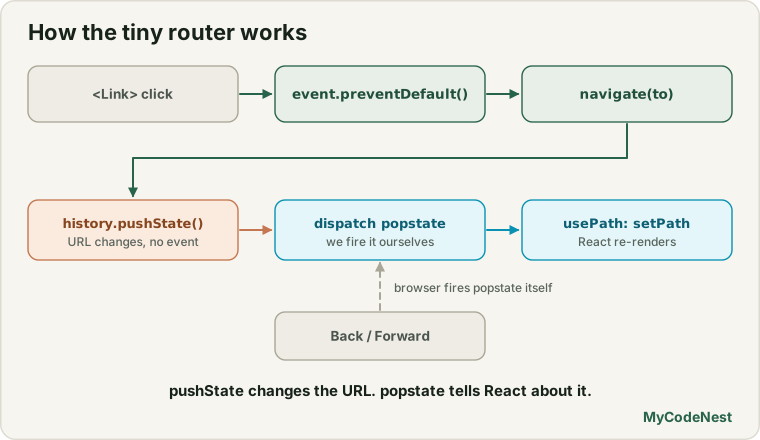
Let us build the smallest router that works. Create src/tinyRouter.jsx:
import { useState, useEffect } from 'react';

export function navigate(to) {
  window.history.pushState({}, "", to);
  window.dispatchEvent(new PopStateEvent("popstate"));
}

export function usePath() {
  const [path, setPath] = useState(window.location.pathname);

  useEffect(() => {
    function handlePopState() {
      setPath(window.location.pathname);
    }

    window.addEventListener("popstate", handlePopState);
    return () => window.removeEventListener("popstate", handlePopState);
  }, []);

  return path;
}

export function Link({ to, children, ...props }) {
  function handleClick(event) {
    const modified = event.metaKey || event.ctrlKey || event.shiftKey || event.altKey;
    if (event.button !== 0 || modified || props.target === "_blank") {
      return;
    }
    event.preventDefault();
    navigate(to);
  }

  return (
    <a href={to} {...props} onClick={handleClick}>
      {children}
    </a>
  );
}
This file has three small parts.
navigate(to) changes the URL with pushState, then fires a popstate event ourselves, so that everything listening is told “the URL changed”. That is the trick for the missing event.
usePath() is a custom Hook (custom Hooks lesson). It keeps the current path in state and updates it on every popstate event. It follows the Effect rules you know: it adds a listener and removes it in the cleanup.
Link is a normal <a href> with a click handler. On a plain left click, it stops the browser’s default behaviour (the page reload) with event.preventDefault() and calls navigate. Notice what it does not intercept:
- clicks with Ctrl, Cmd, Shift or Alt held (the user wants a new tab or window),
- non-left mouse buttons,
- links with
target="_blank".
For those, the browser does its normal thing. This is also why we render a real <a href>: right-click, “open in new tab” and the status bar preview all keep working, and search engines and screen readers understand it as a link. A <button> or a <div onClick> would lose all of that.
Use it in an app
Replace src/App.jsx with:
import { useState } from 'react';
import { Link, usePath } from './tinyRouter.jsx';

function Home() {
  return <h1>Home</h1>;
}

function About() {
  return <h1>About us</h1>;
}

function NotFound() {
  return <h1>Page not found</h1>;
}

function App() {
  const path = usePath();
  const [clicks, setClicks] = useState(0);

  let page;
  if (path === "/") {
    page = <Home />;
  } else if (path === "/about") {
    page = <About />;
  } else {
    page = <NotFound />;
  }

  return (
    <>
      <nav>
        <Link to="/">Home</Link> <Link to="/about">About</Link>{" "}
        <Link to="/missing">Missing</Link>
        <button onClick={() => setClicks(clicks + 1)}>Clicks: {clicks}</button>
      </nav>
      <main>{page}</main>
    </>
  );
}

export default App;
The App reads the current path and chooses which component to show. That is routing in its simplest form: the URL is state, and the screen is a function of that state.
What happens in the browser
Run the app and try this:
- You start on
/and see Home. - Click the Clicks button three times:
Clicks: 3. - Click About. The address bar says
/about, the page shows About us, and the button still saysClicks: 3. The page was not reloaded, so the state survived. In a normal multi-page site, it would have reset to 0. - Click Missing. The address bar says
/missingand you seePage not found. - Press the browser’s Back button. You return to About us, and Back again returns to Home. Forward goes the other way.
We tested this exact app with a simulated browser. After clicking About, the path changed to /about, the <nav> element was the same DOM element as before (so nothing was reloaded), and the click count was kept. history.back() returned to /, and history.forward() returned to /about. We also started the app already on /about (as if the user typed the address), and it showed About us straight away, because usePath reads window.location.pathname when it starts.
The refresh problem
Here is the trap that surprises almost every beginner. Open your app at /about and press Refresh. In development, it works. After you deploy it, it may show a 404 error. Why?
A refresh (or typing the address directly, or opening a shared link) is not a client-side navigation. The browser really asks the server for /about:
Browser → server:  GET /about
Server:            "I have no file called /about"  → 404
Your React app only exists inside index.html. The server must answer every path with index.html, and then React reads the URL and shows the right page. This is called an SPA fallback:
GET /about → server sends index.html → React starts → usePath() reads "/about" → shows About- The Vite dev server and
vite previewalready do this for you, which is why it works on your computer. - Production hosts need a rule. On many static hosts, this means a redirect rule that sends all unknown paths to
index.htmlwith status200. For example, on Netlify you can add a file named_redirectsin thepublicfolder with this single line:
/* /index.html 200The deployment lesson later in this course covers this for real hosts. For now, remember: if a page works when you click links but fails on refresh, the server is missing the SPA fallback.
If you cannot configure the server, some routers offer a hash mode, where the route lives after a # (like /#/about). The part after # is never sent to the server, so no fallback is needed. The downside is uglier URLs.
What a tiny router cannot do
Our 30-line router works, but a real app needs much more:
- Dynamic paths like
/products/42, with the42available as a parameter. - Nested layouts, such as a shared sidebar for all
/settings/...pages. - Query strings (
?page=2) and a tidy way to read them. - Redirects and protected routes.
- Correct links in nested pages, scroll position and focus on page change.
- Many details around edge cases, such as
basepaths and encoding.
Writing all of this yourself would be a big project, and bugs here are painful. That is why almost everyone uses a routing library. The next lessons teach React Router, which is built on exactly the ideas you just learned: the History API, popstate, and URL-as-state.
SPAs, SEO and link previews
One more thing about single-page apps. The first HTML the server sends is nearly empty (<div id="root"></div>). Modern search engines can run JavaScript and index many SPAs, but it is less reliable than ready-made HTML. Tools that only read the HTML, such as many link preview bots in chat apps and social networks, will see nothing useful.
For apps that need good SEO or rich previews (marketing sites, blogs, shops), developers render the HTML on the server or at build time instead. A later lesson explains these rendering strategies. For dashboards and tools behind a login, an SPA is perfectly fine.
Common mistakes
1. Using a plain <a href> for in-app links. Without a router, it reloads the whole page and your state is lost. Use a router link.
2. Using a <button> or <div onClick> as a link. You lose “open in new tab”, keyboard behaviour and accessibility. Use a real link element.
3. Forgetting that pushState fires no event. The URL changes but nothing re-renders. Tell your app (like navigate does) or use a router.
4. Not removing the popstate listener. It leaks, and updates unmounted components. Return a cleanup from the Effect.
5. Hijacking Ctrl+click and middle-click. Users cannot open a new tab. Only intercept plain left clicks.
6. Forgetting the SPA fallback in production. Refresh and shared links give a 404 on your host.
7. No “not found” page. Always handle unknown paths, so users see a helpful message.
8. Putting the page state in the URL by hand-written string checks everywhere. It gets messy fast. Let a router do it.
Practice
- Build the tiny router and the
Appfrom this lesson. Click the counter button, navigate with the links, and check that the count survives. Then reload the browser tab. What happens to the count, and why? - Predict, then check: Navigate Home, then About, then Missing. Press Back twice. Where are you? Press Forward once. Where are you?
- Replace
pushStatewithreplaceStateinnavigate. Navigate Home → About → Missing, then press Back. Where do you land, and why? - Add a third page, Contact, at
/contact. - Debug: After you click a link, the address bar changes but the page does not. Which line is missing from
navigate, and why is it needed? - Debug: A user says “I cannot open your links in a new tab with Ctrl+click”. Which condition in
Linkis responsible for allowing this? - Run
npm run buildandnpm run preview, open/aboutdirectly in the address bar, and refresh. Does it work? Why does the preview server behave like the dev server? - Think: Name three things a user expects from the URL in a web app, and say which ones break if a route is only kept in React state with no URL.
Recap
- A multi-page site reloads the whole page on every link. A single-page app loads one HTML file, and JavaScript swaps the content.
- The History API lets JavaScript change the URL without a reload:
pushStateadds a history entry,replaceStatereplaces it, andpopstatefires on Back and Forward. pushStatefires no event, so a router must tell the app that the URL changed.- Routing is simple at its core: the URL is state, and the screen is a function of it.
- A router link should be a real
<a href>that intercepts only plain left clicks. - State in components survives navigation, because the page never reloads.
- Refresh and direct links ask the server for the path, so production servers need an SPA fallback to
index.html. - SPAs have weaker SEO and link previews because the first HTML is empty. Server or build-time rendering solves this.
- Next you will use React Router, which does all of this (and much more) for you.
Frequently asked questions
What is a single-page application?
It is a web app that loads one HTML page and then updates the content with JavaScript, without reloading the page when the user navigates. React apps made with Vite are single-page apps by default. The URL still changes, so back, forward and bookmarks work.
What is the difference between pushState and replaceState?
pushState adds a new entry to the history, so the Back button returns to the previous URL. replaceState replaces the current entry, so Back skips it. Redirects typically use replaceState so users do not get stuck pressing Back.
Why does my page show a 404 after I refresh?
A refresh asks the server for that exact path, and the server has no file for it. A single-page app needs the server to answer every path with index.html, so React can read the URL and show the right page. This setting is called an SPA fallback, and it must be configured on your host.
Why do I need a routing library if the History API is this simple?
The basics are simple, but real apps need dynamic paths, nested layouts, query strings, redirects, protected routes, scroll and focus handling, and many edge cases. A library has solved these problems and tested them in many browsers, so you do not have to.
Is a single-page app bad for SEO?
It can be harder. The first HTML is empty, and not every crawler or link-preview tool runs JavaScript. For content sites that need search traffic and nice previews, rendering on the server or at build time is better. Apps behind a login do not need SEO.
What is hash routing?
Hash routing keeps the route after a # in the URL, like /#/about. The browser never sends the part after # to the server, so no SPA fallback is needed. It is useful when you cannot configure the server, but the URLs look less clean.
See also: Browser Objects (BOM), Custom Hooks in React, useEffect Cleanup and Dependencies, HTML Links