ViewTransition in React: Animate Page and List Changes
Master React 19.3's native ViewTransition: build smooth cross-fade, shared-element, and list reordering animations with zero heavy libraries.
What you will learn
Animating state changes, list sorting, and page navigation in React has historically been frustrating. Developers had to reach for heavy third-party animation libraries (like Framer Motion or React Spring) that inject dozens of kilobytes into JavaScript bundles and require complex layout measurements.
Modern web browsers recently introduced the native View Transitions API.
In React 19.3, React stabilized first-class native support with the <ViewTransition> component and addTransitionType (building upon foundational CSS Transitions and Transforms and CSS Keyframe Animations).
In this lesson, you will learn:
- How native browser View Transitions work under the hood.
- How to wrap animated state updates with the
<ViewTransition>component. - How to build smooth shared-element transitions (e.g., expanding a thumbnail into a full article).
- How to customize transition animations using CSS pseudo-elements (
::view-transition-group,::view-transition-old,::view-transition-new). - How to categorize transition styles with
addTransitionTypeand respectprefers-reduced-motion.
How View Transitions Work
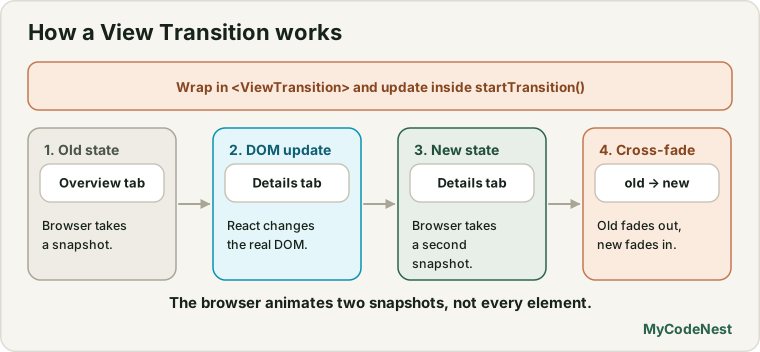
When you trigger a view transition, the browser:
- Takes a screenshot snapshot of the old state before the DOM changes.
- Updates the DOM to the new state.
- Takes a screenshot snapshot of the new state.
- Automatically animates a smooth cross-fade between the old and new images using browser hardware acceleration!
Because the browser animates image snapshots rather than measuring every DOM element at 60fps in JavaScript, animations are buttery smooth with zero dropped frames.
Introducing <ViewTransition> in React 19.3
In React 19.3, you can opt any component or subtree into view transitions simply by wrapping it in <ViewTransition>:
import { useState, useTransition, ViewTransition } from 'react';

export function TabSelector() {
  const [activeTab, setActiveTab] = useState("overview");
  const [isPending, startTransition] = useTransition();

  function selectTab(tab) {
    // Wrap the state update in a transition
    startTransition(() => {
      setActiveTab(tab);
    });
  }

  return (
    <div className="tab-container">
      <div className="tab-buttons">
        <button onClick={() => selectTab("overview")}>Overview</button>
        <button onClick={() => selectTab("reviews")}>Reviews</button>
      </div>

      {/* React automatically coordinates view transitions during startTransition */}
      <ViewTransition>
        <div className="tab-content" key={activeTab}>
          {activeTab === "overview" && <p>Product overview content...</p>}
          {activeTab === "reviews" && <p>Customer reviews content...</p>}
        </div>
      </ViewTransition>
    </div>
  );
}
When selectTab runs inside startTransition, React coordinates with the browser’s View Transitions API. The content cross-fades automatically with zero CSS animation code required!
Shared Element Transitions: Thumbnails to Full View
One of the most impressive patterns in modern app design is the hero image expansion: clicking a small product photo smoothly expands it into a large banner.
React makes this effortless using the name prop on <ViewTransition>:
import { useState, useTransition, ViewTransition } from 'react';

export function Gallery({ photos }) {
  const [selectedPhoto, setSelectedPhoto] = useState(null);
  const [, startTransition] = useTransition();

  function openPhoto(photo) {
    startTransition(() => {
      setSelectedPhoto(photo);
    });
  }

  function closePhoto() {
    startTransition(() => {
      setSelectedPhoto(null);
    });
  }

  if (selectedPhoto) {
    return (
      <div className="full-view">
        <button onClick={closePhoto}>Back to gallery</button>
        {/* Match the transition name to animate the image expanding */}
        <ViewTransition name={`photo-${selectedPhoto.id}`}>
          <img src={selectedPhoto.url} alt={selectedPhoto.title} className="hero-img" />
        </ViewTransition>
        <h1>{selectedPhoto.title}</h1>
      </div>
    );
  }

  return (
    <div className="grid">
      {photos.map((photo) => (
        <div key={photo.id} onClick={() => openPhoto(photo)}>
          <ViewTransition name={`photo-${photo.id}`}>
            <img src={photo.url} alt={photo.title} className="thumb-img" />
          </ViewTransition>
        </div>
      ))}
    </div>
  );
}
Because both the thumbnail and the full view share the same transition name (photo-${id}), the browser automatically calculates the exact position and morphs the thumbnail into the full hero banner!
Customizing Transitions with CSS
By default, the browser applies a gentle 250ms cross-fade. You can customize the duration, timing curve, and animations using standard CSS pseudo-elements:
/* Customize the overall duration of the transition */
::view-transition-old(root),
::view-transition-new(root) {
  animation-duration: 0.35s;
  animation-timing-function: cubic-bezier(0.16, 1, 0.3, 1);
}

/* Custom slide-in animation for page transitions */
@keyframes slide-from-right {
  from { transform: translateX(40px); opacity: 0; }
  to { transform: translateX(0); opacity: 1; }
}

@keyframes slide-to-left {
  from { transform: translateX(0); opacity: 1; }
  to { transform: translateX(-40px); opacity: 0; }
}

::view-transition-old(page-content) {
  animation: slide-to-left 0.3s ease forwards;
}

::view-transition-new(page-content) {
  animation: slide-from-right 0.3s ease forwards;
}
Categorizing Transitions with addTransitionType
What if clicking “Next” should slide content from the right, but clicking “Back” should slide from the left?
In React 19.3, you can tag transitions with custom types using addTransitionType:
import { useTransition, addTransitionType } from 'react';

function Pagination({ currentPage, onPageChange }) {
  const [, startTransition] = useTransition();

  function goNext() {
    startTransition(() => {
      // Tag this transition as 'slide-forward'
      addTransitionType('slide-forward');
      onPageChange(currentPage + 1);
    });
  }

  function goPrev() {
    startTransition(() => {
      // Tag this transition as 'slide-backward'
      addTransitionType('slide-backward');
      onPageChange(currentPage - 1);
    });
  }

  return (
    <nav className="pagination">
      <button onClick={goPrev}>Previous</button>
      <span>Page {currentPage}</span>
      <button onClick={goNext}>Next</button>
    </nav>
  );
}
In your CSS, target the specific type:
/* Active only during 'slide-forward' transitions */
html:active-view-transition-type(slide-forward) ::view-transition-new(page) {
  animation: slide-from-right 0.3s ease;
}

/* Active only during 'slide-backward' transitions */
html:active-view-transition-type(slide-backward) ::view-transition-new(page) {
  animation: slide-from-left 0.3s ease;
}
Accessibility: Respecting prefers-reduced-motion
Animations can trigger motion sickness or vestibular disorders in some users. Always respect user OS preferences:
@media (prefers-reduced-motion: reduce) {
  ::view-transition-group(*),
  ::view-transition-old(*),
  ::view-transition-new(*) {
    animation: none !important;
  }
}
When reduced motion is requested, the browser switches views instantaneously without motion, ensuring full accessibility.
Common mistakes
1. Duplicating name attributes on visible elements
Every active name must be unique on the page at any given moment. If two visible cards share name="card", the browser cannot determine which element to morph and cancels the transition.
2. Expecting transitions without startTransition
<ViewTransition> only activates when the DOM state changes within an explicit React transition (startTransition, useActionState, or <form action={...}>). Regular synchronous state updates will not trigger view transitions.
3. Forgetting browser support fallbacks
View Transitions are fully supported in modern Chromium browsers (Chrome, Edge) and Safari 18+. In older browsers that lack support, React falls back gracefully to standard instantaneous rendering without throwing errors.
Practice
- Build a simple tab component. Wrap the tab panels in
<ViewTransition>and observe the automatic cross-fade. - Create an image gallery with 4 cards. Use
<ViewTransition name={'photo-' + id}>to animate a clicked thumbnail into a full-screen view. - Add custom CSS keyframes to make the new view slide in from the bottom.
- Implement a forward and backward pagination control using
addTransitionType('slide-forward')andaddTransitionType('slide-backward'). - Test the
prefers-reduced-motionCSS rule in browser DevTools (Rendering -> Emulate CSS media feature prefers-reduced-motion). - Compare the bundle size of a native
<ViewTransition>app against an app importing a 40 kB third-party animation library.
Recap
- View Transitions capture screenshots of the old and new states and animate between them using browser hardware acceleration.
- In React 19.3,
<ViewTransition>brings native view transitions directly to React components. - State updates must be wrapped in
startTransitionto trigger view transitions. - Matching
nameprops across components enables seamless shared-element hero animations. addTransitionTypeallows you to customize direction (e.g. slide-left vs slide-right) in CSS.- Always disable animations for users with
prefers-reduced-motion: reduce. - Next, you will explore
<Activity>and Fragment Refs: keeping component state alive while hidden!
Frequently asked questions
Does ViewTransition require installing any npm packages?
No! <ViewTransition> and addTransitionType are built directly into react 19.3. No external libraries are needed.
How does ViewTransition compare to Framer Motion?
Framer Motion is a feature-rich JavaScript animation library that supports physics spring dynamics and gesture drag-and-drop. <ViewTransition> is a lightweight, zero-dependency native alternative ideal for page transitions, tab switches, and shared-element expansions.
Can I animate list item reordering with ViewTransition?
Yes. If list items are wrapped with unique transition names, sorting or filtering the list will smoothly animate items sliding into their new positions.
Does ViewTransition work with React Router?
Yes! React Router supports view transitions natively. Setting <Link to="/about" viewTransition> triggers a smooth page transition automatically.
What happens if a user clicks rapidly during a view transition?
The browser automatically interrupts ongoing transitions and smoothly skips to the most recent target state.
See also: useTransition and useDeferredValue, CSS Transitions and Transforms, Code Splitting with lazy and Suspense