Render Lists in React with map() and Keys
Learn how to render arrays in React with map(), why every list item needs a stable key, how to filter lists, and how to fix the missing key warning.
What you will learn
Almost every app shows lists: products in a shop, messages in a chat, tasks in a to-do app, search results. You rarely type each item by hand. The data comes as an array, and you turn it into UI.
In this lesson you will learn how to render an array with map(), why every item needs a key, how to show only some items with filter(), and how to fix the warning that React gives when a key is missing. You should be comfortable with map() and filter() from the array methods lesson.
The idea: turn data into components
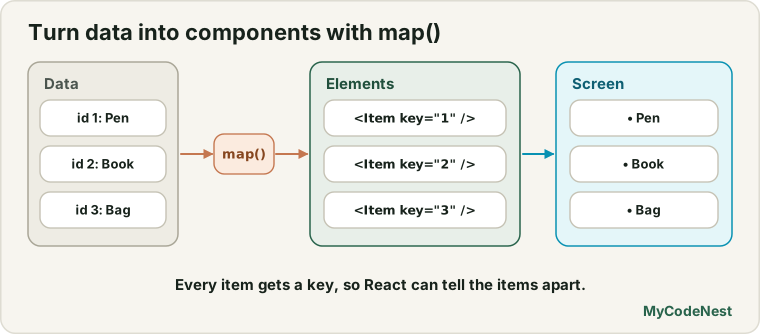
In plain JavaScript, you might loop through an array and create DOM elements one by one. In React you describe the result: an array of data becomes an array of JSX elements, and React shows them all.
The tool for the job is the array method map(). It takes each item of an array and returns a new array with one result per item. Here the results are JSX elements.
Your first list
Create a small component for one product, src/components/ProductItem.jsx:
function ProductItem({ name, price }) {
  return (
    <li>
      {name} - ${price}
    </li>
  );
}

export default ProductItem;
Now create src/components/ProductList.jsx with an array of product objects and a map():
import ProductItem from './ProductItem.jsx';

const products = [
  { id: 1, name: "Wireless Mouse", price: 24.5, inStock: true },
  { id: 2, name: "Mechanical Keyboard", price: 89, inStock: true },
  { id: 3, name: "USB-C Hub", price: 39.99, inStock: false },
];

function ProductList() {
  return (
    <ul>
      {products.map((product) => (
        <ProductItem key={product.id} name={product.name} price={product.price} />
      ))}
    </ul>
  );
}

export default ProductList;
Render <ProductList /> in App.jsx. The browser shows a bulleted list:
• Wireless Mouse - $24.5
• Mechanical Keyboard - $89
• USB-C Hub - $39.99
Let us read the important part, products.map(...):
products.map((product) => ( ... ))loops over the array. For eachproductobject, the function returns a<ProductItem />element.map()returns a new array of threeProductItemelements. React knows how to display an array of elements, so all three appear.- The curly braces
{ }around the wholemap()tell JSX that this is JavaScript. - The round brackets
( )after the arrow=>return the JSX directly. This is the implicit return from the arrow functions lesson. If you write curly braces{ }after the arrow instead, you must writereturnyourself. key={product.id}is explained next.
What is a key?
When React shows a list, it needs a way to tell the items apart. If the list changes (an item is added, removed or moved), React compares the old list with the new one and updates the page. To do this accurately, it needs a key for each item: a unique label that identifies the item.
Think of name tags at a conference. If people move around the room, the tag tells you who is who. Without tags, you would guess by position, and you might mix people up.
Rules for keys:
- Every item in a list needs a key, placed on the element returned directly by
map(). - Keys must be unique among siblings in that list (they do not need to be unique across the whole app).
- Keys must be stable. The same item should keep the same key every time. Do not generate keys with
Math.random()during rendering. - Use an ID from your data, such as a database ID, if you have one.
The key prop is special. React uses it itself and does not pass it to your component. Inside ProductItem, you cannot read props.key. If a child needs the ID, pass it as a different prop, such as id={product.id}.
The missing key warning
If you forget the key:
{products.map((product) => (
  <ProductItem name={product.name} price={product.price} />
))}
the list still appears, but the browser console shows a warning:
Each child in a list should have a unique "key" prop.Fix it by adding key={product.id}.
Why not use the index as a key?
You may see this in other tutorials:
{products.map((product, index) => (
  <ProductItem key={index} name={product.name} price={product.price} />
))}
The index (0, 1, 2) works, and React does not complain. But the index describes the position, not the item. If the list is sorted, filtered, or an item is inserted at the top, the same index now points to a different item. React may then reuse the wrong element, which can cause bugs, for example text typed in an input staying with the wrong row.
| Key | When it is acceptable |
|---|---|
A unique ID from the data (product.id) |
Always the best choice |
| The array index | Only for a fixed list that never changes order, and has no IDs |
Math.random() |
Never. It changes on every render, so React treats every item as new |
Filtering a list
Often you want to show only some items. Use filter() first, then map(). For example, show only products that are in stock:
function ProductList() {
  const available = products.filter((product) => product.inStock);

  return (
    <ul>
      {available.map((product) => (
        <ProductItem key={product.id} name={product.name} price={product.price} />
      ))}
    </ul>
  );
}
The first line creates a new array with only the products where inStock is true. The USB-C Hub is filtered out, so the browser shows:
• Wireless Mouse - $24.5
• Mechanical Keyboard - $89
Keys still come from the item’s own ID (product.id), so the keys do not change when the list is filtered. This is exactly why IDs are better than indexes.
You can also sort or change a copy of the array before mapping, for example [...products].sort(...). Always copy first with spread, because sort() changes the original array (see the value vs reference lesson).
A list of simple values
Lists do not have to contain objects. For an array of strings with no IDs, and a list that never changes, the text itself can be the key if the values are unique:
const skills = ["HTML", "CSS", "JavaScript", "React"];

function SkillList() {
  return (
    <ul>
      {skills.map((skill) => (
        <li key={skill}>{skill}</li>
      ))}
    </ul>
  );
}
Only do this when every value is unique. If two items could be the same text, you need another key.
Where the key goes
The key belongs on the outermost element returned by map(), not on something inside it. If you map to a component, put the key on the component:
// Correct: the key is on the element returned by map
{products.map((product) => (
  <ProductItem key={product.id} name={product.name} price={product.price} />
))}

// Wrong: the key is inside ProductItem, so map's elements have no key
function ProductItem({ id, name }) {
  return <li key={id}>{name}</li>;
}
When each item needs more than one top-level element, use a Fragment with a key. The short form <> cannot take a key, so import Fragment:
import { Fragment } from 'react';

{products.map((product) => (
  <Fragment key={product.id}>
    <dt>{product.name}</dt>
    <dd>${product.price}</dd>
  </Fragment>
))}
A nested list
Data can contain lists inside lists. Map each level, and give each level its own keys:
const categories = [
  { id: "a", name: "Computers", items: ["Laptop", "Desktop"] },
  { id: "b", name: "Accessories", items: ["Mouse", "Keyboard", "Hub"] },
];

function CategoryList() {
  return (
    <div>
      {categories.map((category) => (
        <section key={category.id}>
          <h3>{category.name}</h3>
          <ul>
            {category.items.map((item) => (
              <li key={item}>{item}</li>
            ))}
          </ul>
        </section>
      ))}
    </div>
  );
}
Keys only need to be unique among siblings, so Laptop could appear under two different categories without a problem.
Common mistakes
1. Forgetting the key. React warns Each child in a list should have a unique "key" prop. Add key={item.id}.
2. Using the index as a key in a list that changes. Use a real ID whenever the list can be sorted, filtered, or edited.
3. Using Math.random() for keys. The key changes every render, so React rebuilds every item and may lose its state. Create IDs when you create the data, not when you render it.
4. Putting the key in the wrong place. The key must be on the element returned by map(), not on an element inside the component.
5. Reading props.key. React does not pass key to the component. Pass the ID in another prop if you need it.
6. Forgetting to return from map(). With curly braces after the arrow, you need return:
// Nothing is shown: no return
{products.map((product) => {
  <ProductItem name={product.name} />;
})}

// Correct
{products.map((product) => {
  return <ProductItem key={product.id} name={product.name} />;
})}
7. Using forEach instead of map. forEach() returns undefined, so nothing is rendered. Use map().
8. Changing the original array with sort() or reverse(). Copy it first with [...products].
Practice
-
Create a
ProductListthat shows these three products usingmap()and aProductItemcomponent. Use the productidas the key. Add a fourth product to the array and check that it appears. -
Create a
SkillListthat shows["HTML", "CSS", "JavaScript", "React"]as a list. -
Predict, then check: Remove the
keyfrom yourProductItemelements. What appears in the page, and what appears in the console? Then add the key back. -
Use
filter()to show only products whose price is below50. What does the browser show? -
Debug: This list shows nothing. Fix it in two different ways.
{products.map((product) => { <li key={product.id}>{product.name}</li>; })} -
Debug: A console warning appears for this code. What is the problem and how do you fix it?
{users.map((user) => ( <UserCard name={user.name} email={user.email} /> ))} -
Show a sorted list of product names from cheapest to most expensive, without changing the original
productsarray. (Hint:[...products].sort((a, b) => a.price - b.price).) -
Build a
TeamListthat shows each team member as aProfileCardfrom the props lesson, using an array of three people withid,name,roleandgoal.
Recap
- Turn an array into UI with
array.map()inside curly braces. React displays the array of elements. - Every item in a list needs a key, placed on the element returned by
map(). - Keys must be unique among siblings and stable. Prefer an ID from your data.
- Avoid the index as a key if the list can change, and never use
Math.random(). keyis not passed to the component as a prop.- Use
filter()beforemap()to show only some items. Copy arrays before sorting. - With curly braces after the arrow function, remember to
return. - Use
<Fragment key={...}>when each item needs several top-level elements. - Next you will learn how to show or hide parts of the UI with conditional rendering.
Frequently asked questions
Why does React need keys?
Keys let React match each item in the new list with the item in the previous list. That way it can update, add, remove or move exactly the right elements instead of rebuilding everything or mixing items up.
Can I use the array index as a key?
You can, and React will not complain, but it is only safe for lists that never reorder, grow in the middle or get filtered. For anything dynamic, use a stable ID from your data.
Do keys need to be unique across the whole app?
No. They only have to be unique among the siblings in the same list. Two different lists can use the same keys without any problem.
What if my data has no ID?
Create one when the data is created, for example with crypto.randomUUID() when a user adds a to-do item, and store it with the item. Do not generate IDs during rendering, because they would change each time.
Why can I not read props.key in my component?
React reserves key for its own use and does not pass it to your component. If the component also needs the value, pass it again under another name, for example id={item.id}.
How do I show a message when the list is empty?
Check the array length and show a message instead of the list. The next lesson, conditional rendering, shows how to do that with if, the ternary operator and &&.
See also: map, filter and reduce, JavaScript Arrays, HTML Lists, React Props