React Router: Nested Layouts, URL Params and Search Params
Learn nested routes with Outlet, dynamic :id params with useParams, search params with useSearchParams, and keyboard focus handling on page change.
What you will learn
In the last lesson every page was a separate route and the menu was written in App. Real sites need more:
- A shared layout (header, menu and footer) around many pages, without repeating it.
- Dynamic URLs such as
/products/3, where the3changes and one component shows any product. - Query strings such as
/products?category=Displays&page=2, so that filters can be bookmarked and shared. - Good keyboard and screen reader behaviour when the page changes.
In this lesson you will learn nested routes with Outlet, URL parameters with useParams, and search parameters with useSearchParams. We build a small shop with a product list and detail pages. We continue in the project from the last lesson (React Router 8 with BrowserRouter in main.jsx).
Nested routes and Outlet
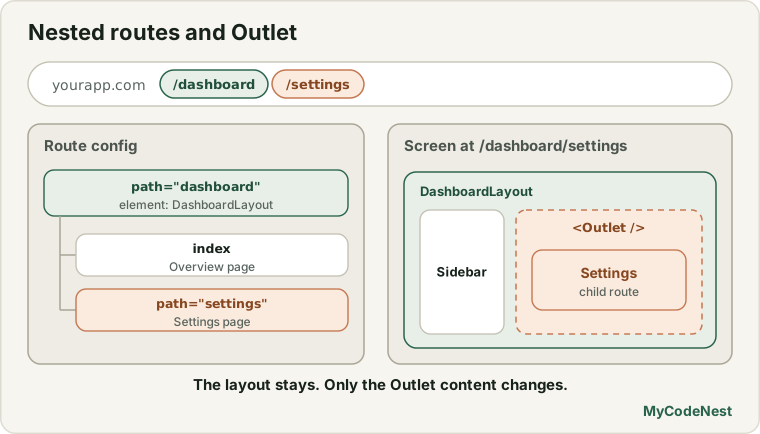
Almost every site has parts that stay the same on every page: the header, the menu, the footer. Instead of copying them into each page, you make a layout route. It is a route whose component shows the common parts and has a placeholder where the page changes. The placeholder is the <Outlet /> component.
Create src/layouts/Layout.jsx:
import { useEffect, useRef } from 'react';
import { NavLink, Outlet, useLocation } from 'react-router';

function Layout() {
  const { pathname } = useLocation();
  const previousPath = useRef(pathname);
  const mainRef = useRef(null);

  useEffect(() => {
    if (previousPath.current === pathname) {
      return;
    }
    previousPath.current = pathname;
    window.scrollTo(0, 0);
    mainRef.current.focus();
  }, [pathname]);

  return (
    <>
      <header>
        <nav aria-label="Main">
          <NavLink to="/">Home</NavLink>{" "}
          <NavLink to="/products">Products</NavLink>{" "}
          <NavLink to="/about">About</NavLink>{" "}
          <NavLink to="/contact">Contact</NavLink>
        </nav>
      </header>

      <main ref={mainRef} tabIndex={-1}>
        <Outlet />
      </main>

      <footer>
        <p>© 2026 My Site</p>
      </footer>
    </>
  );
}

export default Layout;
The important line is <Outlet />. When the URL matches a child route, React Router renders that child’s element exactly where the Outlet is. The header and footer stay on the page, and only the middle changes. (The part with useEffect and mainRef is explained later, in the section on page changes.)
Now describe the nesting in App.jsx. Replace src/App.jsx:
import { Routes, Route } from 'react-router';
import Layout from './layouts/Layout.jsx';
import Home from './pages/Home.jsx';
import About from './pages/About.jsx';
import Contact from './pages/Contact.jsx';
import Thanks from './pages/Thanks.jsx';
import Products from './pages/Products.jsx';
import ProductDetail from './pages/ProductDetail.jsx';
import NotFound from './pages/NotFound.jsx';

function App() {
  return (
    <Routes>
      <Route element={<Layout />}>
        <Route index element={<Home />} />
        <Route path="about" element={<About />} />
        <Route path="contact" element={<Contact />} />
        <Route path="thanks" element={<Thanks />} />
        <Route path="products">
          <Route index element={<Products />} />
          <Route path=":id" element={<ProductDetail />} />
        </Route>
        <Route path="*" element={<NotFound />} />
      </Route>
    </Routes>
  );
}

export default App;
(Keep Home, About, Contact, Thanks and NotFound from the last lesson.) Let us read the nesting:
- The outer
<Route element={<Layout />}>has nopath. It is a layout route: it adds the layout around its children without adding anything to the URL. indexmarks the default child:<Route index element={<Home />} />is shown when the URL is exactly/.- Child paths are relative to the parent:
path="about"means/about. You do not write the leading slash for children. <Route path="products">has no element. A route without an element simply renders its children (anOutlet) inside the layout. Its children are the list (index, at/products) and the detail page (:id, at/products/3).- The
*route sits inside the layout, so even the “not found” page gets the header and footer.
Dynamic routes and useParams
The route path=":id" is a dynamic segment. The colon means “any value here, and give it the name id”. It matches /products/1, /products/42 and /products/anything. Inside the component, the useParams Hook returns the values:
const { id } = useParams(); // for /products/3, id is "3"Important: URL parameters are always strings. For /products/3, id is the text "3", not the number 3. In our test, the value really was the string "3". If your data uses numbers, convert it: Number(id).
First, the data. Create src/data/products.js:
export const products = [
  { id: 1, name: "Wireless Mouse", category: "Accessories", price: 24.5, description: "A light mouse for everyday work." },
  { id: 2, name: "Mechanical Keyboard", category: "Accessories", price: 89, description: "Clicky keys that feel great." },
  { id: 3, name: "USB-C Hub", category: "Accessories", price: 39.99, description: "More ports for your laptop." },
  { id: 4, name: "27-inch Monitor", category: "Displays", price: 219, description: "A sharp screen for long days." },
  { id: 5, name: "Portable Monitor", category: "Displays", price: 149.5, description: "A second screen that fits in a bag." },
  { id: 6, name: "Laptop Stand", category: "Furniture", price: 34, description: "Raise your screen to eye level." },
  { id: 7, name: "Desk Lamp", category: "Furniture", price: 27.75, description: "Soft light for late evenings." },
];
Now the detail page. Create src/pages/ProductDetail.jsx:
import { useState } from 'react';
import { Link, useParams } from 'react-router';
import { products } from '../data/products.js';

function ProductView({ product }) {
  const [likes, setLikes] = useState(0);
  const next = products.find((item) => item.id === product.id + 1);

  return (
    <article>
      <title>{`${product.name} | My Site`}</title>
      <h1>{product.name}</h1>
      <p>{product.category} - ${product.price.toFixed(2)}</p>
      <p>{product.description}</p>
      <button onClick={() => setLikes(likes + 1)}>Likes: {likes}</button>
      <p>
        <Link to="/products">All products</Link>
        {next && (
          <>
            {" "}
            <Link to={`/products/${next.id}`}>Next: {next.name}</Link>
          </>
        )}
      </p>
    </article>
  );
}

function ProductDetail() {
  const { id } = useParams();
  const product = products.find((item) => item.id === Number(id));

  if (!product) {
    return (
      <>
        <title>Product not found | My Site</title>
        <h1>Product not found</h1>
        <p>There is no product with the id "{id}".</p>
        <Link to="/products">Back to all products</Link>
      </>
    );
  }

  return <ProductView key={product.id} product={product} />;
}

export default ProductDetail;
Let us look at the details:
useParams()givesid. We convert it withNumber(id)to compare with our numeric ids.- If no product matches (for example
/products/99or/products/abc, whereNumber("abc")isNaN), we show a friendly not found message with a link back. We tested both addresses and both showed it. (A single-page app cannot easily send a real “404” status. The user simply sees your message. For public sites that matters for SEO, which the rendering lesson explains.) - Links built from data:
`/products/${next.id}`creates the address for the next product. - The title uses a template string (
{`${product.name} | My Site`}). In React 19, a<title>must contain one piece of text. Writing<title>{product.name} | My Site</title>gives React two pieces (the name and the text), and React shows a warning. A template string joins them into one. key={product.id}onProductViewis very important. It is explained next.
A trap: the same component stays mounted
When you go from /products/1 to /products/2, React Router uses the same route and the same component, with a new id. By the rules of component identity, the same component at the same position keeps its state. That means the Likes counter would carry over to the next product!
We tested this on purpose. With the key, we clicked Likes three times on the first product, clicked Next, and the second product showed Likes: 0: a fresh start. Without the key, the counter stayed at Likes: 3 on the wrong product. Using key={product.id} tells React “a different product is a different component”, so the state resets. This is the same trick as <Draft key={userId} />.
Search parameters and useSearchParams
The part of the URL after a ? is the query string, such as ?category=Displays&page=2. React Router calls it search parameters. They are perfect for filters, sorting and page numbers, because:
- the user can bookmark or share the exact view,
- Back and Forward move between filter states,
- refreshing keeps the filters.
If you kept the filter in useState, none of this would work. Put state that describes “what the user is looking at” in the URL.
The Hook is useSearchParams. It works like useState: it returns a pair, the current parameters and a function to change them. Create src/pages/Products.jsx:
import { Link, useSearchParams } from 'react-router';
import { products } from '../data/products.js';

const PAGE_SIZE = 3;
const categories = [...new Set(products.map((product) => product.category))];

function Products() {
  const [searchParams, setSearchParams] = useSearchParams();
  const category = searchParams.get("category") ?? "all";
  const page = Math.max(1, Number(searchParams.get("page")) || 1);

  const filtered = category === "all"
    ? products
    : products.filter((product) => product.category === category);
  const totalPages = Math.max(1, Math.ceil(filtered.length / PAGE_SIZE));
  const currentPage = Math.min(page, totalPages);
  const visible = filtered.slice((currentPage - 1) * PAGE_SIZE, currentPage * PAGE_SIZE);

  function updateParams(newCategory, newPage) {
    const params = {};
    if (newCategory !== "all") {
      params.category = newCategory;
    }
    if (newPage > 1) {
      params.page = String(newPage);
    }
    setSearchParams(params);
  }

  return (
    <>
      <title>Products | My Site</title>
      <h1>Products</h1>

      <label htmlFor="category">Category</label>
      <select
        id="category"
        value={category}
        onChange={(event) => updateParams(event.target.value, 1)}
      >
        <option value="all">All</option>
        {categories.map((name) => (
          <option key={name} value={name}>{name}</option>
        ))}
      </select>

      <ul>
        {visible.map((product) => (
          <li key={product.id}>
            <Link to={`/products/${product.id}`}>{product.name}</Link> - ${product.price.toFixed(2)}
          </li>
        ))}
      </ul>

      <nav aria-label="Pagination">
        <button onClick={() => updateParams(category, currentPage - 1)} disabled={currentPage <= 1}>
          Previous
        </button>
        <span>Page {currentPage} of {totalPages}</span>
        <button onClick={() => updateParams(category, currentPage + 1)} disabled={currentPage >= totalPages}>
          Next
        </button>
      </nav>
    </>
  );
}

export default Products;
How it works:
searchParams.get("category")reads one parameter. It returnsnullif it is missing, and?? "all"gives a default. Search parameters are also always strings, so we convert the page withNumber(...).|| 1handles a missing or invalid value (NaN), andMath.max(1, ...)stops zero and negative numbers.- The URL is the state. There is no
useStatefor the category or the page. They are read from the URL on every render, and the list is derived from them. setSearchParams(params)changes the query string and re-renders. It is like a navigation: it adds a history entry, so Back and Forward work.- We build the new parameters from scratch in one helper and leave out defaults (
alland page1), so the URL stays clean:/productsand not/products?category=all&page=1. - Changing the category also resets the page to 1, in the event handler.
Math.min(page, totalPages)protects against a hand-typed address like?page=99.
We tested the whole page. At /products it showed Page 1 of 3 and three products. Clicking Next changed the address to /products?page=2. Choosing the category Displays changed it to /products?category=Displays and showed Page 1 of 1 with the two displays. Opening /products?category=Displays&page=99 showed page 1 of 1, and ?page=abc showed page 1. Pressing Back went to the earlier filter state.
If you need several values at once, searchParams is a standard URLSearchParams object, and it has .get(), .getAll(), .has() and more.
Active links in nested routes
Notice the NavLink for Products in the layout. When you visit /products/3, the Products link is still active (class active and aria-current="page"), because /products/3 is inside /products. This is usually what you want in a menu: it shows which section you are in. We tested it. If you want a link active only on exactly its own page, add the end prop: <NavLink to="/products" end>. With end, we saw that the link was no longer active on /products/3.
Focus and scroll on page change
In a normal website, a new page loads and the browser starts at the top, and a screen reader announces the new page. In a single-page app, none of that happens by itself: the content changes, but the scroll position and the keyboard focus stay where they were. A keyboard user may have to tab through the whole menu again, and a screen reader user may not notice that the page changed.
The Layout component above fixes this with a small Effect. When the path changes, it scrolls to the top and moves focus to the <main> element:
useEffect(() => {
  if (previousPath.current === pathname) {
    return;
  }
  previousPath.current = pathname;
  window.scrollTo(0, 0);
  mainRef.current.focus();
}, [pathname]);
Two details make this correct:
tabIndex={-1}on<main>lets it receive focus from code, without adding it to the Tab order.- The
previousPathref prevents the Effect from moving focus on the first load. Moving focus when the page opens would be annoying (users would skip your menu). A simple “run only the first time” flag would not work withStrictMode, because Effects run twice in development. Comparing the new path with the previous path works in both modes. We tested it withStrictModeon: focus stayed untouched on the first load, and after clicking About,document.activeElementwas the<main>element.
A main:focus { outline: none; } rule in your CSS is acceptable here, because main is not an interactive control. Never remove the outline from buttons and links. (The data and framework modes of React Router include a ScrollRestoration component for scroll handling. In declarative mode, this small Effect is enough.)
Putting it together
Run the app and try these steps:
- The layout (menu and footer) stays on every page, and only the middle changes.
- Click Products: you see three products and
Page 1 of 3. The URL has no query string. - Click Next:
?page=2. Choose a category:?category=Displays. Copy that address and open it in a new tab: you see the same filtered list. - Click a product:
/products/4. The Products link is still highlighted. The Likes counter works. - Click Next: …: the new product shows
Likes: 0. - Visit
/products/99: Product not found, with a link back. - Visit
/nothing: the not found page, inside the layout.
Common mistakes
1. Forgetting <Outlet /> in the layout. The child pages never appear. The layout must contain an Outlet.
2. A leading slash in child paths. Inside a parent, write path="about". A path starting with / is absolute, which usually is not what you want in nested routes.
3. Treating useParams values as numbers. They are strings. id === 3 is false when id is "3". Convert with Number(id).
4. Letting state leak between detail pages. Same component, new id, old state. Add key={id} to the part that has state.
5. Keeping filters in useState. They are lost on refresh and cannot be shared. Use search parameters.
6. Trusting search parameters. The user can type anything. Validate and give defaults (?? "all", Number(...) || 1, Math.min).
7. Putting an array in <title>. Join the text with a template string.
8. Forgetting a not-found case for a dynamic route. /products/99 should say “not found”, not crash with Cannot read properties of undefined.
9. Moving focus on the first load. Compare with the previous path, or users lose their place.
10. Removing focus outlines from interactive elements. Only do this for non-interactive containers such as the programmatically focused main.
Practice
- Build the layout, the nested routes and the three product pages. Check that the header stays while pages change.
- Predict, then check: Visit
/products/3. What isid, and what type is it? Logtypeof idto check. Then visit/products/abc. What does the page show? - Remove
key={product.id}fromProductView. Click Likes three times, then Next. What happens to the counter? Put the key back. - Open
/products?category=Displaysin a new tab. Does the filter work? Press the Next and Back buttons of the browser while changing categories. What do you notice? - Add a sort option (name or price) stored in the search parameters as
?sort=price. Keep the category and page when you change the sort. - Debug: The pages inside the layout show nothing, only the header and the footer. What is missing?
- Debug:
useParamsgivesidas"3", butproducts.find((p) => p.id === id)finds nothing. Why? Fix it in two different ways. - Add a
Settingssection with its own layout:/settings(index),/settings/profileand/settings/security. The section needs a small side menu on the left, built as a nested layout with its ownOutlet.
Recap
- A layout route (a
<Route element>with nopath) shows shared UI.<Outlet />marks where the child page appears. indexis the default child. Child paths are relative and have no leading slash. A route without an element just renders its children.:idin a path is a dynamic segment.useParams()returns it as a string. Convert it and handle unknown values.- The same component stays mounted when only the parameter changes, so its state carries over. Use
key={id}to reset it. - Store “what the user is looking at” (filters, sort, page) in search parameters with
useSearchParams. The URL becomes the state, so it can be shared, bookmarked and used with Back and Forward. - Search parameters are strings from the user, so validate them and give defaults.
NavLinkstays active for child routes unless you addend.- On page change, scroll to the top and move focus to
main, and compare with the previous path so it does not run on the first load. - Use a template string inside
<title>. - Next you will learn how to load data for routes and how to protect pages from users who are not logged in.
Frequently asked questions
What is the difference between a layout route and a normal route?
A layout route has no path of its own. It wraps its child routes with shared UI, such as a header and footer, and shows the current child through an Outlet. A normal route connects a path to an element and does not wrap other routes.
Why is the value from useParams a string?
Everything in a URL is text. React Router gives you the text exactly as it appears in the address. If you need a number, convert it yourself, and check that the conversion worked (Number("abc") is NaN).
When should I use search parameters instead of state?
When the value describes what the user is looking at and someone might want to share, bookmark or return to it: filters, sort order, page numbers, search text and selected tabs. Use state for temporary things, such as whether a menu is open.
Why does my detail page keep old state when I go to another item?
React Router renders the same component for both URLs, and React keeps the state of the same component in the same position. Give the stateful part a key based on the id, so React treats each item as a new component.
Do I need to move focus when the page changes?
It is a good accessibility habit for single-page apps. Without it, keyboard and screen reader users get no signal that the page changed. Moving focus to the main content, and skipping it on the first load, is a small change with a big benefit.
How do I make a link to the same page with different search parameters?
Put the query string in the to prop: <Link to="/products?category=Displays">Displays</Link>. For building values from user input, new URLSearchParams({ category: value }).toString() encodes the characters correctly.
See also: React Router Basics, Component Identity and State Preservation, JavaScript URL and URLSearchParams, HTML Accessibility Basics