Handling Events in React: onClick, onChange and More
Learn how to handle events in React: onClick, onChange and onSubmit, the event object, passing arguments, preventDefault, and passing handlers as props.
What you will learn
So far your components only show things. Real apps also respond: a click adds an item to a cart, typing filters a list, submitting a form sends data. All of this starts with events.
In this lesson you will learn how to attach event handlers to elements, how to read the event object, how to pass extra information to a handler, how to stop the browser’s default behaviour, and how a child component can tell its parent that something happened. If you need a refresher on events in plain JavaScript, see the JavaScript events lesson.
In this lesson the handlers only print to the browser console. The page itself will not change yet, and that is on purpose. Making the page change needs state, which is the topic of the next lesson. To open the console, press F12 and click the Console tab (see debugging and DevTools).
Your first event handler
In plain JavaScript you find the element and call addEventListener. In React you attach the handler directly in the JSX, with a prop whose name starts with on:
function LikeButton() {
  function handleClick() {
    console.log("Liked!");
  }

  return <button onClick={handleClick}>Like</button>;
}

export default LikeButton;
Render <LikeButton /> in App.jsx, open the console, and click the button. Each click prints one line:
Liked!Let us look at the parts:
handleClickis an ordinary function defined inside the component. A function that responds to an event is called an event handler.onClick={handleClick}tells React: “when this button is clicked, callhandleClick.”- The name
onClickis written in camelCase, unlike HTML’sonclick. - The value is the function itself, in curly braces. It is not a string.
Naming tip: name handlers after what they do, with the prefix
handle:handleClick,handleSubmit,handleDelete. Name props that receive handlers with the prefixon:onClick,onSave,onAddToCart.
Pass the function, do not call it
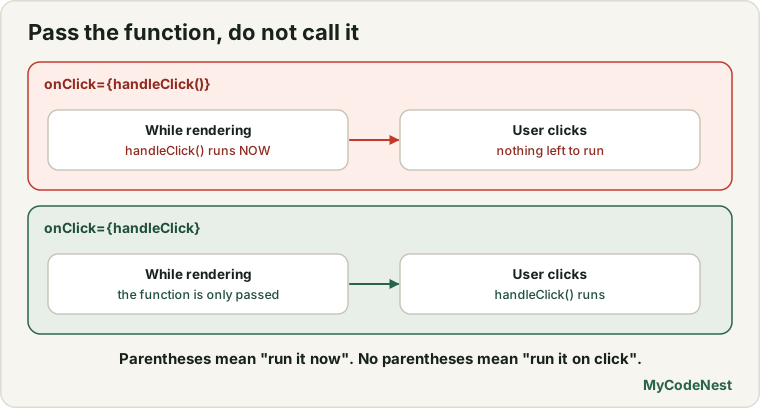
This is the number one beginner mistake. Compare these two lines:
<button onClick={handleClick}>Like</button>    // correct: passes the function
<button onClick={handleClick()}>Like</button>  // wrong: calls it immediately
With the parentheses, handleClick() runs while React is building the page, not when the user clicks. Its result (here undefined) is then given to onClick. You would see Liked! in the console as soon as the page loads, and the click would do nothing.
Remember: onClick={handleClick} means “call this later, on click”. onClick={handleClick()} means “call this right now”.
Inline handlers
For a one-line action, you can write an arrow function directly in the JSX:
function InlineButton() {
  return <button onClick={() => console.log("Clicked inline")}>Click me</button>;
}
Here () => console.log(...) is a new function. It is passed to onClick, and it runs only on click. Use inline handlers for short actions, and a named function when the logic is longer. (Arrow functions are explained in the arrow functions lesson.)
Passing arguments to a handler
Often a handler needs to know which item was clicked. Wrap the call in an arrow function:
function DeleteList() {
  const tasks = [
    { id: 1, title: "Learn JSX" },
    { id: 2, title: "Learn props" },
  ];

  function handleDelete(id) {
    console.log("Delete task", id);
  }

  return (
    <ul>
      {tasks.map((task) => (
        <li key={task.id}>
          {task.title}
          <button onClick={() => handleDelete(task.id)}>Delete</button>
        </li>
      ))}
    </ul>
  );
}
Each button gets its own arrow function that remembers its task.id. Click the Delete button next to Learn props and the console prints:
Delete task 2Why the arrow function? Because onClick={handleDelete(task.id)} would call the function immediately (the mistake above). The arrow function () => handleDelete(task.id) delays the call until the click.
The event object
React gives every handler an event object, just like in the browser. It is the first argument. You can name it event or e:
function SearchBox() {
  function handleChange(event) {
    console.log("Typed:", event.target.value);
  }

  return <input type="text" placeholder="Search..." onChange={handleChange} />;
}
event.target is the element that fired the event, here the input. event.target.value is what is currently typed in it. Type mouse and the console shows a line after every keystroke:
Typed: m
Typed: mo
Typed: mou
Typed: mous
Typed: mouse
Good to know: in React,
onChangefires on every keystroke, like theinputevent in plain JavaScript, not only when the field loses focus. This is exactly what you want for live search and for forms. See the event object lesson for more aboutevent.target.
Stopping the default behaviour
Some elements do things by themselves. A form reloads the page when you submit it. A link navigates away. To stop that, call event.preventDefault(), just as in the preventDefault lesson:
function ContactForm() {
  function handleSubmit(event) {
    event.preventDefault();
    console.log("Form submitted");
  }

  return (
    <form onSubmit={handleSubmit}>
      <input type="text" name="name" />
      <button type="submit">Send</button>
    </form>
  );
}
Press Send (or the Enter key in the input). The console prints Form submitted and the page does not reload. Without event.preventDefault(), the browser would reload the page and your React app would restart from the beginning.
Note that you attach onSubmit to the <form>, not to the button. That way it also works when the user presses Enter.
Events as props: a child talks to its parent
Recall from the props lesson that data flows down from parent to child. But how does a child say “the user clicked me”? The parent passes a function as a prop, and the child calls it:
function AddToCart({ name, onAddToCart }) {
  return (
    <div>
      <h3>{name}</h3>
      <button onClick={() => onAddToCart(name)}>Add to cart</button>
    </div>
  );
}

function ShopPage() {
  function handleAdd(name) {
    console.log("Added to cart:", name);
  }

  return <AddToCart name="Wireless Mouse" onAddToCart={handleAdd} />;
}
What happens when the user clicks Add to cart?
- The button’s
onClickruns the arrow function. - It calls
onAddToCart(name), which is the prop the parent passed. - That prop is the parent’s
handleAdd, so the parent’s code runs. - The console prints
Added to cart: Wireless Mouse.
This pattern is everywhere in React. The child knows when something happened. The parent decides what to do about it. Later, the parent’s function will update state. A prop for a handler is conventionally named onSomething (for example onSave, onDelete).
Common events
| Prop | When it fires | Typical use |
|---|---|---|
onClick |
An element is clicked | Buttons, cards, menu items |
onChange |
An input, select or textarea value changes | Forms, search boxes |
onSubmit |
A form is submitted | Sending form data |
onKeyDown |
A key is pressed | Shortcuts, Enter to confirm |
onFocus / onBlur |
An element gains or loses focus | Validation messages |
onMouseEnter / onMouseLeave |
The pointer enters or leaves | Hover effects |
Event propagation
Events bubble: a click on a button inside a card also reaches the card’s handlers (see event propagation). If you do not want the parent to hear the click, call event.stopPropagation() in the inner handler. React uses the same bubbling rules as the browser.
One difference from plain JavaScript: you do not use addEventListener, and you usually do not need event delegation. React already manages events efficiently for you.
Common mistakes
1. Calling the function instead of passing it. onClick={handleClick()} runs during render. Use onClick={handleClick} or onClick={() => handleClick(id)}.
2. Using lowercase or string handlers. onclick="handleClick()" is HTML, not JSX. React warns that the property is invalid and suggests onClick. Use camelCase and pass a function.
3. Forgetting preventDefault() in a form handler. The page reloads and everything you did is lost.
4. Attaching onSubmit to the button. Put onSubmit on the <form> so Enter works too.
5. Expecting the page to change. A handler that only changes a normal variable does not update the screen. React only redraws when state changes. You will fix that in the next lesson.
6. Forgetting the argument in a list. onClick={() => handleDelete()} without task.id deletes nothing useful. Pass the id.
7. Misnaming the prop. If a parent passes onAdd but the child calls onAddToCart, the child tries to call undefined and the page crashes with onAddToCart is not a function. Keep the names identical.
Practice
-
Create a
LikeButtonwith ahandleClickfunction that logsLiked!. Click it five times and check the console. -
Predict, then check: What is logged, and when, if you write
<button onClick={handleClick()}>? Test it and then fix it. -
Build a list of three tasks with a Delete button next to each. When a button is clicked, log
Delete taskfollowed by its id. -
Create a text input that logs the current text on every keystroke. Type your name and count how many lines appear.
-
Create a form with one text input and a submit button. Log
Form submittedon submit. First withoutpreventDefault()and notice what happens to the page. Then add it. -
Debug: Click does nothing and the console shows a message as soon as the page loads. Find the problem.
function SaveButton() { function handleSave() { console.log("Saved"); } return <button onClick={handleSave()}>Save</button>; } -
Create a
ProductCardwith a button and anonAddToCartprop. InApp.jsx, pass a function that logs the product name. Render two different products. -
Add an
onKeyDownhandler to an input that logsEnter pressedonly whenevent.keyequals"Enter".
Recap
- Attach handlers with camelCase props:
onClick,onChange,onSubmit. - Pass a function, not a call:
onClick={handleClick}. For arguments, use an arrow function:onClick={() => handleDelete(id)}. - Handlers receive an event object. Use
event.target.valueto read an input andevent.preventDefault()to stop default behaviour such as page reloads. - Put
onSubmiton the<form>. - A child informs its parent by calling a function prop such as
onAddToCart. - Events bubble just like in the browser.
stopPropagation()stops them. - Changing a normal variable inside a handler does not update the screen. For that you need state, the topic of the next lesson.
Frequently asked questions
What is the difference between onclick and onClick?
onclick is the HTML attribute and takes a string of code. onClick is the React prop, written in camelCase, and takes a function. In JSX always use onClick.
Why does my handler run when the page loads?
You probably wrote onClick={handleClick()} with parentheses, which calls the function immediately. Remove the parentheses, or wrap the call in an arrow function if you need arguments.
Should I use an inline arrow function or a named function?
Use a short inline arrow function for one-line actions, and a named function for anything longer. Both work the same. The choice is about readability, not about correctness.
Does React's onChange fire on every keystroke?
Yes. Unlike the plain HTML change event, which fires when a field loses focus, React’s onChange fires each time the value changes, so it behaves like the browser’s input event. This makes live search and form validation easy.
Do I need addEventListener in React?
Not for normal elements. You attach handlers in JSX with props such as onClick. You only use addEventListener for things outside React’s control, such as listening to events on window, and that is done inside an Effect in a later lesson.
How can a child component change something in its parent?
The parent passes a function as a prop, for example onAddToCart={handleAdd}. The child calls that function when something happens. The parent function can then update the parent’s state.
See also: JavaScript Events, The Event Object, preventDefault, React Props