Project 2: Product List with Search, Filter and Sort
Build a product browser in React with live search, category filter, in-stock toggle and sorting, using lifted state and derived data instead of extra state.
What you will build
Almost every shop, library and dashboard has a page where you search, filter and sort a list. In this project you will build one: a product browser.
Your finished app will have:
- A search box that filters products by name as you type.
- A category dropdown.
- An in stock only checkbox.
- A sort dropdown (name, price low to high, price high to low).
- A line showing how many products match, such as
2 of 7 products. - A friendly message when nothing matches.
This project puts the last four lessons into practice: lifting state up, choosing state structure, rendering and component identity. The biggest idea is derived data: the list on screen is calculated from the full list plus the filters. It is never stored in state.
Here is the page in text form:
Product Browser

Search [            ]   Category [All categories v]
Sort by [Name (A-Z) v]  [ ] In stock only

7 of 7 products
• 27-inch Monitor (Displays) - $219.00
• Desk Lamp (Furniture) - $27.75
• Laptop Stand (Furniture) - $34.00
...
Think in React: five steps
The React documentation describes a way to design any UI, called thinking in React. We will follow its five steps.
Step 1: break the UI into components
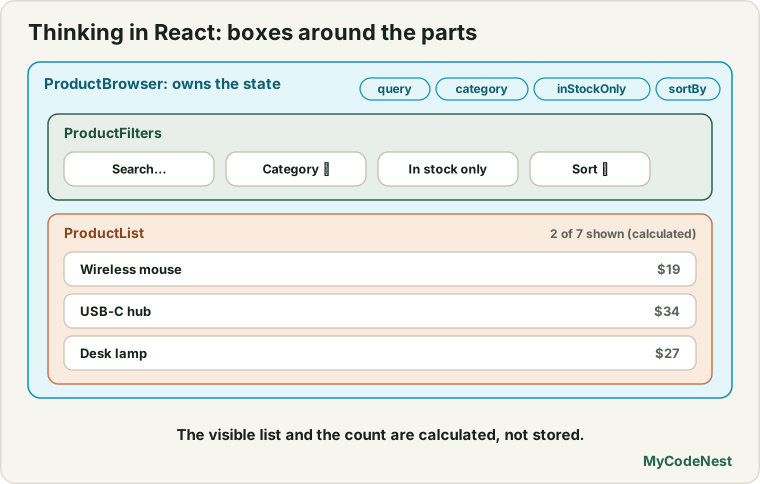
Look at the design and draw boxes around the parts that have one job:
ProductBrowser        the whole page, owns the state
├── ProductFilters    the search box, selects and checkbox
└── ProductList       the list of products (or the empty message)
Just two child components are enough. The list does not need a component for each row, because each row is only one line of markup.
Step 2: build a static version first
Before adding any state, build the page with fixed data and no interactivity. This is easier, because you only think about the layout. We will do exactly this as we write the files.
Step 3: find the minimal state
Ask: what data changes, and what can be calculated? List every piece of data:
| Data | Changes? | Can it be calculated? | State? |
|---|---|---|---|
| The full product list | No | No, it is a constant | |
| The list of categories | No | Yes, from the products | No |
| The text in the search box | Yes | No | Yes (query) |
| The chosen category | Yes | No | Yes (category) |
| The “in stock only” checkbox | Yes | No | Yes (inStockOnly) |
| The chosen sort order | Yes | No | Yes (sortBy) |
| The list shown on screen | Changes | Yes, from products plus the four filters above | No |
The count (2 of 7) |
Changes | Yes, from the shown list | No |
Only four pieces of state are needed. The visible list and the count are derived. This is the rule from the state structure lesson: do not store what you can calculate.
Step 4: decide where the state lives
The filters are edited in ProductFilters, but the list that depends on them lives in ProductList. Both need the same values, so the state goes in their closest common parent: ProductBrowser. That is lifting state up.
Step 5: add inverse data flow
Data flows down as props. When the user types in the search box, ProductFilters must tell ProductBrowser to update the state. So ProductBrowser passes handler functions down (onQueryChange and so on), and ProductFilters calls them. The same pattern as in the to-do project.
Set up the files
Create these files inside your Vite project:
src/
├── components/
│   ├── ProductBrowser.jsx
│   ├── ProductFilters.jsx
│   └── ProductList.jsx
├── data/
│   └── products.js
├── App.css        (replace)
└── App.jsx        (replace)
The data
src/data/products.js:
export const products = [
  { id: 1, name: "Wireless Mouse", category: "Accessories", price: 24.5, inStock: true },
  { id: 2, name: "Mechanical Keyboard", category: "Accessories", price: 89, inStock: true },
  { id: 3, name: "USB-C Hub", category: "Accessories", price: 39.99, inStock: false },
  { id: 4, name: "27-inch Monitor", category: "Displays", price: 219, inStock: true },
  { id: 5, name: "Portable Monitor", category: "Displays", price: 149.5, inStock: false },
  { id: 6, name: "Laptop Stand", category: "Furniture", price: 34, inStock: true },
  { id: 7, name: "Desk Lamp", category: "Furniture", price: 27.75, inStock: true },
];
Each product has an id (for the key), a name, a category, a price and an inStock flag. In a real app this data would come from a server, which you will learn later. A plain array is perfect for now.
ProductList: show the products
src/components/ProductList.jsx:
function ProductList({ products }) {
  if (products.length === 0) {
    return <p className="empty">No products match your filters.</p>;
  }

  return (
    <ul className="product-list">
      {products.map((product) => (
        <li key={product.id}>
          <strong>{product.name}</strong> ({product.category}) - ${product.price.toFixed(2)}
          {!product.inStock && <em> Sold out</em>}
        </li>
      ))}
    </ul>
  );
}

export default ProductList;
This component only displays what it is given. It has no state and does not know about filtering.
- If the list is empty, it shows a message (early return).
- Otherwise it maps each product to an
<li>, withkey={product.id}. toFixed(2)shows prices with two decimals ($34.00).{!product.inStock && <em> Sold out</em>}shows a note only for products that are out of stock.
ProductFilters: the controls
src/components/ProductFilters.jsx:
function ProductFilters({
  query, onQueryChange,
  category, onCategoryChange, categories,
  inStockOnly, onInStockOnlyChange,
  sortBy, onSortByChange,
}) {
  return (
    <form className="filters" onSubmit={(event) => event.preventDefault()}>
      <label htmlFor="search">Search</label>
      <input
        id="search"
        type="search"
        value={query}
        onChange={(event) => onQueryChange(event.target.value)}
      />

      <label htmlFor="category">Category</label>
      <select
        id="category"
        value={category}
        onChange={(event) => onCategoryChange(event.target.value)}
      >
        <option value="all">All categories</option>
        {categories.map((name) => (
          <option key={name} value={name}>{name}</option>
        ))}
      </select>

      <label htmlFor="sort">Sort by</label>
      <select
        id="sort"
        value={sortBy}
        onChange={(event) => onSortByChange(event.target.value)}
      >
        <option value="name">Name (A-Z)</option>
        <option value="price-asc">Price (low to high)</option>
        <option value="price-desc">Price (high to low)</option>
      </select>

      <label>
        <input
          type="checkbox"
          checked={inStockOnly}
          onChange={(event) => onInStockOnlyChange(event.target.checked)}
        />
        In stock only
      </label>
    </form>
  );
}

export default ProductFilters;
This is a fully controlled component. It keeps no state. Every field shows a value that comes in through a prop, and reports changes through a handler prop.
- The long list of props is destructured in the parameter list. Each filter has a value and an
on...Changehandler. - The
<form>hasonSubmitwithpreventDefault(), so pressingEnterin the search box does not reload the page. type="search"gives a search-style input (some browsers add a clear button).- The category options come from a
categoriesprop, built withmap()andkey={name}. - The checkbox uses
checkedandevent.target.checked, as in the forms lesson.
ProductBrowser: the brain
src/components/ProductBrowser.jsx:
import { useState } from 'react';
import { products } from '../data/products.js';
import ProductFilters from './ProductFilters.jsx';
import ProductList from './ProductList.jsx';

const categories = [...new Set(products.map((product) => product.category))];

function ProductBrowser() {
  const [query, setQuery] = useState("");
  const [category, setCategory] = useState("all");
  const [inStockOnly, setInStockOnly] = useState(false);
  const [sortBy, setSortBy] = useState("name");

  let visible = products.filter((product) => {
    const matchesQuery = product.name.toLowerCase().includes(query.trim().toLowerCase());
    const matchesCategory = category === "all" || product.category === category;
    const matchesStock = !inStockOnly || product.inStock;
    return matchesQuery && matchesCategory && matchesStock;
  });

  visible = [...visible].sort((a, b) => {
    if (sortBy === "price-asc") return a.price - b.price;
    if (sortBy === "price-desc") return b.price - a.price;
    return a.name.localeCompare(b.name);
  });

  return (
    <main className="product-browser">
      <h1>Product Browser</h1>
      <ProductFilters
        query={query} onQueryChange={setQuery}
        category={category} onCategoryChange={setCategory} categories={categories}
        inStockOnly={inStockOnly} onInStockOnlyChange={setInStockOnly}
        sortBy={sortBy} onSortByChange={setSortBy}
      />
      <p>{visible.length} of {products.length} products</p>
      <ProductList products={visible} />
    </main>
  );
}

export default ProductBrowser;
Let us understand each part.
The categories. new Set(...) removes duplicates, and [...] turns it back into an array. The line runs once, outside the component, because the data never changes. The result is ["Accessories", "Displays", "Furniture"]. It is calculated from the data, so if you add a product with a new category, the dropdown updates by itself.
Four pieces of state, exactly those we found in step 3.
The filter step is derived data:
includes()checks if the name contains the search text. Both sides are converted to lower case, somonitorfinds27-inch Monitor.trim()ignores spaces around the text.category === "all" || product.category === categoryaccepts everything when"all"is selected, or only products of the chosen category.!inStockOnly || product.inStockaccepts everything when the box is not ticked, or only in-stock products when it is.- A product must pass all three checks (
&&) to be visible.
The sort step. sort() changes the array it is called on, so we sort a copy: [...visible].sort(...). This follows the rule from the state updating lesson: never sort the original array. (Here the filtered array is already new, but copying first is a good habit and prevents bugs if you change the code later.) The comparison function returns a negative, zero or positive number: a.price - b.price sorts prices from low to high, and localeCompare sorts text alphabetically in a way that respects letters from other languages.
The result. visible is rebuilt on every render from the full list and the four state values. It can never be out of date. The count line uses visible.length.
Connect it in App
src/App.jsx:
import './App.css';
import ProductBrowser from './components/ProductBrowser.jsx';

function App() {
  return <ProductBrowser />;
}

export default App;
Styling
Replace the content of src/App.css:
.product-browser {
  max-width: 560px;
  margin: 0 auto;
  padding: 24px 16px;
  text-align: left;
}

.filters {
  display: grid;
  gap: 8px;
  margin-bottom: 16px;
}

.filters input[type="search"],
.filters select {
  padding: 8px 12px;
  font-size: 1rem;
}

.product-list {
  list-style: none;
  margin: 0;
  padding: 0;
}

.product-list li {
  padding: 8px 0;
  border-bottom: 1px solid #ccc;
}

.empty {
  padding: 16px 0;
  opacity: 0.7;
}
Try your app
Run npm run dev and follow these steps. This is what should happen:
- At the start:
7 of 7 products, sorted by name: 27-inch Monitor, Desk Lamp, Laptop Stand, Mechanical Keyboard, Portable Monitor, USB-C Hub, Wireless Mouse. - Search: type
monitor. Only27-inch MonitorandPortable Monitorremain, and the line says2 of 7 products. Clear the box to see everything again. - Category: choose
Accessories. You see Mechanical Keyboard, USB-C Hub and Wireless Mouse. - In stock only: tick the box. The sold-out
USB-C Hubdisappears, leaving Mechanical Keyboard and Wireless Mouse (2 of 7 products). - Sort: choose
Price (high to low). The order becomes Mechanical Keyboard ($89.00), then Wireless Mouse ($24.50). - No match: type
zzz. The list is replaced byNo products match your filters.
All filters work together, because they are combined in one calculation.
Why this design works
Imagine a different design: a filteredProducts state that you update whenever a filter changes. You would need to recalculate it in four different handlers, and forgetting one would show the wrong list. With derived data, there is one place that calculates the list, and it runs every time anything changes. It is shorter, simpler and impossible to get out of sync.
Notice also that no component here copies state or props into more state, no key is based on the index, and no component is defined inside another one. You are following every rule from the last four lessons.
Common mistakes
1. Storing the filtered list in state. It gets out of sync with the filters. Calculate it.
2. Sorting the original array. products.sort(...) changes your data in place. Copy first.
3. Forgetting to lower-case both sides. product.name.includes(query) does not find monitor in 27-inch Monitor, because the capital M does not match.
4. Keeping the filter state inside ProductFilters. Then ProductList cannot see it. Lift it to the parent.
5. Using || where && is needed. If a product only has to match one filter instead of all of them, too many products appear.
6. Using the index as a key. Products change position when you sort. Use product.id.
7. Forgetting preventDefault() on the form. Pressing Enter reloads the page.
8. Hard-coding the categories. Calculate them from the data so they cannot get out of sync.
Practice (extend the project)
- Add a Clear filters button that resets all four pieces of state to their starting values.
- Add a maximum price number input. Products above that price should be hidden. Is it new state or derived data? Where does it live?
- Predict, then check: What does the page show if you type
mouse(with spaces) in the search? Why? What would happen withouttrim()? - Add a fourth sort option: Name (Z-A).
- Show the number of sold-out products in the result line, such as
2 of 7 products (1 sold out). Do you need new state? - Debug: Once the In stock only box is ticked, it can never be unticked again. A learner wrote
onChange={(event) => onInStockOnlyChange(event.target.value)}. What is wrong? (Hint: what isevent.target.valuefor a checkbox?) - Debug: After sorting by price, the original data in
products.jsis also reordered. Find the cause and fix it. - Highlight the product names in the result list that start with the search text, using a dynamic class name.
Recap
- You built a search, filter and sort page with four pieces of state and two child components.
- Thinking in React: break the UI into components, build a static version, find the minimal state, decide where it lives, and add inverse data flow.
- The state lives in
ProductBrowser, the closest common parent of the controls and the list (lifted state). - The visible list, the count and the category list are derived data: calculated, not stored.
- Filter with
filter(), sort a copy withsort(), and show an empty message when nothing matches. - Controlled child components get values and handlers through props and own no state.
- Next you will learn Effects, which let components work with things outside React, such as the page title, timers and servers.
Frequently asked questions
Why not store the filtered list in state?
Because it can be calculated from the full list and the filters. Storing it creates a second copy that you must keep in sync in every handler. If you forget one, the screen shows the wrong list. Calculating it on every render is shorter and always correct.
Is filtering on every render too slow?
Not for lists of hundreds or even thousands of items. These operations are very fast. If you ever have a really large list and measure a real delay, there are tools for that, including memoisation, covered in a later lesson.
Why does ProductFilters have so many props?
Each filter needs a value and a handler, so four filters need eight props plus the list of categories. In bigger apps you could group them into one object, or use a reducer or context, which are covered later. For now, being explicit makes it easy to see how data flows.
How do I search by more than the name?
Include other fields in the check, for example product.name.toLowerCase().includes(text) || product.category.toLowerCase().includes(text). Calculate text once from the query before the filter() to keep the code tidy.
Should the search wait until the user stops typing?
For a small local list, no: filtering on every key press feels instant. For searching a server, you should wait a moment between key presses (this is called debouncing) and avoid sending too many requests. That topic is covered in the production API handling lesson.
Can I split ProductBrowser into more components?
Yes. You could extract a ProductRow or a ResultSummary. Do it when a part is reused, long or has a clear name. For this size, the current split is a good balance.
See also: Lifting State Up, Choosing State Structure, Rendering Lists and Keys, JavaScript Array Methods