Create Your First React Component: Build a Profile Card
Learn what a React component is, how to create, export, import and reuse function components, and build a simple profile card step by step.
What you will learn
Components are the heart of React. In this lesson you will create your own, in separate files, and use them inside your app. You will build a Welcome message and a ProfileCard, learn the naming rules that React requires, and see how every change appears in the browser as soon as you save.
This lesson continues from the project structure lesson. Your project should be running with npm run dev, and src/App.jsx should contain the clean version:
function App() {
  return <h1>My First React App</h1>;
}

export default App;
If not, replace the content of src/App.jsx with the code above first.
What is a component?
A component is a reusable piece of the user interface. In React, a component is simply a JavaScript function that returns markup.
You have already met one: App. Every React app is a tree of components. App is the root, and it can contain other components, which can contain more components:
App
├── Welcome
├── ProfileCard
└── ProfileCard
Why split a page into components?
- Reuse: write a card once, show it ten times.
- Clarity: each file has one small job and is easy to read.
- Easy changes: fix a problem in one place and it is fixed everywhere.
Your first function component
Here is the smallest useful component:
function Welcome() {
  return <h2>Welcome to MyCodeNest!</h2>;
}
Line by line:
function Welcome()is a normal JavaScript function. Its name isWelcome.returnsends back what this component should display.<h2>Welcome to MyCodeNest!</h2>looks like HTML, but it is JSX. The next lesson explains JSX in detail. For now, think of it as HTML written inside JavaScript.- The semicolon at the end is optional but a good habit.
A function component takes no special setup. The only difference between this and any other function is that it returns JSX.
The naming rule: start with a capital letter
React component names must start with a capital letter, written in PascalCase (each word starts with a capital): Welcome, ProfileCard, ShoppingCartItem.
This is not just style. React uses the first letter to decide what something is:
| In JSX you write | React understands it as |
|---|---|
<h2> (lowercase) |
A normal HTML element |
<Welcome /> (capital) |
Your component called Welcome |
<welcome /> (lowercase) |
An HTML element named welcome, which does not exist |
Also good to remember: name the file after the component. Welcome lives in Welcome.jsx, and ProfileCard lives in ProfileCard.jsx.
Step 1: Create the components folder
Vite does not create a folder for your own components, so make one. Inside src, create a new folder named components. In VS Code, right-click src, choose New Folder, and type components.
Your project now looks like this (only the src part is shown):
src/
├── components/        ← new
├── App.jsx
├── main.jsx
└── ...
Step 2: Create the Welcome component
Inside src/components, create a new file named Welcome.jsx and type:
function Welcome() {
  return <h2>Welcome to MyCodeNest!</h2>;
}

export default Welcome;
The last line is new: export default Welcome;. It makes the component available to other files. Without it, other files cannot use Welcome. (Exports and imports work exactly as in the JavaScript modules lesson.)
Step 3: Use it inside App
Now open src/App.jsx. We will import Welcome at the top and render it inside App:
import Welcome from './components/Welcome.jsx';

function App() {
  return (
    <>
      <h1>My First React App</h1>
      <Welcome />
    </>
  );
}

export default App;
Let us go through the changes:
import Welcome from './components/Welcome.jsx';loads the component. The path starts with./which means “from the current folder”, andcomponents/Welcome.jsxis the file’s location relative toApp.jsx.<Welcome />uses the component, like an HTML tag. It is self-closing: the/before>closes the tag. In JSX, every tag must be closed.- The
<>and</>are called a Fragment. A component can return only one top-level element, and now we have two: theh1andWelcome. The empty tags<>...</>group them without adding an extra element to the page. - The parentheses after
returnallow us to write the JSX on several lines.
Save the file. Look at your browser. You should now see:
My First React App
Welcome to MyCodeNest!
The first line is the large h1, and the second is the smaller h2 that comes from your Welcome component. You just rendered a component inside another component.
Step 4: Build a reusable profile card
A heading is a nice start. Let us build something closer to a real app: a profile card, the kind of box you see on social sites and team pages.
Create src/components/ProfileCard.jsx:
import './ProfileCard.css';

function ProfileCard() {
  return (
    <article className="profile-card">
      <div className="profile-card__avatar">AK</div>
      <h3>Aisha Khan</h3>
      <p>Frontend learner</p>
      <p>Currently building: a React to-do app</p>
    </article>
  );
}

export default ProfileCard;
Two things are new here:
classNameinstead ofclass. In JSX you writeclassNameto set a CSS class, becauseclassis a reserved word in JavaScript. All other attributes you know, such asidandhref, are written as usual.import './ProfileCard.css';loads a stylesheet for this component. Create that file next to it, insrc/components/ProfileCard.css:
.profile-card {
  max-width: 260px;
  margin: 16px auto;
  padding: 16px;
  border: 1px solid #ccc;
  border-radius: 12px;
  text-align: center;
}

.profile-card__avatar {
  width: 64px;
  height: 64px;
  margin: 0 auto 8px;
  border-radius: 50%;
  background: #646cff;
  color: white;
  display: grid;
  place-items: center;
  font-weight: 700;
}
This is normal CSS from the CSS lessons: a bordered box and a round avatar made from two initials. The class names use the BEM style (profile-card__avatar) so they are unlikely to clash with other styles.
Now show the card in App.jsx. Import it, then add it twice:
import Welcome from './components/Welcome.jsx';
import ProfileCard from './components/ProfileCard.jsx';

function App() {
  return (
    <>
      <h1>My First React App</h1>
      <Welcome />
      <ProfileCard />
      <ProfileCard />
    </>
  );
}

export default App;
Save. Two identical cards appear below the welcome message. Each shows a round purple avatar with the letters AK, the name Aisha Khan, and the two lines of text below it.
This is reuse in action. You wrote the card once, and <ProfileCard /> can be used as many times as you like.
You might also notice a limit: both cards are exactly the same. A real app would show a different person on each card. React solves this with props, which let you pass different data into each component. That is the subject of the props lesson. For now, you have the foundation.
How the whole app fits together
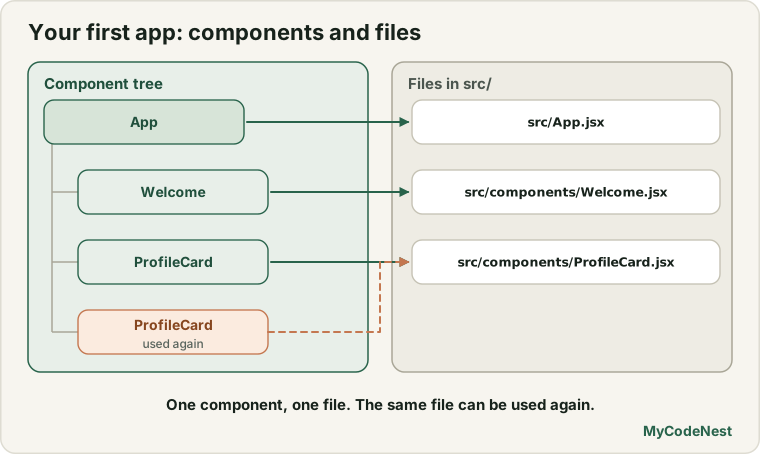
Your project’s component tree and files now match:
main.jsx
└── App          (src/App.jsx)
    ├── Welcome       (src/components/Welcome.jsx)
    ├── ProfileCard   (src/components/ProfileCard.jsx)
    └── ProfileCard   (the same file used again)
And the files in your project:
src/
├── components/
│   ├── ProfileCard.css
│   ├── ProfileCard.jsx
│   └── Welcome.jsx
├── App.jsx
├── main.jsx
└── ...
Understanding how changes appear in the browser
Keep your browser and your editor side by side and try this:
- In
ProfileCard.jsx, changeAisha Khanto your own name. - Press
Ctrl + S(Cmd + Son a Mac). - Look at the browser. Both cards show the new name, and you did not refresh.
Two things happened. First, you changed one component, and both cards updated, because they share the same code. Second, Vite sent just the changed file to the browser (Hot Module Replacement), so the update is nearly instant.
If you make a mistake, Vite shows an error overlay on the page, with the file name and a message. Fix the code, save again, and the overlay disappears. An error is not a failure. It is feedback.
A quick word on export styles
You used a default export: export default Welcome; and imported it with import Welcome from '...'. Each file can have one default export, and you can name it whatever you like when you import it.
JavaScript also supports named exports:
// Welcome.jsx
export function Welcome() {
  return <h2>Welcome to MyCodeNest!</h2>;
}

// App.jsx
import { Welcome } from './components/Welcome.jsx';
Named exports use curly braces when importing, and the name must match exactly. Both styles work in React. In this course we use default exports for components, one component per file, to keep things simple.
Common mistakes
1. Starting the name with a lowercase letter.
// Wrong: React treats this as an HTML tag
<welcome />

// Correct
<Welcome />
React will render an empty <welcome> element that shows nothing, and the console may warn that the tag is unrecognised. Always start component names with a capital letter.
2. Forgetting to export the component. If you leave out export default Welcome;, the build stops with an error like:
[MISSING_EXPORT] "default" is not exported by "src/components/Welcome.jsx".Add the export line at the bottom of the file.
3. Wrong import path or file name. An error like this means the file was not found:
[UNRESOLVED_IMPORT] Could not resolve './components/welcome.jsx' in src/App.jsxCheck the folder, the spelling and the capital letters. welcome.jsx is not Welcome.jsx on most servers.
4. Returning two elements without a wrapper.
function Welcome() {
  return <h2>Hello</h2><p>World</p>; // error: two top-level elements
}
Vite shows Adjacent JSX elements must be wrapped in an enclosing tag. Wrap them in a Fragment (<>...</>) or in a <div>.
5. Forgetting return.
function Welcome() {
  <h2>Welcome!</h2>; // no return, so nothing is shown
}
This gives no error. The component quietly returns nothing, and the page shows nothing. If a component does not appear, check that it returns something.
6. Forgetting the slash in a self-closing tag. <ProfileCard> without a closing tag or /> is an error. Write <ProfileCard />.
7. Using class instead of className. It may seem to work, but React will warn you in the console. Use className.
8. Calling the component like a function. Write <Welcome />, not Welcome() inside your JSX.
Practice
-
Create a
Footercomponent insrc/components/Footer.jsxthat shows© 2026 My React Appinside a<footer>element. Import it inApp.jsxand place it after the profile cards. -
Predict, then check: What does the page show if
Appreturns<Welcome />three times in a row inside a Fragment? Test it in your project, then reduce it to one. -
Predict, then check: What will happen if you write
<welcome />(lowercase) inApp.jsx? Test it and open the console withF12. Then fix it. -
Edit
ProfileCard.jsxto show your name, a short title and one thing you are learning. Render it twice. What do you notice about the two cards? -
Debug: The browser shows nothing for the
Greetingcomponent below, and there is no error. What is wrong?function Greeting() { <h2>Good morning!</h2>; } export default Greeting; -
Debug: You get
"default" is not exported by "src/components/Welcome.jsx". Name two ways to fix it: one by changingWelcome.jsx, and one by changing howApp.jsximports it. -
Create a
Skills.jsxcomponent that shows a<ul>with three<li>items. Use it insideProfileCardinstead of the second paragraph. (Import it at the top ofProfileCard.jsx.) Notice that a component can use other components. -
Open
ProfileCard.css. Change the border radius to0and the avatar background colour. Save and watch the browser. Did you need to refresh?
Recap
- A component is a JavaScript function that returns JSX. Your whole app is a tree of components.
- Component names must start with a capital letter (PascalCase). Lowercase names are treated as HTML tags.
- Put each component in its own
.jsxfile, and useexport defaultto share it. - Use
import Name from './path/Name.jsx'to bring a component in, then write<Name />to render it. - A component must return one top-level element. Use a Fragment (
<>...</>) to group several without adding an extra element. - Use
className, notclass, and always close tags (<Name />). - A component can be reused many times. Changing the component updates every copy.
- Vite updates the browser instantly when you save, and shows an error overlay when something is wrong.
- Next you will learn how JSX works in detail, and then how to make each card show different data with props.
Frequently asked questions
What is the difference between a component and a function?
A component is a function that follows React’s rules: its name starts with a capital letter and it returns JSX (or nothing at all). Any function can be called with (), but a component is used as a tag, like <Welcome />, and React runs the function for you.
Do I have to put each component in its own file?
No, but it is the best habit. You can define several small components in one file, but separate files keep your project easy to read and to search. One component per file, named after the component, is the common convention.
Should I write import Welcome from './components/Welcome.jsx' or leave out .jsx?
Both work in a Vite project. The generated template writes the extension explicitly (for example ./App.jsx), so we do the same here. Be consistent, and make sure the capital letters match the file name exactly.
Why do I need a Fragment (<>...</>)?
A component can return only one top-level element. When you want to return several siblings, a Fragment groups them without adding an extra <div> to the page. A <div> also works, but it adds a real element, which can affect your layout and styles.
Why does my page not update when I save?
First check that the dev server is still running in your terminal. Then look for an error overlay in the browser or red text in the terminal. If the server is running and there is no error, make sure you saved the correct file and that the component is actually rendered somewhere in the tree. If all else fails, refresh the page.
Why are my two profile cards identical?
Because the data is written directly inside the component. To show different data in each card, you pass information into the component with props. You will learn props in the next lessons, and your ProfileCard is ready for them.
See also: JSX in React, React Props, React Project Structure, JavaScript Modules, JavaScript Functions, CSS Introduction