Virtual DOM and Reconciliation: How React Updates the Page
Understand how React compares the previous and next element trees, what reconciliation and the virtual DOM mean, and how React makes minimal DOM updates.
What you will learn
In the last lesson you saw that React renders (calls your components) and then commits (changes the DOM only where needed). But how does React know what needs to change? In this lesson you will learn the answer: React compares two snapshots of your UI, the previous one and the new one, and changes only the differences. This comparison is called reconciliation, and the in-memory description React compares is often called the virtual DOM.
You will see exactly what React keeps, what it replaces, and why key matters so much in lists. We prove every claim with small tests that you can repeat yourself.
You should know how React works behind the scenes and how React renders.
The problem React solves
Suppose a counter shows Clicks: 0, and the user clicks. With plain JavaScript you find the paragraph and change its text. That is easy for one number. In a big app, hundreds of things can change at once, and writing the exact DOM instructions for each one by hand is a recipe for bugs (see the introduction lesson).
React lets you do something simpler: describe the whole UI for the current state, every time. You write “show the number of clicks”, not “find that paragraph and change its text”. But then React faces a question: if you describe the whole page again after each click, how does it avoid rebuilding the whole page?
What is the “virtual DOM”?
When React renders, it produces a tree of React elements: plain JavaScript objects that describe the UI (you saw them in the how React works lesson). This tree lives in memory, not in the browser page. People call this idea the virtual DOM: a lightweight copy of the structure of the page, made of ordinary objects.
Real DOM        →  actual browser nodes (slow to create, drawn on screen)
Virtual DOM     →  plain JavaScript objects (cheap to create, only in memory)
A fair warning about the name: “virtual DOM” is a mental model, not a special feature you switch on or write code for. The official React documentation today mostly talks about “the tree of elements” and “rendering”, and does not push the term. Treat it as a useful way to think: React keeps a description of the UI in memory, compares descriptions, and updates the real DOM as little as possible.
It is also not true that the virtual DOM is “always faster than the real DOM”. Hand-written, perfectly targeted DOM updates can be as fast or faster. The real benefit is that you can write simple, declarative code, and still get good performance in most cases.
Reconciliation: comparing two trees
After a state change, React renders and gets a new tree. It keeps the previous tree from the last render. Reconciliation is the process of comparing the two to find out what changed. Then the commit step applies only those changes to the real DOM.
Previous tree        New tree
     │                  │
     └──── compare ─────┘
              │
              ▼
   list of minimal changes
              │
              ▼
   applied to the real DOM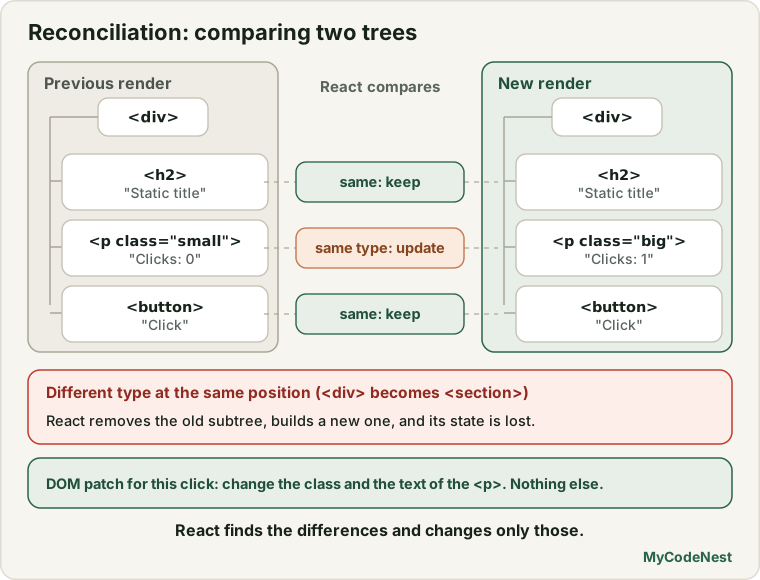
React follows a few simple rules. Let us look at each one, and see it prove itself.
Rule 1: same type at the same position, keep and update
If an element has the same type (the same tag, or the same component) at the same position as before, React keeps the existing DOM node and only updates what changed, such as the text or the attributes.
Here is an example with a changing class name:
function ClassToggle() {
  const [on, setOn] = useState(false);

  return (
    <div>
      <p className={on ? "big" : "small"} title="hello">Text</p>
      <button onClick={() => setOn(!on)}>toggle</button>
    </div>
  );
}
We watched the page with a MutationObserver and clicked the button. React made one change to the DOM: the class attribute of the <p> changed from small to big. The title attribute and the text were not touched, and the <p> was the same DOM node before and after.
The same idea applies to text. For a counter that shows Clicks: {n}, the only DOM change per click is the text of that number:
function Counter() {
  const [n, setN] = useState(0);

  return (
    <div>
      <h2>Static title</h2>
      <p>Clicks: {n}</p>
      <button onClick={() => setN(n + 1)}>Click</button>
    </div>
  );
}
On a click, the observer recorded a single change: the text inside the <p>. The <h2>, the <p> and the <button> were all kept as they were.
For components, “same type” means the same function. React keeps the component’s state and gives it the new props.
Rule 2: different type at the same position, replace everything
If the type changes, React assumes the old and new elements are completely different things. It removes the old DOM node, with everything inside it, and creates a new one from scratch. For components, this destroys the old state.
function TagSwap() {
  const [on, setOn] = useState(false);

  return (
    <div>
      {on ? <section>Text</section> : <div>Text</div>}
      <button onClick={() => setOn(!on)}>toggle</button>
    </div>
  );
}
When toggled, the test showed React removing the old <div> and adding a new <section>. The text is the same, but it is a new DOM node. The old one is gone.
The same happens when you switch between two different components at one position. A counter component swapped for a banner component loses its count, because the counter is unmounted (removed) and the banner is mounted (created). The next lesson, on component identity, explores this in detail.
Rule 3: lists are matched by key
What about a list of items? React compares the children of a list. Without extra help, it compares them in order: the first old child with the first new child, the second with the second, and so on. This is fine if you only add items at the end, but it goes wrong when items move, are inserted at the start, or are removed from the middle.
To avoid this, you give each item a key. A key tells React “this is the same item as before”, even if its position has changed. React then matches items by key, not by position.
Let us see the difference with a real test. Each row has a label and a note field. We type a note into the first row (Apple) and then reverse the list:
function Row({ label }) {
  return (
    <li>
      <span>{label}</span> <input />
    </li>
  );
}

// version A: index as key
items.map((item, index) => <Row key={index} label={item.label} />)

// version B: id as key
items.map((item) => <Row key={item.id} label={item.label} />)
Results after typing a note in the first row and reversing the list:
Version A (key = index):
  Banana  => "note for first row"     ← wrong! the note stayed in position 1
  Apple   => ""

Version B (key = id):
  Banana  => ""
  Apple   => "note for first row"     ← correct! the note moved with Apple
With index keys, the first position always has key 0, so React keeps the first row’s DOM node (and its input text) and just changes the label. The note stays behind, attached to the wrong item. With id keys, React knows that Apple is still Apple, so it moves the whole row, including the typed text.
That is the real reason for keys. They are not just to silence a warning. They tell React which item is which, so React can keep each item’s DOM node and state with the right item.
React’s two assumptions
React’s comparison needs to be quick, so it follows two simple assumptions:
- Two elements of different types will produce different trees, so it does not try to reuse the inside of a replaced element.
- Keys are stable and unique among siblings, so they can identify items across renders.
If you respect these (use proper component types and good keys), React’s algorithm works well. If you break them (random keys, changing types by accident), you get slow renders and lost state.
Step by step: what happens when you click
Let us follow one click in the Counter example from start to end:
-
Trigger: the click calls
setN(1). -
Render: React calls
Counter(). It returns a new element tree:div ├── h2 "Static title" ├── p "Clicks: 1" └── button "Click" -
Reconcile: React compares it with the previous tree (
"Clicks: 0"). Every element has the same type at the same position. Only one text differs:0versus1. -
Commit: React DOM changes that single text node.
-
The browser repaints the small area that changed.
So even a large app updates quickly, because only differences cost real DOM work.
See it yourself
You can watch the minimal updates in your own browser:
- In Chrome DevTools, open the Elements panel and click a few times in your app. Changed elements briefly flash, and you will notice that only a small part of the tree flashes.
- In the React DevTools settings, you can turn on a highlight for components when they render. Remember that a component re-rendering is not the same as its DOM changing.
You can also write a small test of your own with the MutationObserver API from plain JavaScript, which reports every DOM change.
Common mistakes and misunderstandings
1. “The virtual DOM is a separate thing I have to manage.” It is just the tree of elements React builds when it renders. You never touch it directly.
2. “The virtual DOM is always faster.” It is not magic. Its value is simple, declarative code with good-enough performance.
3. “A re-render means the whole page changes.” React compares the trees and updates only the differences.
4. Using the index as a key in a list that can change. State and DOM nodes stay with the position instead of the item. Use a stable id.
5. Using Math.random() as a key. Every render gives every item a new identity, so React destroys and recreates all of them, and you lose state and input focus.
6. Changing the type of an element by accident. Wrapping something in a different tag or component based on a condition replaces the whole subtree and loses its state.
7. Touching the DOM directly inside React-managed areas. If you change nodes React created with document.querySelector, React’s picture of the page no longer matches the real one.
Practice
- In your to-do app, open the Elements panel, then tick a task. Which part of the DOM flashes? Write down what changed and what did not.
- Predict, then check: In a counter with
<h2>Title</h2>and<p>Clicks: {n}</p>, which DOM node is changed when you click? Use aMutationObserver(or the flashing in the Elements panel) to check. - Create a toggle button that switches an element between
<div>and<section>with the same text inside. Use the Elements panel to see whether the node is replaced. - Build a list of two rows that each have a text input. Use
key={index}. Type something in the first row, reverse the list, and write down what happens. Then change tokey={item.id}and repeat. - Debug: A learner says “when I add a new task at the start of my list, the text I typed in the second row jumps to the third row”. They use
key={index}. Explain why, and fix it. - Debug: A form loses its text every time the user types one letter. The developer used
key={Math.random()}on the form. Explain what React does and how to fix it. - In your own words, explain the difference between the virtual DOM (the tree of elements in memory) and the real DOM (browser nodes). Which one does React compare, and which one does it change?
- Explain why two components of the same type at the same position keep their state, while two of different types do not.
Recap
- The virtual DOM is the tree of React elements in memory. It is a mental model, not an API you use.
- Reconciliation compares the previous tree with the new tree after a render, and finds the minimal changes.
- Same type at the same position: React keeps the DOM node (and component state) and updates only what changed, such as one text or one attribute.
- Different type at the same position: React replaces the subtree and the state is lost.
- In lists, keys tell React which item is which. With stable ids, each item’s DOM and state stay with the right item.
- React relies on two assumptions: different types give different trees, and keys are stable and unique among siblings.
- Only the differences reach the real DOM, so even big updates can be cheap.
- Next you will learn how component identity decides when state is kept or reset.
Frequently asked questions
What is the virtual DOM in React?
It is the tree of React elements that React builds in memory every time it renders. React compares this tree with the previous one, and uses the differences to update the real DOM. It is a way of thinking about how React works, not a feature you configure.
What is reconciliation?
Reconciliation is the process of comparing the previous element tree with the new one after a render, to decide which real DOM changes are needed. The result is a small set of updates that React DOM applies in the commit step.
Is the virtual DOM faster than the real DOM?
Not by itself. Creating objects in memory is cheap, and React uses that to avoid unnecessary real DOM work, but a carefully hand-tuned DOM update can be just as fast. The real benefit is that you describe the UI declaratively and React handles the updates with good performance.
Why do keys matter if the list still shows correctly?
Without stable keys, React matches items by position. When the list is reordered or items are inserted, the DOM nodes and state (like typed text or checked boxes) can end up attached to the wrong item. Stable keys make sure each item’s DOM and state stay with that item.
Does React update the whole DOM after each state change?
No. React compares the new tree with the previous one, and updates only the differences, often just a text or an attribute. A component can render again without any DOM change at all.
Does React keep the old DOM node when only props change?
Yes, as long as the element type and position are the same. React updates the changed attributes or text on the existing node. The node is replaced only when the type changes or the key changes.
See also: How React Renders, Lists and Keys, How React Works Behind the Scenes, JavaScript DOM Introduction